Planning architecture WordPress Theme



Portrait, facade, and named destinations form stable page content
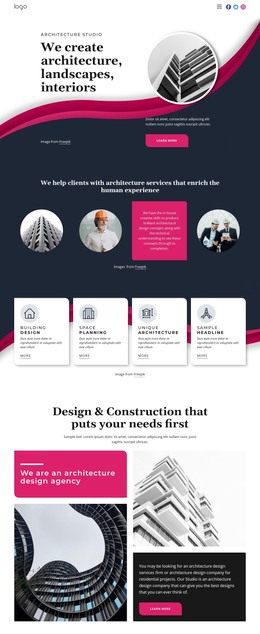
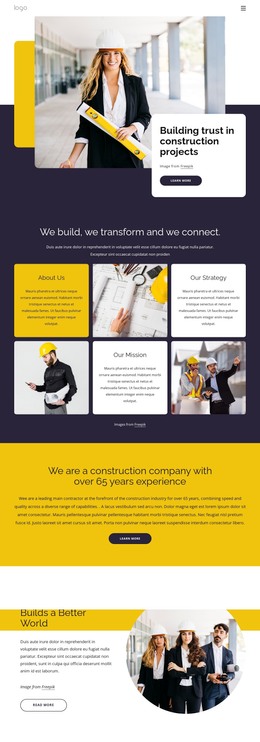
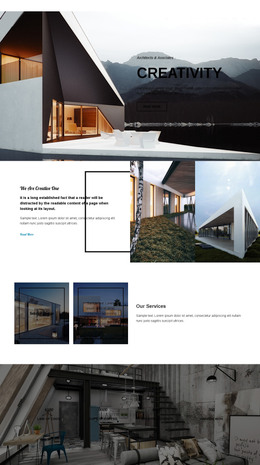
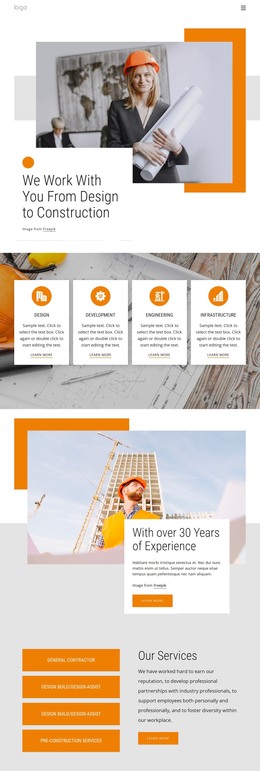
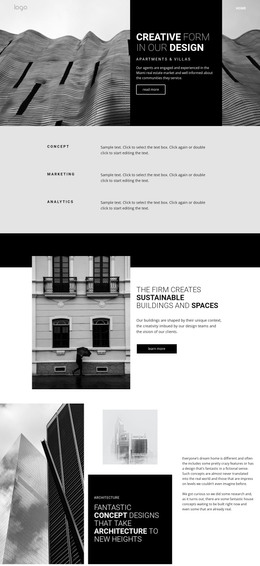
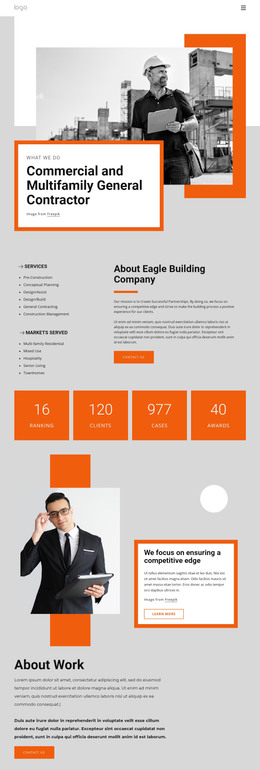
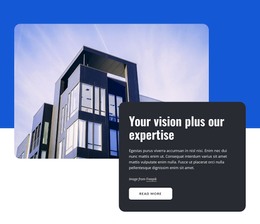
The block's content reads as a compact introduction to an architecture-focused project or agency. A construction professional's portrait occupies the left area, giving the section a human and occupational reference. Opposite it, the building image looks upward through the layout and is paired with a tall blue rectangle, creating a strong visual anchor. The center holds four vertically spaced labels: Architecture, Winners, About Agency, and Projects. Together, these labels suggest a small set of related content destinations while keeping the block itself limited to one visual section. The blue divider below them reinforces the center column, and the Freepik attribution line preserves the image credit as part of the displayed content.
In a WordPress-oriented project, the block can function as stable page content on an agency, practice, or project-related page while other CMS-managed areas handle the wider collection of information. Its labels can be linked to relevant pages or sections when the surrounding project requires that connection, but the section does not need additional controls to communicate its main structure. The three principal areas also make the content easy to distinguish: portrait, navigation cues, and architectural image. This separation supports a consistent visual section that can sit beside longer descriptions, project records, or award-related material without losing its concise editorial character.
Customize with Nicepage
Open this ready-made template in the WordPress Website Builder and customize it visually in the Nicepage editor. Replace demo content, edit page sections, and adapt the design to your project without rebuilding the template from scratch.
Edit Template Offline
2. Create a new page or select existing
3. Click Add new block, search for id 97822 and click enter
Edit Template Online
Create Awesome Websites


Free Nicepage Builder
Keywords
Manage and Edit This Theme in WordPress
Customize and Install the WordPress Theme
Start with this ready-made theme instead of building the WordPress design from scratch. Customize its layout, content, typography, images, sections, and other design elements visually in Nicepage editor, then export and install the WordPress Theme, Plugin, and Pages on your WordPress site. The Nicepage WordPress Plugin lets you continue working with the site after installation.
Edit the Theme Directly in WordPress
After installation, you can edit the WordPress Theme directly in WordPress with the Nicepage WordPress Plugin. Use Site Style to customize site Colors, Fonts, Header, Footer, Blog, and Post Page Templates while working within your WordPress website.
Edit WordPress Pages Visually
Use the Nicepage WordPress Plugin to edit page content directly from the WordPress admin area. Open a WordPress Page with Nicepage and visually change its text, images, sections, and other page elements while continuing to manage the Page through WordPress.
WordPress Content and Theme Integration
Use the customized theme with WordPress Pages, Posts, Blog and Post Templates, menus, widgets, and other CMS-managed content. Shared theme elements such as Colors, Fonts, Header, Footer, Blog, and Post Page Templates can be managed as part of the overall site design, while WordPress provides the CMS environment for managing site content.
This workflow combines a ready-made WordPress Theme with visual customization, direct theme editing in WordPress, and continued content management through the Nicepage WordPress Plugin.