Digital photography school WordPress Theme



The heading and tutorial message create stable photography page content
The block reads as a durable photography education introduction rather than a time-sensitive content feed. “Digital Photography School” names the subject directly, and the supporting paragraph frames the section around photography tips and tutorials for camera owners at different levels. In a WordPress-managed site, that makes the block suitable for stable content on a photography, learning, or resource page while the wider project handles other publishing needs around it.
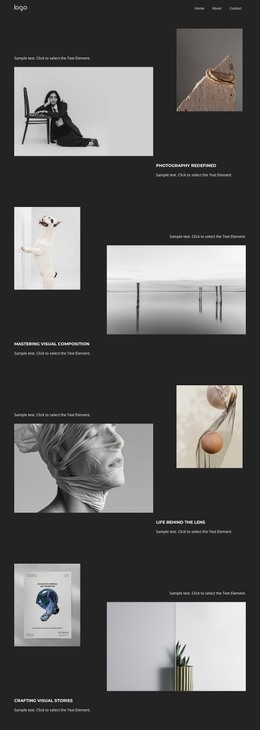
Its content relationship is reinforced by the imagery. The portrait photograph sits with the title on the left, giving the page section a human point of entry. On the right, a camera image leads into the explanatory copy, connecting the visual subject to practical camera learning. The two offset square images use yellow and pink border treatments, and the white background with black typography keeps the section recognizable as one designed content area. The attribution line supports the images without becoming a separate editorial item.
The block can therefore participate in a WordPress-oriented page as a reusable hero or introductory section, while related pages or content areas provide lessons, galleries, tutorials, and contact information. Its visual arrangement can remain consistent even as the surrounding site grows. The section supplies a clear topic and content relationship; it should be understood as page content within a broader WordPress project, not as a standalone theme or complete site.
Customize with Nicepage
Open this ready-made template in the WordPress Website Builder and customize it visually in the Nicepage editor. Replace demo content, edit page sections, and adapt the design to your project without rebuilding the template from scratch.
Edit Template Offline
2. Create a new page or select existing
3. Click Add new block, search for id 63940 and click enter
Edit Template Online
Create Awesome Websites


Free Nicepage Builder
Keywords
Manage and Edit This Theme in WordPress
Customize and Install the WordPress Theme
Start with this ready-made theme instead of building the WordPress design from scratch. Customize its layout, content, typography, images, sections, and other design elements visually in Nicepage editor, then export and install the WordPress Theme, Plugin, and Pages on your WordPress site. The Nicepage WordPress Plugin lets you continue working with the site after installation.
Edit the Theme Directly in WordPress
After installation, you can edit the WordPress Theme directly in WordPress with the Nicepage WordPress Plugin. Use Site Style to customize site Colors, Fonts, Header, Footer, Blog, and Post Page Templates while working within your WordPress website.
Edit WordPress Pages Visually
Use the Nicepage WordPress Plugin to edit page content directly from the WordPress admin area. Open a WordPress Page with Nicepage and visually change its text, images, sections, and other page elements while continuing to manage the Page through WordPress.
WordPress Content and Theme Integration
Use the customized theme with WordPress Pages, Posts, Blog and Post Templates, menus, widgets, and other CMS-managed content. Shared theme elements such as Colors, Fonts, Header, Footer, Blog, and Post Page Templates can be managed as part of the overall site design, while WordPress provides the CMS environment for managing site content.
This workflow combines a ready-made WordPress Theme with visual customization, direct theme editing in WordPress, and continued content management through the Nicepage WordPress Plugin.