Innovate. Transform. Succeed WordPress Theme


A Stable Feature Matrix for WordPress Page Content
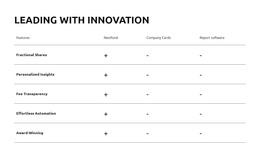
The heading and comparison table read as stable page content rather than a time-sensitive editorial feed. “Leading with Innovation” introduces a focused information area, and the four-column structure keeps the comparison self-contained: Features identifies the subject, while Nestfund, Company Cards, and Report software provide the three named comparison positions. The five rows—Fractional Shares, Personalized Insights, Fee Transparency, Effortless Automation, and Award-Winning—give the section a defined set of topics that can sit on a services, offering, or explanatory page.
The repeated results make the content easy to scan in a WordPress-managed layout. Nestfund receives a plus for every listed feature, whereas Company Cards and Report software receive minuses in every row. That consistent pattern lets the table communicate its comparison logic without requiring visitors to interpret different symbols from row to row. The first-column labels carry the explanatory burden, while the centered indicators provide quick visual confirmation.
The white background, black type, thin gray rules, and generous spacing establish a contained presentation that can remain visually consistent alongside other page sections. In a WordPress-oriented project, this block can serve as a permanent comparison area while the surrounding site manages additional pages and content separately. The section supplies its own feature-based message, but it remains one reusable content region rather than a complete theme or website.
Customize with Nicepage
Open this ready-made template in the WordPress Website Builder and customize it visually in the Nicepage editor. Replace demo content, edit page sections, and adapt the design to your project without rebuilding the template from scratch.
Edit Template Offline
2. Create a new page or select existing
3. Click Add new block, search for id 6298140 and click enter
Edit Template Online
Create Awesome Websites


Free Nicepage Builder
Keywords
Manage and Edit This Theme in WordPress
Customize and Install the WordPress Theme
Start with this ready-made theme instead of building the WordPress design from scratch. Customize its layout, content, typography, images, sections, and other design elements visually in Nicepage editor, then export and install the WordPress Theme, Plugin, and Pages on your WordPress site. The Nicepage WordPress Plugin lets you continue working with the site after installation.
Edit the Theme Directly in WordPress
After installation, you can edit the WordPress Theme directly in WordPress with the Nicepage WordPress Plugin. Use Site Style to customize site Colors, Fonts, Header, Footer, Blog, and Post Page Templates while working within your WordPress website.
Edit WordPress Pages Visually
Use the Nicepage WordPress Plugin to edit page content directly from the WordPress admin area. Open a WordPress Page with Nicepage and visually change its text, images, sections, and other page elements while continuing to manage the Page through WordPress.
WordPress Content and Theme Integration
Use the customized theme with WordPress Pages, Posts, Blog and Post Templates, menus, widgets, and other CMS-managed content. Shared theme elements such as Colors, Fonts, Header, Footer, Blog, and Post Page Templates can be managed as part of the overall site design, while WordPress provides the CMS environment for managing site content.
This workflow combines a ready-made WordPress Theme with visual customization, direct theme editing in WordPress, and continued content management through the Nicepage WordPress Plugin.