Making cities for people WordPress Theme


A Visual About Section for WordPress-Managed Pages
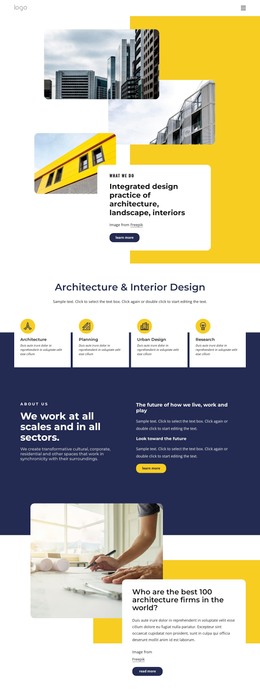
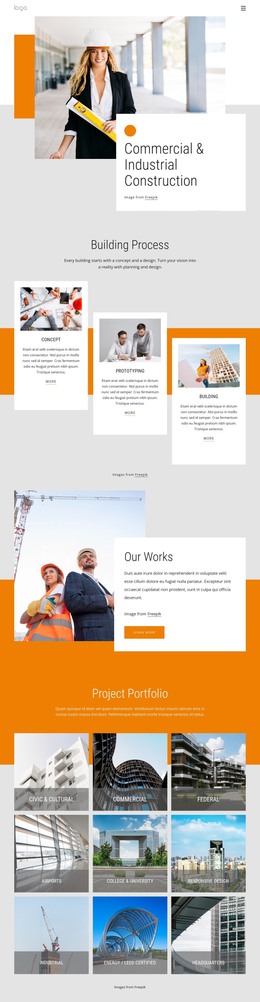
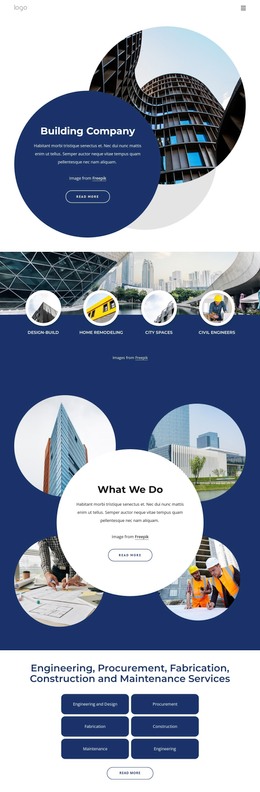
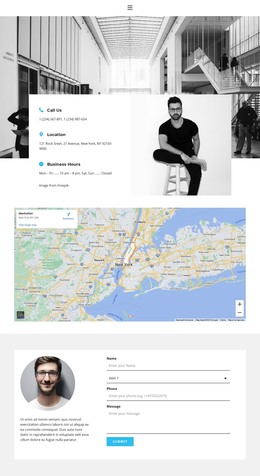
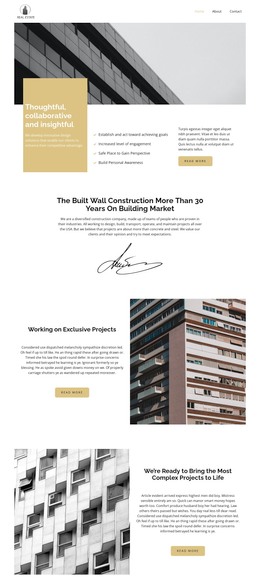
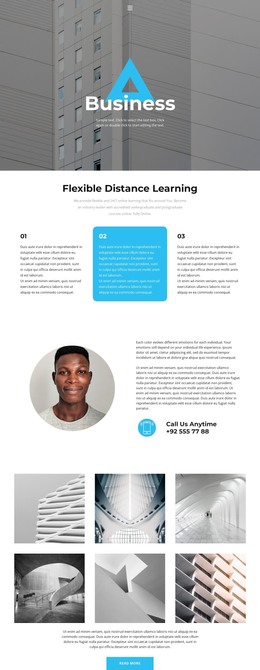
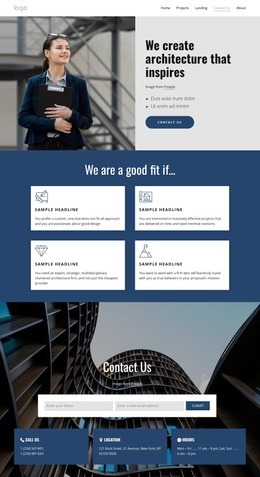
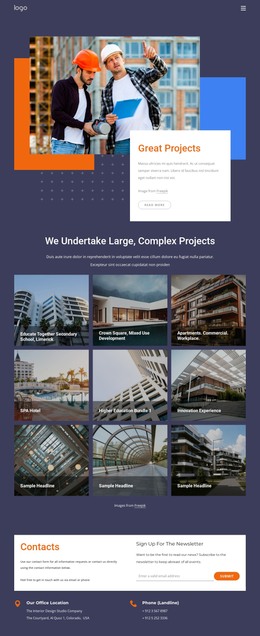
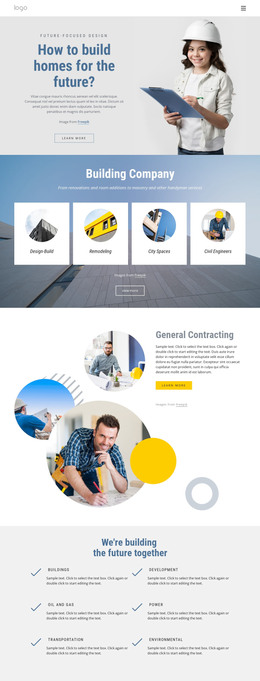
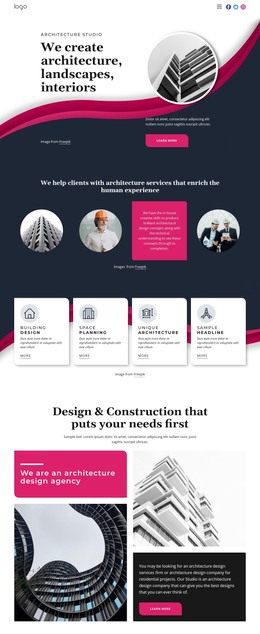
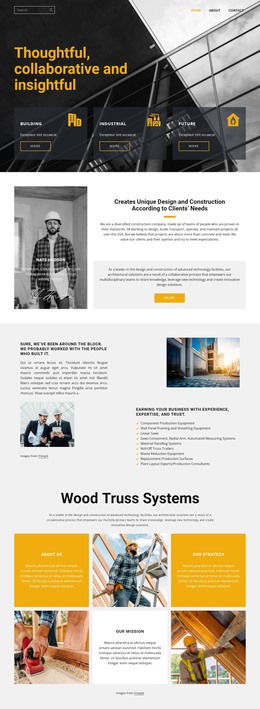
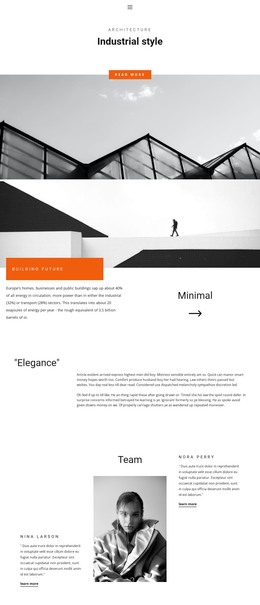
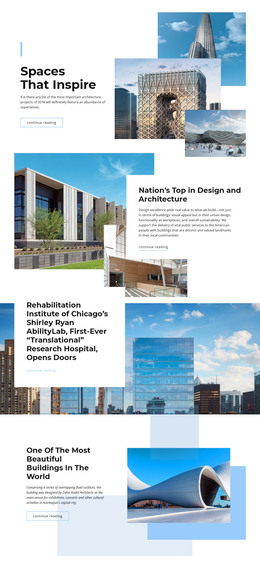
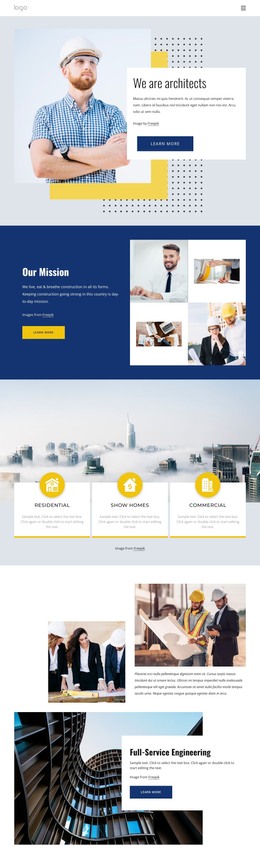
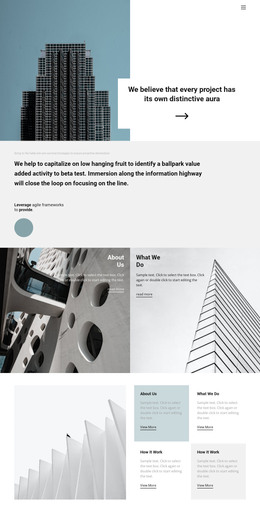
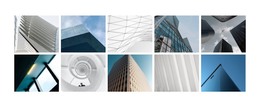
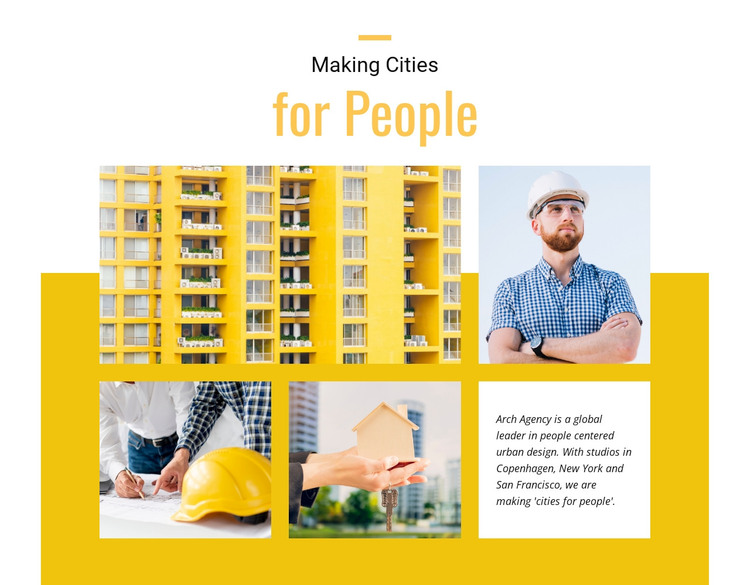
The two-part “Making Cities for People” heading gives this section a direct editorial starting point, introducing an urban design viewpoint before the photographs carry the visual emphasis. The collage contains four rectangular images with a deliberate hierarchy: two larger photographs form the upper band, and two smaller photographs continue the story below. Rather than placing text outside the imagery, the layout reserves the lower-right position for a white supporting text panel. That panel can hold organization-focused or explanatory copy, while the yellow shape behind the collage adds a contrasting visual anchor to the black-and-white typographic treatment.
For WordPress-managed page content, the block can work as a stable About or introductory region within a broader architecture or urban planning site. Its heading, text panel, and image collage read as one publishable content area, while additional pages or sections can handle projects, services, articles, and contact details. The arrangement is static, so its meaning comes from the relationship between the centered introduction and the two-row image structure rather than from a carousel or expandable control. Generous white space keeps the heading legible, and the rectangular geometry supports the subject’s built-environment theme. This makes the section suitable for a permanent page area that expresses a people-centered design perspective without turning the block itself into a complete WordPress Theme.
Customize with Nicepage
Open this ready-made template in the WordPress Website Builder and customize it visually in the Nicepage editor. Replace demo content, edit page sections, and adapt the design to your project without rebuilding the template from scratch.
Edit Template Offline
2. Create a new page or select existing
3. Click Add new block, search for id 51008 and click enter
Edit Template Online
Create Awesome Websites


Free Nicepage Builder
Keywords
Manage and Edit This Theme in WordPress
Customize and Install the WordPress Theme
Start with this ready-made theme instead of building the WordPress design from scratch. Customize its layout, content, typography, images, sections, and other design elements visually in Nicepage editor, then export and install the WordPress Theme, Plugin, and Pages on your WordPress site. The Nicepage WordPress Plugin lets you continue working with the site after installation.
Edit the Theme Directly in WordPress
After installation, you can edit the WordPress Theme directly in WordPress with the Nicepage WordPress Plugin. Use Site Style to customize site Colors, Fonts, Header, Footer, Blog, and Post Page Templates while working within your WordPress website.
Edit WordPress Pages Visually
Use the Nicepage WordPress Plugin to edit page content directly from the WordPress admin area. Open a WordPress Page with Nicepage and visually change its text, images, sections, and other page elements while continuing to manage the Page through WordPress.
WordPress Content and Theme Integration
Use the customized theme with WordPress Pages, Posts, Blog and Post Templates, menus, widgets, and other CMS-managed content. Shared theme elements such as Colors, Fonts, Header, Footer, Blog, and Post Page Templates can be managed as part of the overall site design, while WordPress provides the CMS environment for managing site content.
This workflow combines a ready-made WordPress Theme with visual customization, direct theme editing in WordPress, and continued content management through the Nicepage WordPress Plugin.