Planning analytics WordPress Theme


The Text Card Turns Planning Analytics Into Stable Page Content
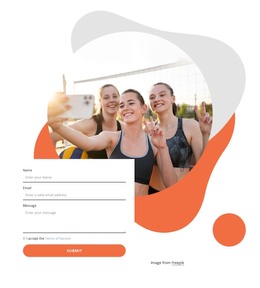
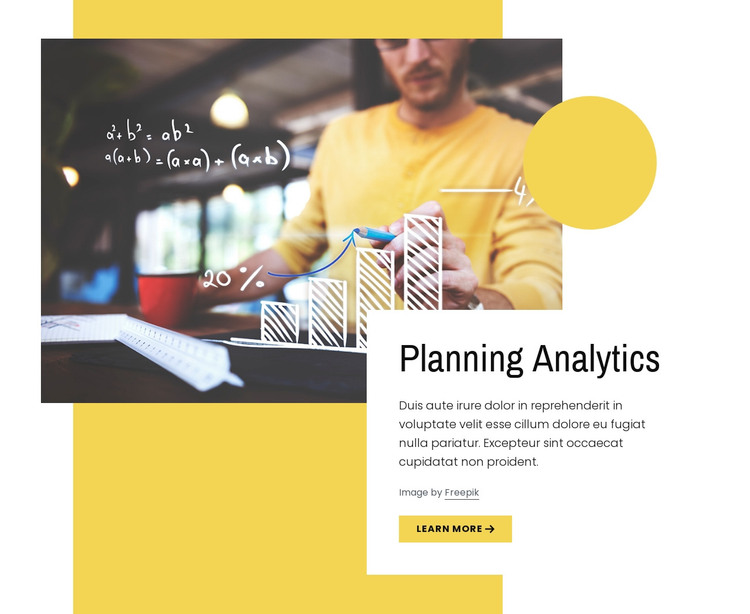
The “Planning Analytics” heading and supporting paragraph form a compact, publishable information area rather than a collection of repeated items. Their white card overlaps the lower-right of a single large photograph, creating a visual relationship in which the image introduces the topic and the card explains it. The yellow Learn more button sits inside that reading zone, giving the section a possible route to related content without making the block a complete response flow.
For a WordPress-managed page, this structure fits a stable introductory section that can remain visually consistent while the wider site grows around it. The page may add detailed analytics content, related services, articles, or contact material elsewhere, while this block continues to present the initial subject. WordPress provides the surrounding content environment; the block itself contributes the image-led presentation, text hierarchy, action, and image credit.
The yellow rectangle and circle are important to the section’s identity because they frame the overlap between the photograph and card. If the text or image is updated, those accents still help preserve the intended visual grouping. The static interaction keeps attention on the topic and action rather than on changing panels or controls. When used in a WordPress-oriented project, the image attribution should remain associated with the photograph as the section is edited or reused.
Customize with Nicepage
Open this ready-made template in the WordPress Website Builder and customize it visually in the Nicepage editor. Replace demo content, edit page sections, and adapt the design to your project without rebuilding the template from scratch.
Edit Template Offline
2. Create a new page or select existing
3. Click Add new block, search for id 498616 and click enter
Edit Template Online
Create Awesome Websites


Free Nicepage Builder
Keywords
Manage and Edit This Theme in WordPress
Customize and Install the WordPress Theme
Start with this ready-made theme instead of building the WordPress design from scratch. Customize its layout, content, typography, images, sections, and other design elements visually in Nicepage editor, then export and install the WordPress Theme, Plugin, and Pages on your WordPress site. The Nicepage WordPress Plugin lets you continue working with the site after installation.
Edit the Theme Directly in WordPress
After installation, you can edit the WordPress Theme directly in WordPress with the Nicepage WordPress Plugin. Use Site Style to customize site Colors, Fonts, Header, Footer, Blog, and Post Page Templates while working within your WordPress website.
Edit WordPress Pages Visually
Use the Nicepage WordPress Plugin to edit page content directly from the WordPress admin area. Open a WordPress Page with Nicepage and visually change its text, images, sections, and other page elements while continuing to manage the Page through WordPress.
WordPress Content and Theme Integration
Use the customized theme with WordPress Pages, Posts, Blog and Post Templates, menus, widgets, and other CMS-managed content. Shared theme elements such as Colors, Fonts, Header, Footer, Blog, and Post Page Templates can be managed as part of the overall site design, while WordPress provides the CMS environment for managing site content.
This workflow combines a ready-made WordPress Theme with visual customization, direct theme editing in WordPress, and continued content management through the Nicepage WordPress Plugin.