Home repair specialists WordPress Theme


Stable Service Content Around a Repair-Focused Image
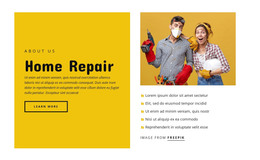
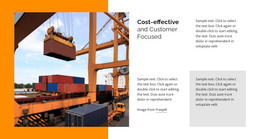
The photograph of a worker holding a toolbox makes the section’s content immediately concrete, while the right-hand panels turn that visual subject into a short introductory message. “Home repair” identifies the topic, “Accidents happen” adds a supporting emphasis, and the paragraph provides a compact space for explanatory page content. The blue “learn more” button then offers a focused route toward additional information without requiring the block to contain the entire service journey.
For WordPress-managed page content, this combination reads as a stable service section rather than a time-sensitive post layout. The block can present a consistent home-repair introduction while surrounding page content supplies detailed offerings, project information, testimonials, or contact material. The underlying arrangement remains static: the worker image stays on the left and the stacked text panels remain on the right as one visual/content unit.
Yellow, gray, and white overlapping rectangles give the section a stronger identity than a plain two-column arrangement. The bright field sets off the muted image, while the serif heading and sans-serif supporting text separate the main topic from its explanation. In a WordPress-oriented project, those relationships can remain the visual pattern for a permanent page section, with the broader site managing other content around it.
Customize with Nicepage
Open this ready-made template in the WordPress Website Builder and customize it visually in the Nicepage editor. Replace demo content, edit page sections, and adapt the design to your project without rebuilding the template from scratch.
Edit Template Offline
2. Create a new page or select existing
3. Click Add new block, search for id 210651 and click enter
Edit Template Online
Create Awesome Websites


Free Nicepage Builder
Keywords
Manage and Edit This Theme in WordPress
Customize and Install the WordPress Theme
Start with this ready-made theme instead of building the WordPress design from scratch. Customize its layout, content, typography, images, sections, and other design elements visually in Nicepage editor, then export and install the WordPress Theme, Plugin, and Pages on your WordPress site. The Nicepage WordPress Plugin lets you continue working with the site after installation.
Edit the Theme Directly in WordPress
After installation, you can edit the WordPress Theme directly in WordPress with the Nicepage WordPress Plugin. Use Site Style to customize site Colors, Fonts, Header, Footer, Blog, and Post Page Templates while working within your WordPress website.
Edit WordPress Pages Visually
Use the Nicepage WordPress Plugin to edit page content directly from the WordPress admin area. Open a WordPress Page with Nicepage and visually change its text, images, sections, and other page elements while continuing to manage the Page through WordPress.
WordPress Content and Theme Integration
Use the customized theme with WordPress Pages, Posts, Blog and Post Templates, menus, widgets, and other CMS-managed content. Shared theme elements such as Colors, Fonts, Header, Footer, Blog, and Post Page Templates can be managed as part of the overall site design, while WordPress provides the CMS environment for managing site content.
This workflow combines a ready-made WordPress Theme with visual customization, direct theme editing in WordPress, and continued content management through the Nicepage WordPress Plugin.