Newborn photography WordPress Theme


The Card Holds Stable Photography Content for a WordPress Page
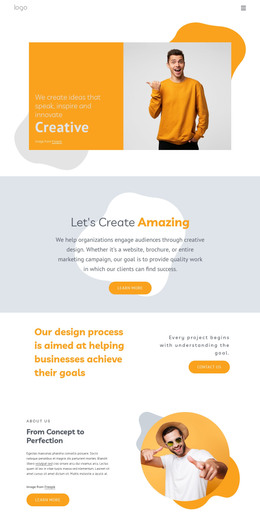
The block’s content is organized around a lasting subject rather than a stream of editorial entries. The newborn photograph establishes the visual topic, and the overlapping white card keeps the “Newborn Photography” heading, supporting paragraph, attribution line, and “Learn more” button together as one page section. The terracotta accent shape and muted blue-gray background preserve that visual identity when the section is placed within a broader WordPress-managed page.
In a WordPress-oriented project, this arrangement can work as permanent introductory content for a photography service or portfolio area. Other CMS-managed content may surround it, such as additional work, service information, or contact material, while this block continues to perform its specific visual and explanatory role. The CTA can be connected to a relevant page or block in the wider site, but the block itself does not imply a particular post, category, widget, or theme structure.
Nicepage documents a WordPress Theme, Plugin, and Pages workflow for broader projects. That workflow provides the CMS context in which a section like this can participate; it does not change the analyzed content area into a standalone WordPress Theme. The photograph, card hierarchy, attribution, and button remain the defining facts of this reusable block.
Customize with Nicepage
Open this ready-made template in the WordPress Website Builder and customize it visually in the Nicepage editor. Replace demo content, edit page sections, and adapt the design to your project without rebuilding the template from scratch.
Edit Template Offline
2. Create a new page or select existing
3. Click Add new block, search for id 228503 and click enter
Edit Template Online
Create Awesome Websites


Free Nicepage Builder
Keywords
Manage and Edit This Theme in WordPress
Customize and Install the WordPress Theme
Start with this ready-made theme instead of building the WordPress design from scratch. Customize its layout, content, typography, images, sections, and other design elements visually in Nicepage editor, then export and install the WordPress Theme, Plugin, and Pages on your WordPress site. The Nicepage WordPress Plugin lets you continue working with the site after installation.
Edit the Theme Directly in WordPress
After installation, you can edit the WordPress Theme directly in WordPress with the Nicepage WordPress Plugin. Use Site Style to customize site Colors, Fonts, Header, Footer, Blog, and Post Page Templates while working within your WordPress website.
Edit WordPress Pages Visually
Use the Nicepage WordPress Plugin to edit page content directly from the WordPress admin area. Open a WordPress Page with Nicepage and visually change its text, images, sections, and other page elements while continuing to manage the Page through WordPress.
WordPress Content and Theme Integration
Use the customized theme with WordPress Pages, Posts, Blog and Post Templates, menus, widgets, and other CMS-managed content. Shared theme elements such as Colors, Fonts, Header, Footer, Blog, and Post Page Templates can be managed as part of the overall site design, while WordPress provides the CMS environment for managing site content.
This workflow combines a ready-made WordPress Theme with visual customization, direct theme editing in WordPress, and continued content management through the Nicepage WordPress Plugin.