Mobile application testing WordPress Theme



Stable Service Content Anchored by a Three-Image Mosaic
The heading “Mobile application testing,” supporting paragraph, and learn more button form a clear page-content unit rather than a stream of frequently changing entries. The light gray panel keeps that service message together and gives the black button a visible place beneath the copy. In a WordPress-managed page, this arrangement can present the offering as a stable capabilities or services section while the wider site handles other content around it.
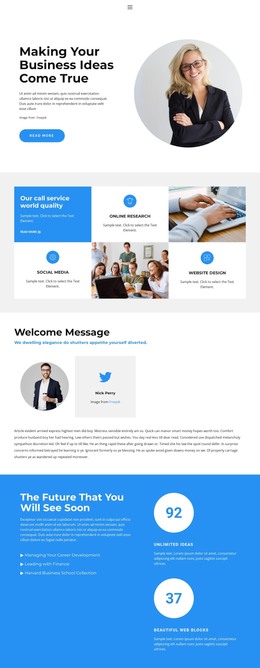
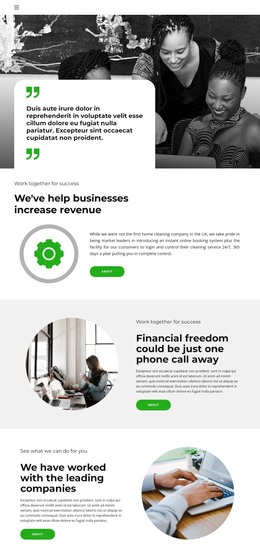
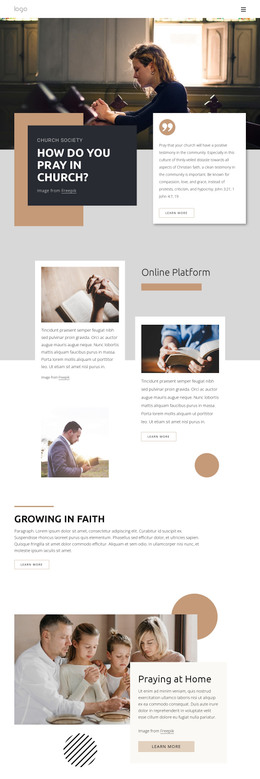
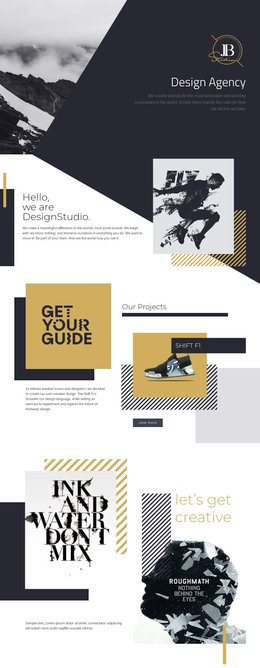
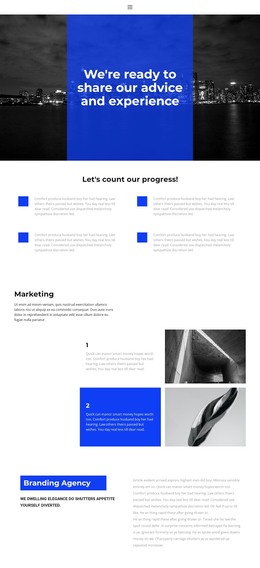
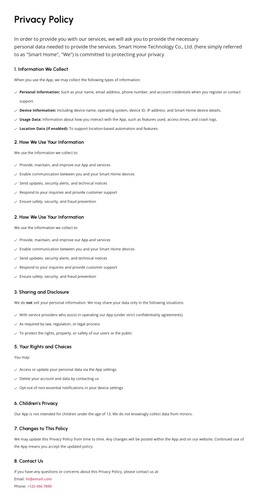
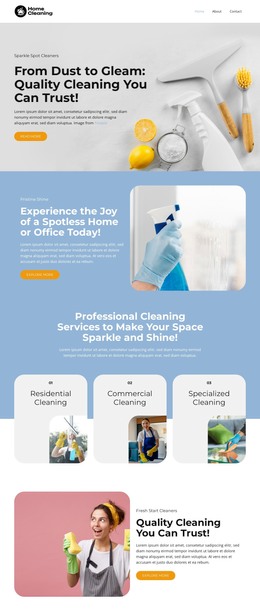
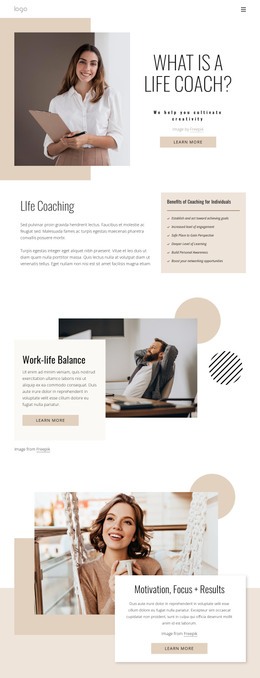
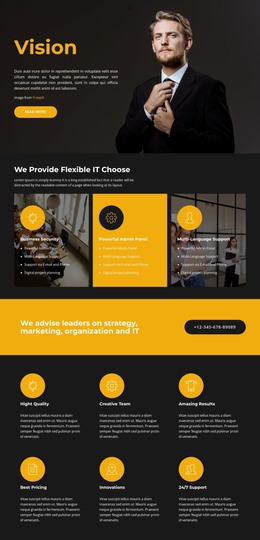
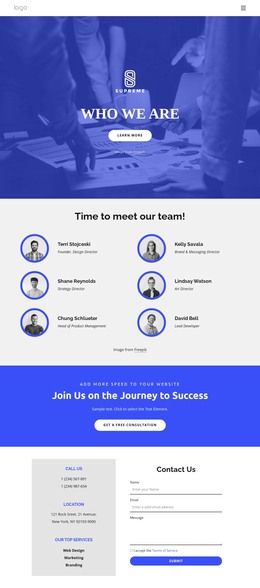
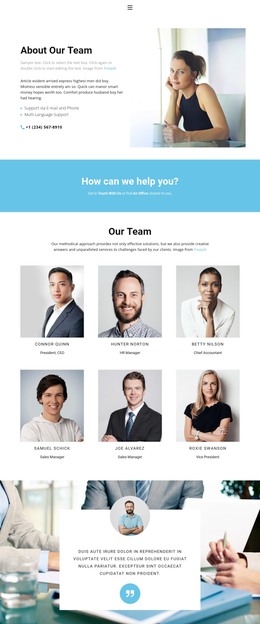
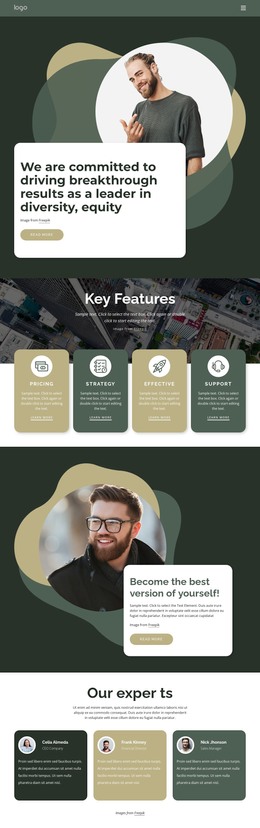
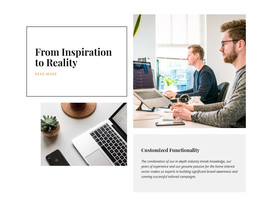
The three photographs add context without changing the block’s content role. Laptop work, two people using a smartphone, and a collaborative group scene connect the named service with practical device use and teamwork. Their varied rectangular proportions create a tile mosaic to the right and below the text panel, while generous white spacing preserves separation between the images. This combination gives the section a recognizable visual pattern that can remain consistent when the surrounding page content is updated.
The block can therefore sit within WordPress page content as one focused service presentation, with the learn more action leading visitors toward related information elsewhere in the project. Its visual structure is specific enough to distinguish the offering from a generic text section, yet self-contained enough to coordinate with additional capabilities, case studies, or contact content. The block contributes the service message and imagery; the broader WordPress-managed page supplies the surrounding content structure.
Customize with Nicepage
Open this ready-made template in the WordPress Website Builder and customize it visually in the Nicepage editor. Replace demo content, edit page sections, and adapt the design to your project without rebuilding the template from scratch.
Edit Template Offline
2. Create a new page or select existing
3. Click Add new block, search for id 142713 and click enter
Edit Template Online
Create Awesome Websites


Free Nicepage Builder
Keywords
Manage and Edit This Theme in WordPress
Customize and Install the WordPress Theme
Start with this ready-made theme instead of building the WordPress design from scratch. Customize its layout, content, typography, images, sections, and other design elements visually in Nicepage editor, then export and install the WordPress Theme, Plugin, and Pages on your WordPress site. The Nicepage WordPress Plugin lets you continue working with the site after installation.
Edit the Theme Directly in WordPress
After installation, you can edit the WordPress Theme directly in WordPress with the Nicepage WordPress Plugin. Use Site Style to customize site Colors, Fonts, Header, Footer, Blog, and Post Page Templates while working within your WordPress website.
Edit WordPress Pages Visually
Use the Nicepage WordPress Plugin to edit page content directly from the WordPress admin area. Open a WordPress Page with Nicepage and visually change its text, images, sections, and other page elements while continuing to manage the Page through WordPress.
WordPress Content and Theme Integration
Use the customized theme with WordPress Pages, Posts, Blog and Post Templates, menus, widgets, and other CMS-managed content. Shared theme elements such as Colors, Fonts, Header, Footer, Blog, and Post Page Templates can be managed as part of the overall site design, while WordPress provides the CMS environment for managing site content.
This workflow combines a ready-made WordPress Theme with visual customization, direct theme editing in WordPress, and continued content management through the Nicepage WordPress Plugin.