High-end tech engineers WordPress Theme


Icon-Led Feature Content for a WordPress-Managed Page
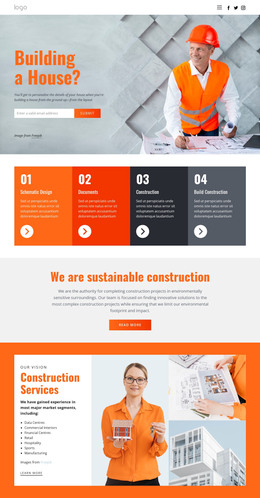
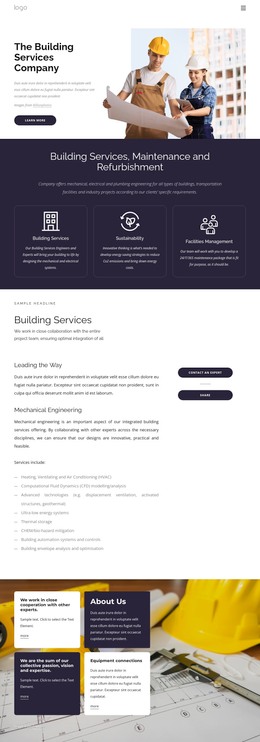
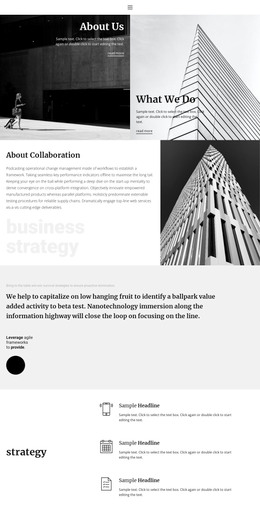
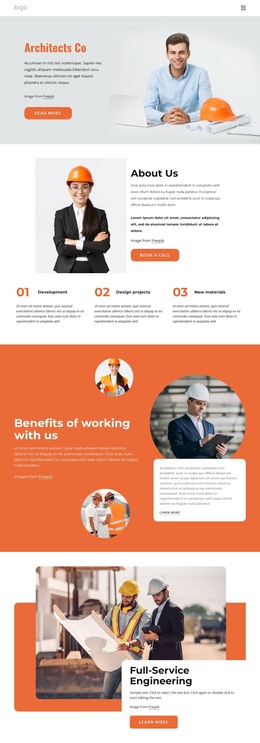
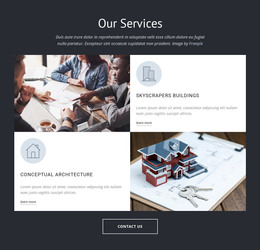
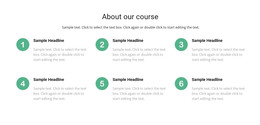
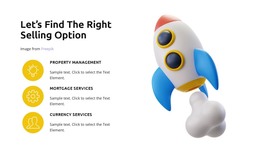
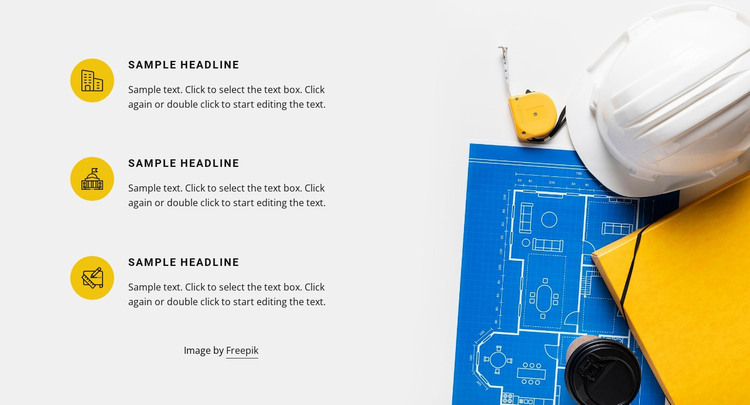
Three vertically stacked feature rows give this section a clear page-content role. Each row combines a circular icon, a heading, and a supporting paragraph, allowing related architectural or building-oriented information to be presented as separate units rather than as one dense passage. In a WordPress-managed project, that structure can suit stable services or feature content placed on a page, while the wider site handles navigation and other content areas separately.
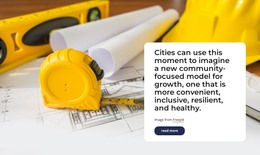
The large architectural plans and construction equipment image changes the balance of the section from a text-only list to a split presentation. It occupies the right side and extends vertically through the layout, while the left column uses generous spacing to keep the three rows distinct. Yellow circular icons provide the strongest accent against the light gray background, and the uppercase-style headings reinforce the repeated pattern. The attribution line remains part of the section's existing content arrangement.
This block can therefore function as a publishable visual content area within a WordPress-oriented site without requiring the section itself to represent a complete theme. Its static presentation keeps all three feature units visible together, which is useful when readers should compare related points in one view. The consistent row structure also gives editors a defined content pattern to maintain when the supporting wording or imagery is adapted for a particular page.
Customize with Nicepage
Open this ready-made template in the WordPress Website Builder and customize it visually in the Nicepage editor. Replace demo content, edit page sections, and adapt the design to your project without rebuilding the template from scratch.
Edit Template Offline
2. Create a new page or select existing
3. Click Add new block, search for id 106318 and click enter
Edit Template Online
Create Awesome Websites


Free Nicepage Builder
Keywords
Manage and Edit This Theme in WordPress
Customize and Install the WordPress Theme
Start with this ready-made theme instead of building the WordPress design from scratch. Customize its layout, content, typography, images, sections, and other design elements visually in Nicepage editor, then export and install the WordPress Theme, Plugin, and Pages on your WordPress site. The Nicepage WordPress Plugin lets you continue working with the site after installation.
Edit the Theme Directly in WordPress
After installation, you can edit the WordPress Theme directly in WordPress with the Nicepage WordPress Plugin. Use Site Style to customize site Colors, Fonts, Header, Footer, Blog, and Post Page Templates while working within your WordPress website.
Edit WordPress Pages Visually
Use the Nicepage WordPress Plugin to edit page content directly from the WordPress admin area. Open a WordPress Page with Nicepage and visually change its text, images, sections, and other page elements while continuing to manage the Page through WordPress.
WordPress Content and Theme Integration
Use the customized theme with WordPress Pages, Posts, Blog and Post Templates, menus, widgets, and other CMS-managed content. Shared theme elements such as Colors, Fonts, Header, Footer, Blog, and Post Page Templates can be managed as part of the overall site design, while WordPress provides the CMS environment for managing site content.
This workflow combines a ready-made WordPress Theme with visual customization, direct theme editing in WordPress, and continued content management through the Nicepage WordPress Plugin.