Nutritionist consultation Template


Edit Template Offline
2. Create new page and search for id 6323866
Edit Template Online
Create Awesome Websites


Free Nicepage Builder
Keywords
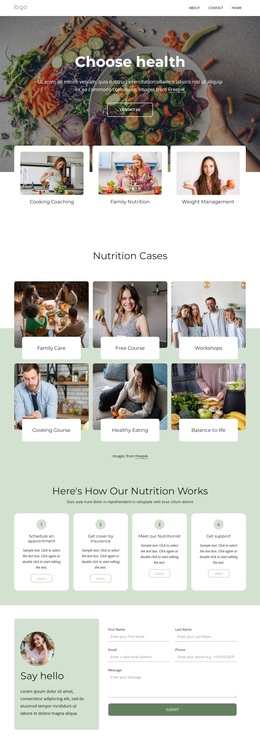
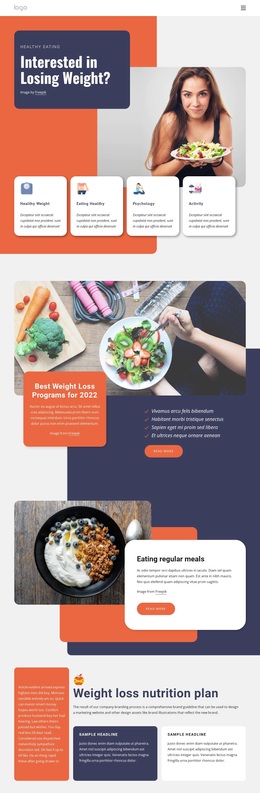
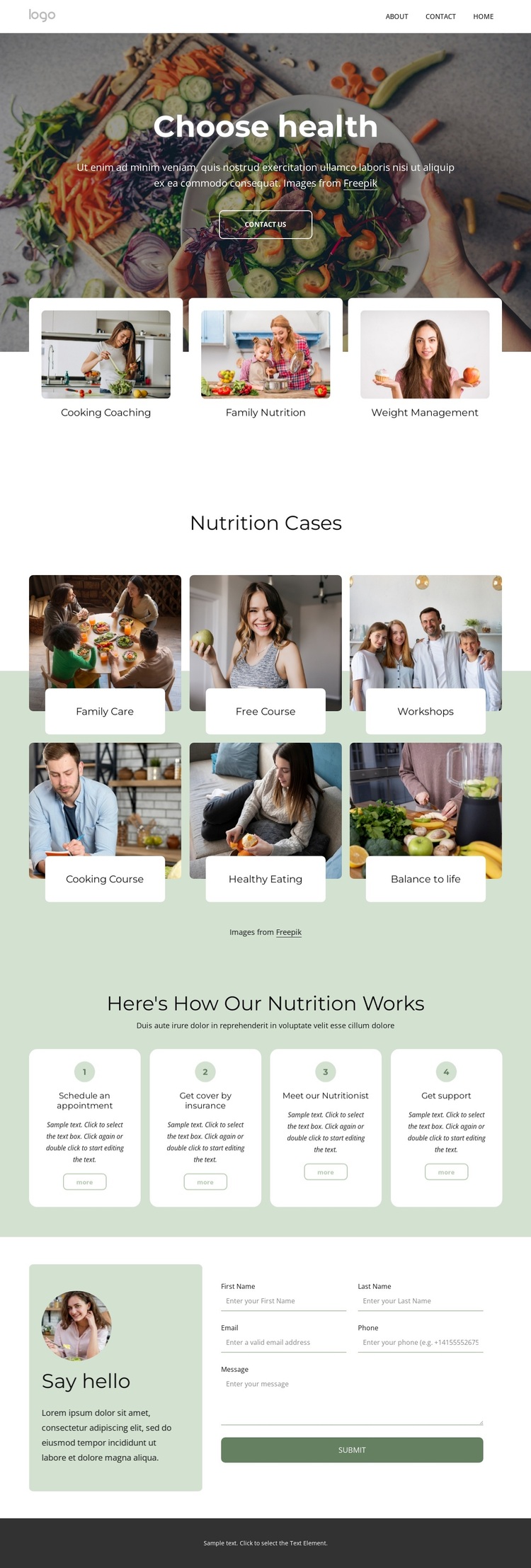
Green accents connect offerings, cases, and healthy-living content
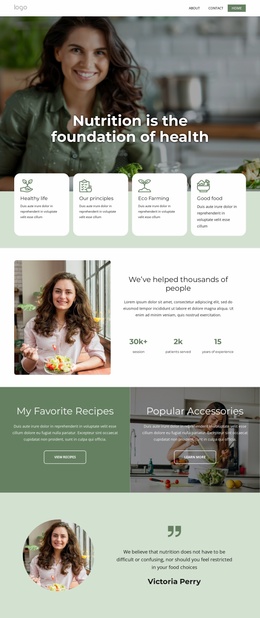
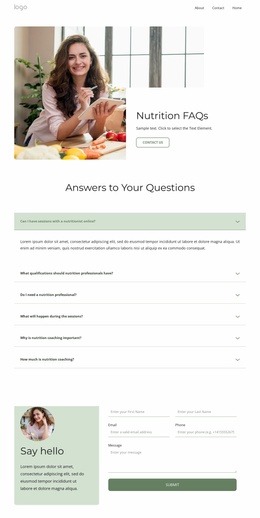
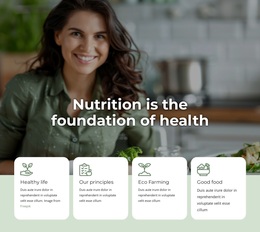
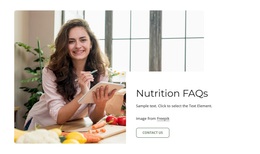
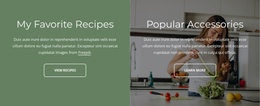
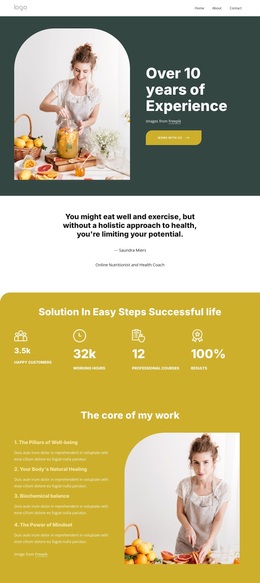
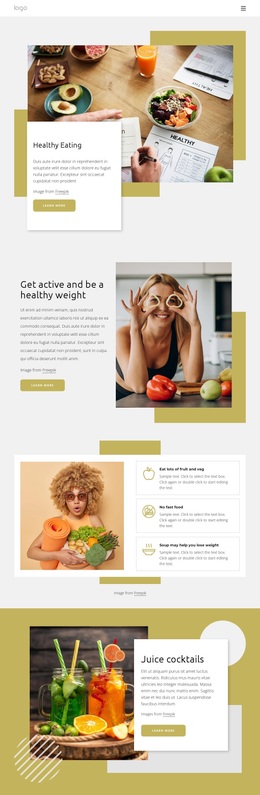
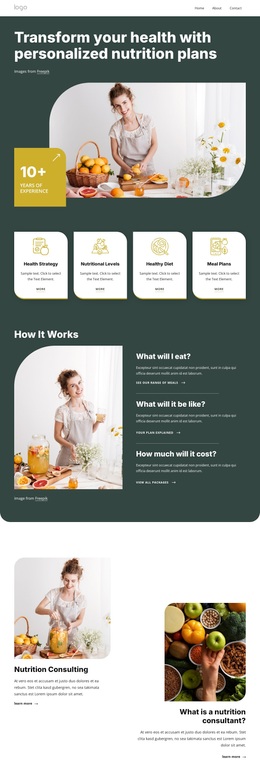
The design is a useful choice for nutrition projects because it combines several forms of content without losing a clear subject focus. Its green accents, white content areas, rounded cards, and food photography immediately support a health and wellness direction, while the “Choose health” hero gives the page a recognizable opening. Three overlapping cards then make the main offering easier to compare: Cooking Coaching, Family Nutrition, and Weight Management appear as distinct entry points rather than being buried in paragraph text.
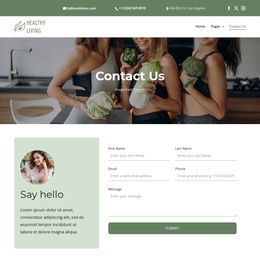
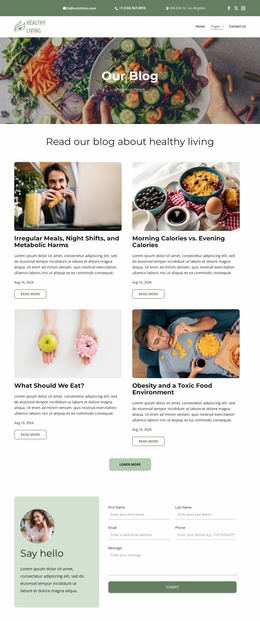
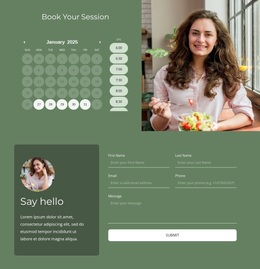
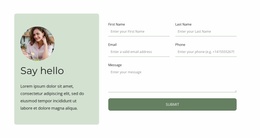
The six-card Nutrition Cases gallery adds breadth through labels such as Family Care, Workshops, Cooking Course, Healthy Eating, and Balance to life. This makes the page suitable for a practice that wants to show several areas of guidance or educational activity in one visual section. The four numbered process cards add practical orientation by explaining appointment scheduling, insurance coverage, meeting the nutritionist, and receiving support. A contact inquiry form and a separate subscription form extend that content into participation, while social links and footer navigation support continued contact. Compared with a layout built around only one service or a dense article, this option offers a balanced starting point for presenting nutrition programs, case categories, support steps, and response opportunities together.
Customize with Nicepage
Open this ready-made template in the Template Builder and customize it visually in the Nicepage editor. Replace demo content, edit page sections, and adapt the design to your project without rebuilding the template from scratch.
Start With a Ready-Made Template
Choose a Design for a New Page
Use a ready-made template as a starting point instead of creating every page from a blank canvas. When adding a new page in Nicepage, browse available designs, compare different layouts, and choose an option that already fits the general purpose and visual direction of your project.
Browse Different Page Designs
Explore Page Designs using search, thematic categories, Design Sets, and full-page previews. The collection includes layouts for different subjects and page purposes, making it easier to compare alternatives before selecting a design to customize.
Customize the Selected Template
After choosing a design, create the page and continue editing it visually in Nicepage. Replace the demo content, adjust images, typography, colors, sections, and other elements, and adapt the ready-made layout to your own content instead of rebuilding the design from the beginning.
Explore More Design Directions
If the first option does not match your project closely enough, return to the design collection and compare other templates before committing to a layout. This makes the template library useful not only for faster page creation, but also for exploring different visual approaches and finding a suitable starting point for a new project.
This workflow gives you access to a broad collection of ready-made designs that can be selected, compared, and customized according to the needs of each new page or project.