Bowl menu Template


Edit Template Offline
2. Create new page and search for id 6083111
Edit Template Online
Create Awesome Websites


Free Nicepage Builder
Keywords
A Menu-Led Choice for Food Presentation and Subscriber Contact
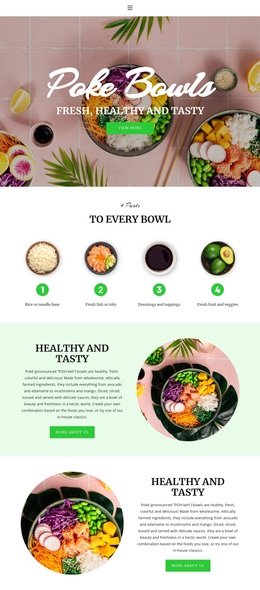
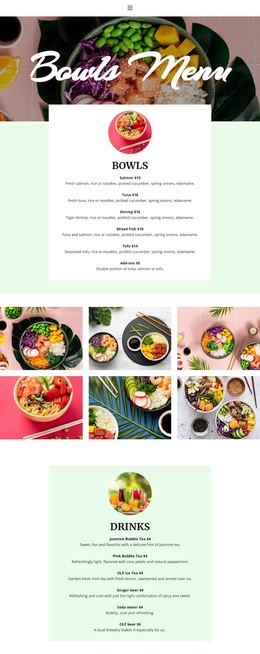
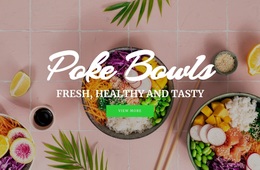
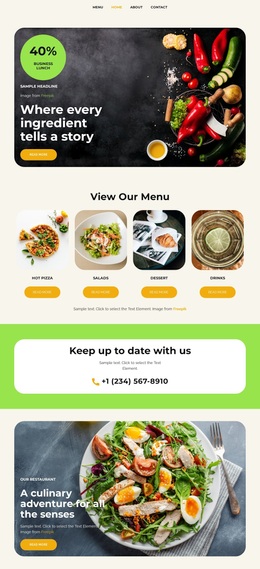
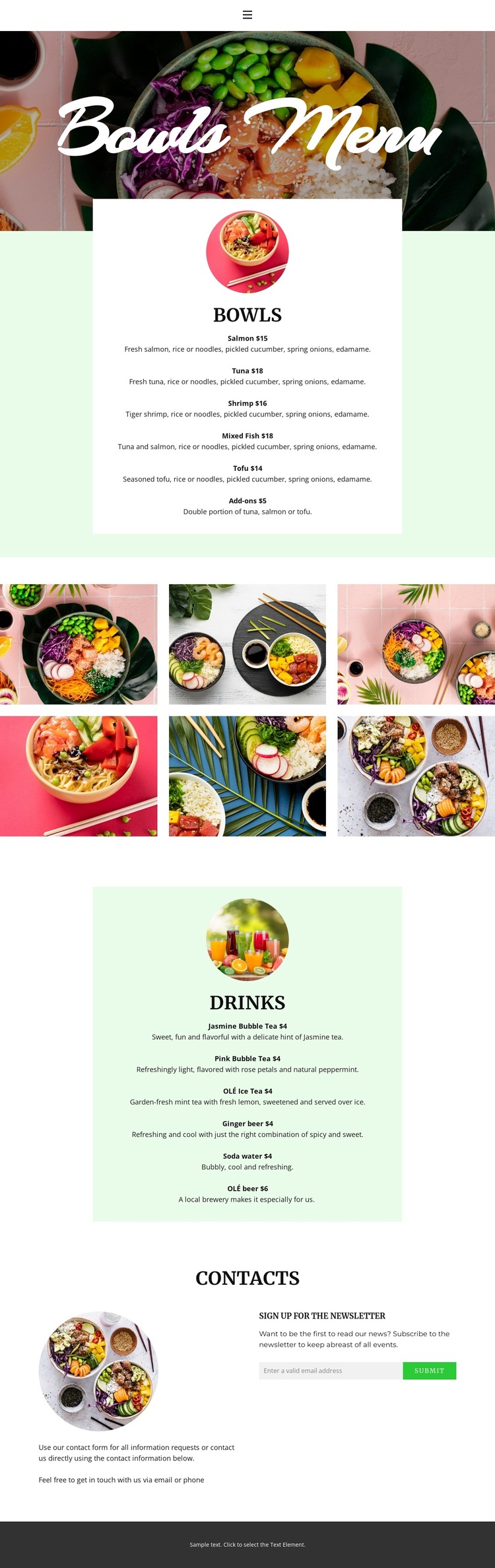
The page’s strongest distinguishing feature is the way it combines practical menu content with repeated food imagery. The full-width hero immediately frames the design around a restaurant offer, while the centered bowls card gives that offer specific substance through salmon, tuna, shrimp, mixed fish, tofu, and add-ons. This balance suits projects that want visitors to see the food context first and then review a readable set of choices rather than begin with a dense business introduction.
The six-image gallery reinforces the visual direction and separates the bowl category from the drink category. It gives the design a place for appetite-led imagery without replacing the menu information. The pale-green drinks card then adds a contrasting content area for bubble tea, iced tea, ginger beer, soda water, and beer. Repeating the image-above-list arrangement across the two cards creates familiarity, while the different background treatment helps each category retain its own emphasis.
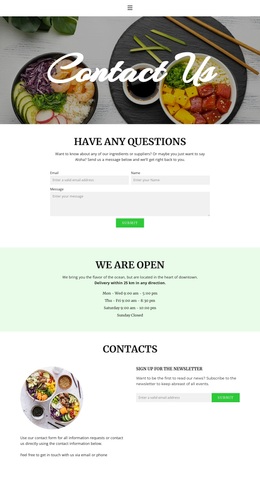
The closing contact area makes the design more useful than a menu display alone. Its explanatory text and newsletter signup provide a clear way to continue communication after visitors have reviewed the food and drink categories. This combination makes Bowl menu a practical option for restaurant projects that need visual storytelling, organized offerings, and a lightweight subscription interaction within the same focused page.
Customize with Nicepage
Open this ready-made template in the Template Builder and customize it visually in the Nicepage editor. Replace demo content, edit page sections, and adapt the design to your project without rebuilding the template from scratch.
Start With a Ready-Made Template
Choose a Design for a New Page
Use a ready-made template as a starting point instead of creating every page from a blank canvas. When adding a new page in Nicepage, browse available designs, compare different layouts, and choose an option that already fits the general purpose and visual direction of your project.
Browse Different Page Designs
Explore Page Designs using search, thematic categories, Design Sets, and full-page previews. The collection includes layouts for different subjects and page purposes, making it easier to compare alternatives before selecting a design to customize.
Customize the Selected Template
After choosing a design, create the page and continue editing it visually in Nicepage. Replace the demo content, adjust images, typography, colors, sections, and other elements, and adapt the ready-made layout to your own content instead of rebuilding the design from the beginning.
Explore More Design Directions
If the first option does not match your project closely enough, return to the design collection and compare other templates before committing to a layout. This makes the template library useful not only for faster page creation, but also for exploring different visual approaches and finding a suitable starting point for a new project.
This workflow gives you access to a broad collection of ready-made designs that can be selected, compared, and customized according to the needs of each new page or project.