About our founder Template


Edit Template Offline
2. Create new page and search for id 6083110
Edit Template Online
Create Awesome Websites


Free Nicepage Builder
Keywords
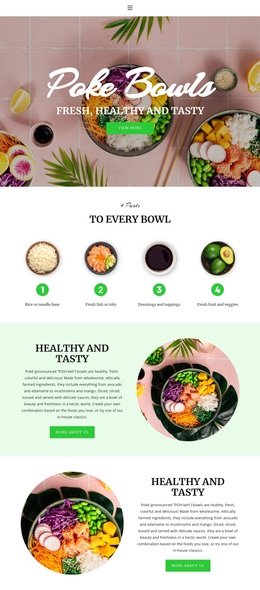
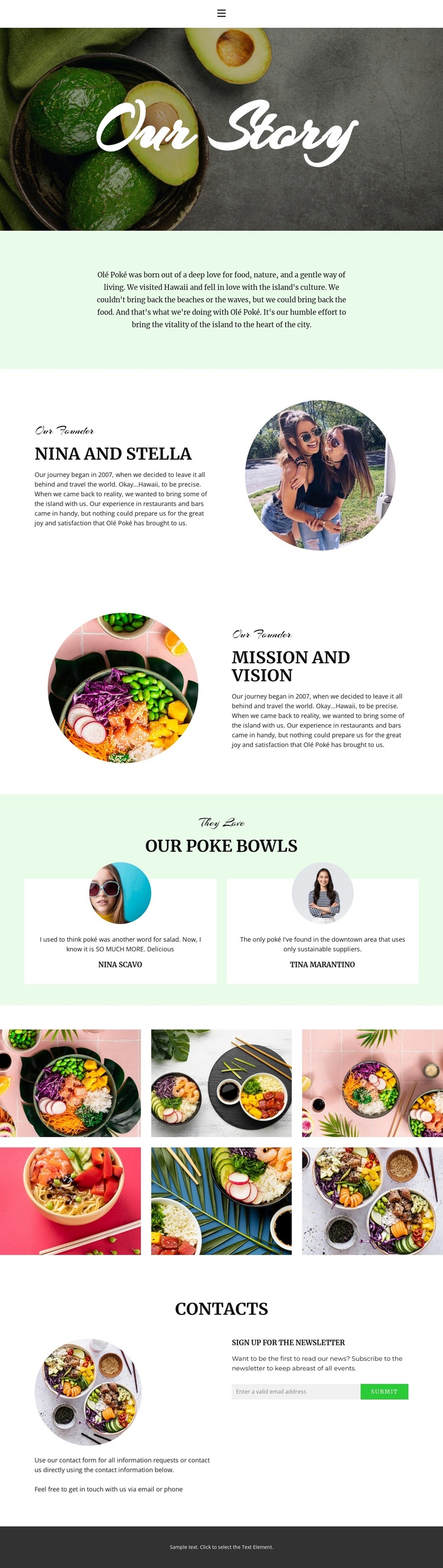
Food Imagery and Founder Story Give This Design a Clear Point of View
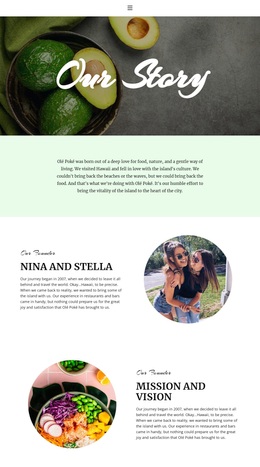
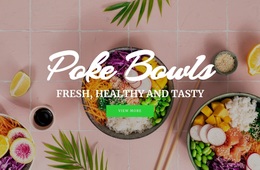
Large food photography carries the first message, while the handwritten Our Story title makes the opening feel personal rather than like a generic restaurant menu page. The centered origin statement adds a specific Hawaiian-inspired context, giving the visual material a brand story to support. These elements make the design a useful choice for a restaurant that needs to explain where its food identity comes from as well as show what it serves.
The founder and mission-and-vision panels extend that point of view through a human narrative. Nina and Stella appear as named founders beside a circular portrait, and the reversed second split section connects a circular food image with the brand’s values. Two testimonial cards then add customer perspective, so the page balances internal story with visible feedback instead of relying only on promotional claims.
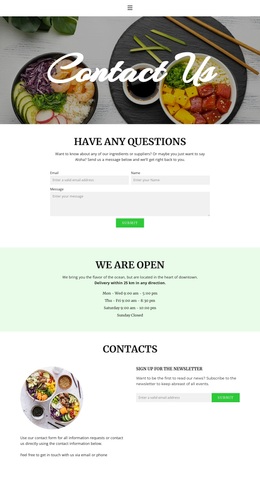
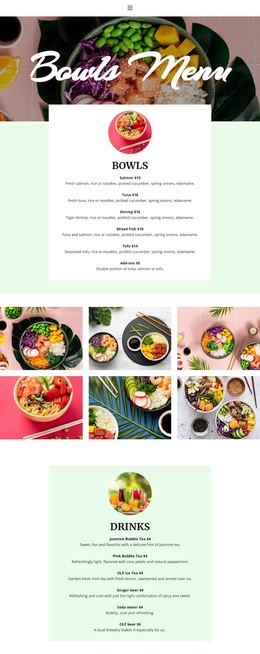
The six-image gallery is another reason to choose this layout: it gives food photography a substantial, repeated role rather than treating images as isolated decoration. The closing contact area adds a newsletter subscription form, making room for continued communication after the visitor has explored the story. Together, the founder focus, Hawaiian inspiration, testimonial proof, gallery emphasis, and signup content suit projects that want a warm narrative around a food brand rather than a purely transactional presentation.
Customize with Nicepage
Open this ready-made template in the Template Builder and customize it visually in the Nicepage editor. Replace demo content, edit page sections, and adapt the design to your project without rebuilding the template from scratch.
Start With a Ready-Made Template
Choose a Design for a New Page
Use a ready-made template as a starting point instead of creating every page from a blank canvas. When adding a new page in Nicepage, browse available designs, compare different layouts, and choose an option that already fits the general purpose and visual direction of your project.
Browse Different Page Designs
Explore Page Designs using search, thematic categories, Design Sets, and full-page previews. The collection includes layouts for different subjects and page purposes, making it easier to compare alternatives before selecting a design to customize.
Customize the Selected Template
After choosing a design, create the page and continue editing it visually in Nicepage. Replace the demo content, adjust images, typography, colors, sections, and other elements, and adapt the ready-made layout to your own content instead of rebuilding the design from the beginning.
Explore More Design Directions
If the first option does not match your project closely enough, return to the design collection and compare other templates before committing to a layout. This makes the template library useful not only for faster page creation, but also for exploring different visual approaches and finding a suitable starting point for a new project.
This workflow gives you access to a broad collection of ready-made designs that can be selected, compared, and customized according to the needs of each new page or project.