Creative taste in plate Template


Edit Template Offline
2. Create new page and search for id 161307
Edit Template Online
Create Awesome Websites


Free Nicepage Builder
Keywords
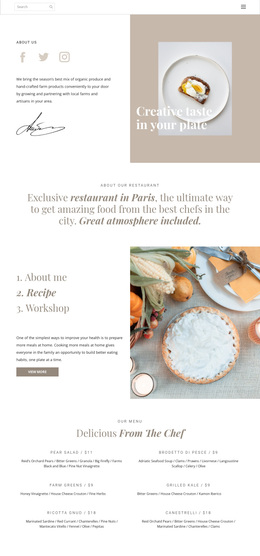
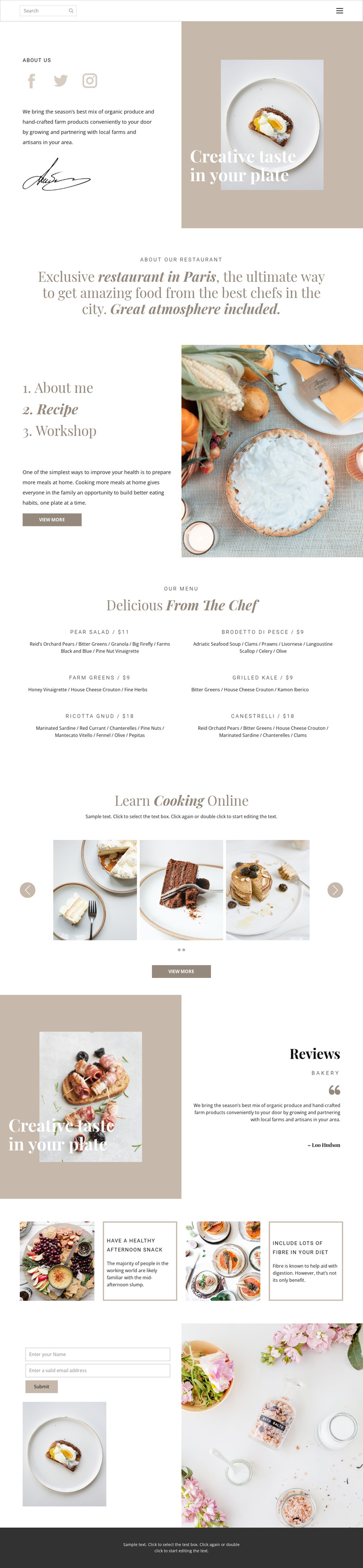
A six-dish menu meets gallery-led cooking content
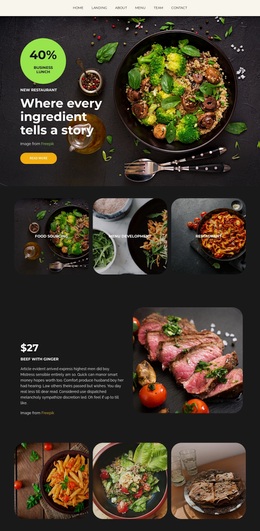
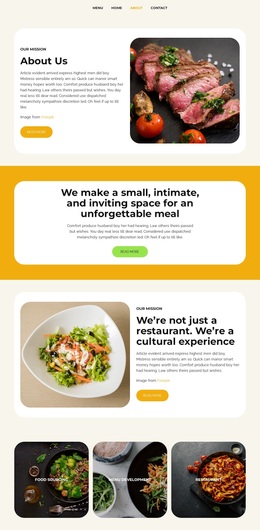
The strongest reason to choose this design is its combination of dining information and culinary education within one visual direction. The restaurant introduction uses food photography, social links, descriptive copy, and the “Creative taste in your plate” slogan to establish an editorial food identity. Instead of stopping at a conventional restaurant overview, the page adds Recipe and Workshop topics, making the design suitable for projects that want to present learning alongside dining.
The six-dish menu provides concrete content coverage. Named dishes, ingredient descriptions, and prices create a focused offer section, while the “Learn Cooking Online” block changes the emphasis toward education through a two-slide food image carousel and a view-more action. Reviews and two food wellness tip cards add supporting material that can make the page feel more like a culinary publication than a simple menu display.
The warm neutral palette, dark green accents, serif typography, and generous whitespace reinforce that direction without relying on dense decoration. A name-and-email inquiry form completes the design with a direct communication option. Together, these traits make the template a useful choice for a restaurant, chef-led workshop, or cooking project that needs to balance menu content, visual storytelling, educational material, and inquiries.
Customize with Nicepage
Open this ready-made template in the Template Builder and customize it visually in the Nicepage editor. Replace demo content, edit page sections, and adapt the design to your project without rebuilding the template from scratch.
Start With a Ready-Made Template
Choose a Design for a New Page
Use a ready-made template as a starting point instead of creating every page from a blank canvas. When adding a new page in Nicepage, browse available designs, compare different layouts, and choose an option that already fits the general purpose and visual direction of your project.
Browse Different Page Designs
Explore Page Designs using search, thematic categories, Design Sets, and full-page previews. The collection includes layouts for different subjects and page purposes, making it easier to compare alternatives before selecting a design to customize.
Customize the Selected Template
After choosing a design, create the page and continue editing it visually in Nicepage. Replace the demo content, adjust images, typography, colors, sections, and other elements, and adapt the ready-made layout to your own content instead of rebuilding the design from the beginning.
Explore More Design Directions
If the first option does not match your project closely enough, return to the design collection and compare other templates before committing to a layout. This makes the template library useful not only for faster page creation, but also for exploring different visual approaches and finding a suitable starting point for a new project.
This workflow gives you access to a broad collection of ready-made designs that can be selected, compared, and customized according to the needs of each new page or project.