Best bread plus pastries Template


Edit Template Offline
2. Create new page and search for id 4689631
Edit Template Online
Create Awesome Websites


Free Nicepage Builder
Keywords
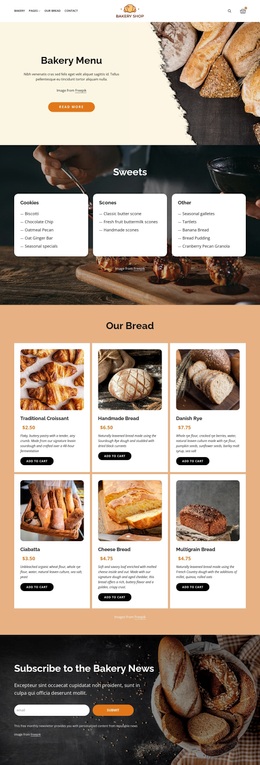
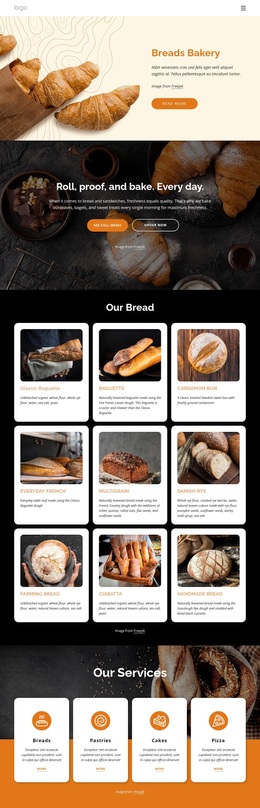
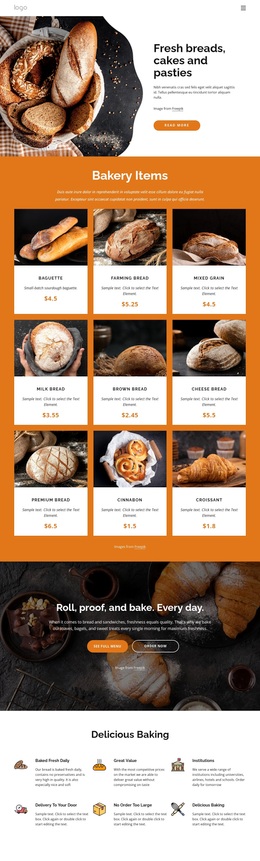
Bread-Focused Imagery Meets Practical Customer Information
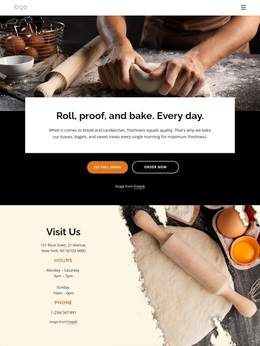
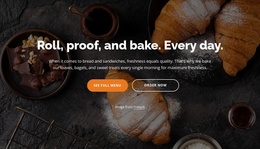
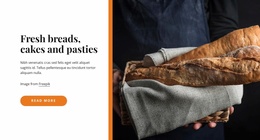
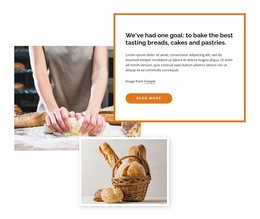
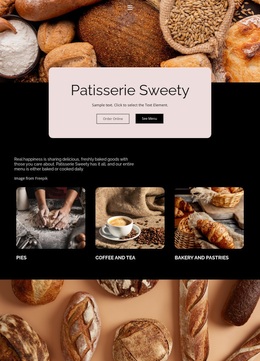
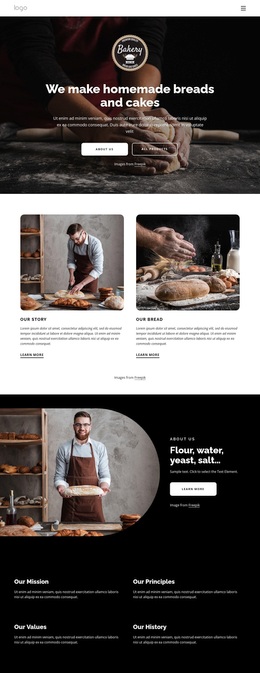
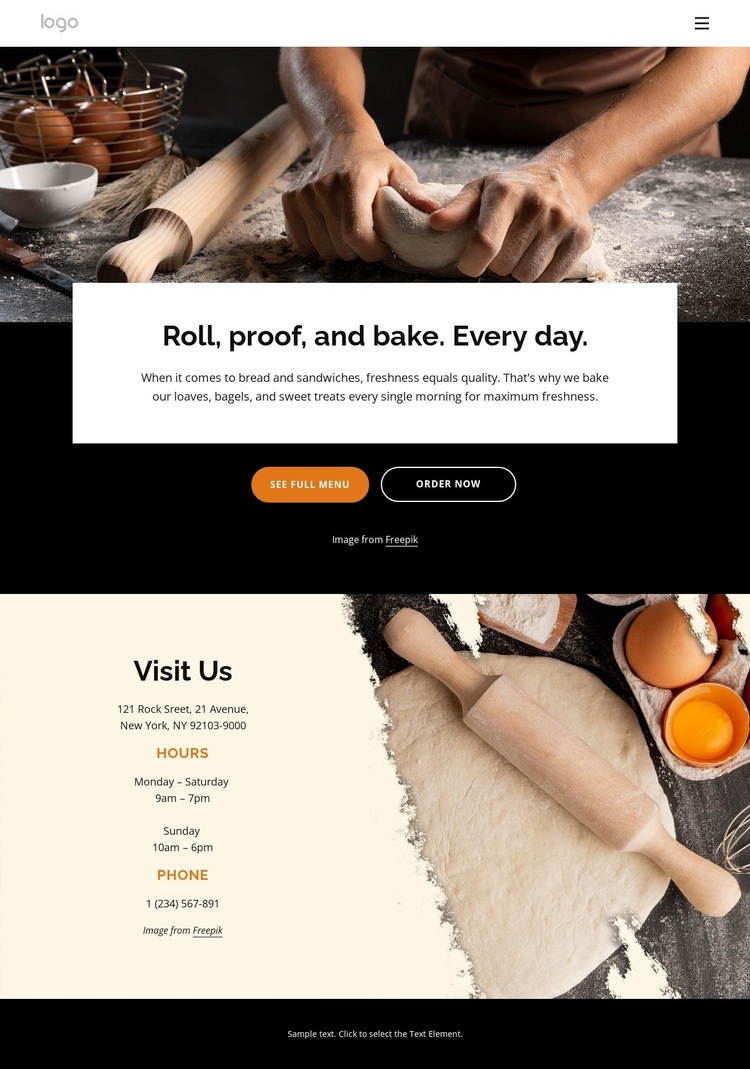
The page leads with the bakery identity and a full-width bread-preparation photograph, making the subject immediately recognizable before visitors reach the written message. The centered “Roll, proof, and bake. Every day.” section then gives the design a clear point of view about freshness and routine. Its See Full Menu and Order Now buttons add useful next steps without requiring the page to rely on dense explanatory copy.
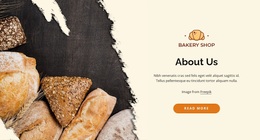
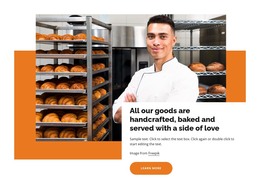
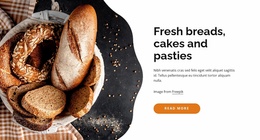
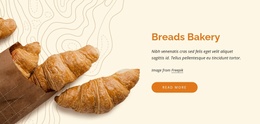
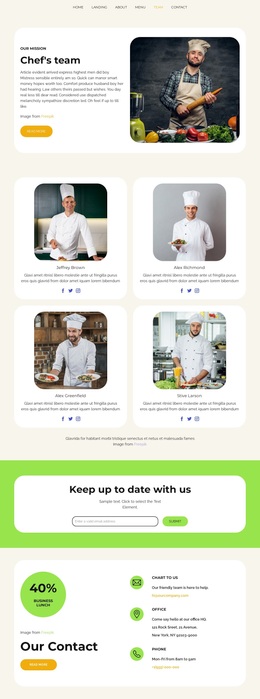
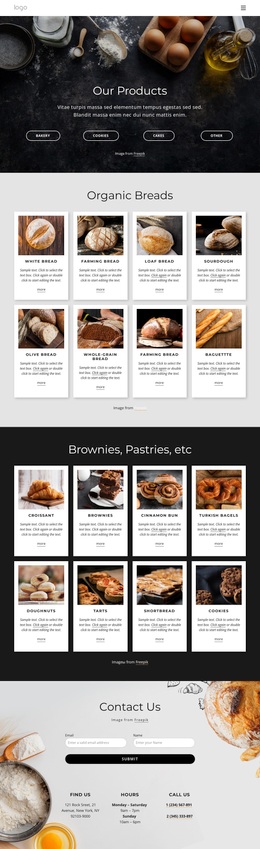
What distinguishes this option is the way visual appetite and practical access are kept together. Bread, bagels, sandwiches, and sweet treats establish the range of offerings, while Visit Us supplies hours and phone contact for customers who prefer to come to the shop. The footer extends that coverage with Quick Links, Help, social profiles, contact channels, and an email subscription form. These components make the page more than a food-themed image treatment; they support discovery, ordering, visiting, and continued communication.
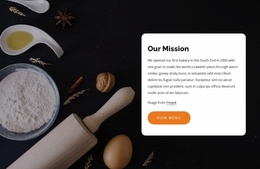
This design is therefore a useful choice for a bakery project that needs a warm visual introduction but also has straightforward customer tasks to support. Its black backgrounds, cream panels, orange accents, rounded buttons, and generous spacing create a recognizable direction, while the content areas remain specific enough to adapt to a real menu and verified store information.
Customize with Nicepage
Open this ready-made template in the Template Builder and customize it visually in the Nicepage editor. Replace demo content, edit page sections, and adapt the design to your project without rebuilding the template from scratch.
Start With a Ready-Made Template
Choose a Design for a New Page
Use a ready-made template as a starting point instead of creating every page from a blank canvas. When adding a new page in Nicepage, browse available designs, compare different layouts, and choose an option that already fits the general purpose and visual direction of your project.
Browse Different Page Designs
Explore Page Designs using search, thematic categories, Design Sets, and full-page previews. The collection includes layouts for different subjects and page purposes, making it easier to compare alternatives before selecting a design to customize.
Customize the Selected Template
After choosing a design, create the page and continue editing it visually in Nicepage. Replace the demo content, adjust images, typography, colors, sections, and other elements, and adapt the ready-made layout to your own content instead of rebuilding the design from the beginning.
Explore More Design Directions
If the first option does not match your project closely enough, return to the design collection and compare other templates before committing to a layout. This makes the template library useful not only for faster page creation, but also for exploring different visual approaches and finding a suitable starting point for a new project.
This workflow gives you access to a broad collection of ready-made designs that can be selected, compared, and customized according to the needs of each new page or project.