Innovative strategy development Template



Edit Template Offline
2. Create new page and search for id 6269506
Edit Template Online
Create Awesome Websites


Free Nicepage Builder
Keywords
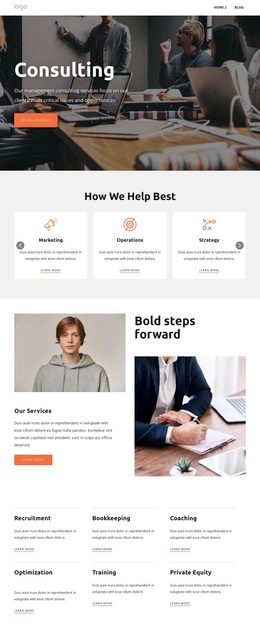
Six Consulting Disciplines Meet Cases, People, and Questions
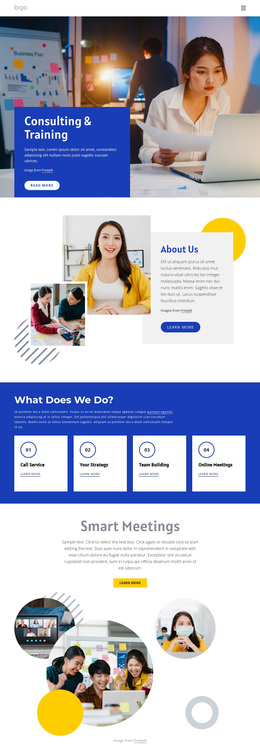
The design is a strong option for projects that need to explain consulting expertise without relying on one narrow content format. Six compact service cards cover Strategy, Management, Marketing, Customer Experience, Transformation, and Operations, so the page can present a broad offer in a concise central section. The How We Help split block adds context around those categories rather than leaving them as disconnected labels.
Its distinctive coverage continues through four image-led case cards and an eight-tile Recent Projects collage. Together, they give the page both a compact case-study format and a denser visual showcase. About Us and the eight leadership profiles shift attention from services and projects to the organization and its people. Four FAQ rows, four success metric cards, and three recent-post previews add further content types without breaking the overall consulting direction.
This makes the template worth considering when a business needs one design to carry service explanation, project evidence, organizational context, editorial material, and a direct contact opportunity. The neutral light surfaces, charcoal text, muted gold details, rounded image cards, and dark closing region keep the varied sections related. The map and inquiry form then give prospective clients a clear place to continue the conversation after reviewing the page's scope and supporting information.
Customize with Nicepage
Open this ready-made template in the Template Builder and customize it visually in the Nicepage editor. Replace demo content, edit page sections, and adapt the design to your project without rebuilding the template from scratch.
Start With a Ready-Made Template
Choose a Design for a New Page
Use a ready-made template as a starting point instead of creating every page from a blank canvas. When adding a new page in Nicepage, browse available designs, compare different layouts, and choose an option that already fits the general purpose and visual direction of your project.
Browse Different Page Designs
Explore Page Designs using search, thematic categories, Design Sets, and full-page previews. The collection includes layouts for different subjects and page purposes, making it easier to compare alternatives before selecting a design to customize.
Customize the Selected Template
After choosing a design, create the page and continue editing it visually in Nicepage. Replace the demo content, adjust images, typography, colors, sections, and other elements, and adapt the ready-made layout to your own content instead of rebuilding the design from the beginning.
Explore More Design Directions
If the first option does not match your project closely enough, return to the design collection and compare other templates before committing to a layout. This makes the template library useful not only for faster page creation, but also for exploring different visual approaches and finding a suitable starting point for a new project.
This workflow gives you access to a broad collection of ready-made designs that can be selected, compared, and customized according to the needs of each new page or project.