Good mood good food Template


Edit Template Offline
2. Create new page and search for id 14548
Edit Template Online
Create Awesome Websites


Free Nicepage Builder
Keywords
Eight Food Images Turn Sourcing and Categories Into a Visual Story
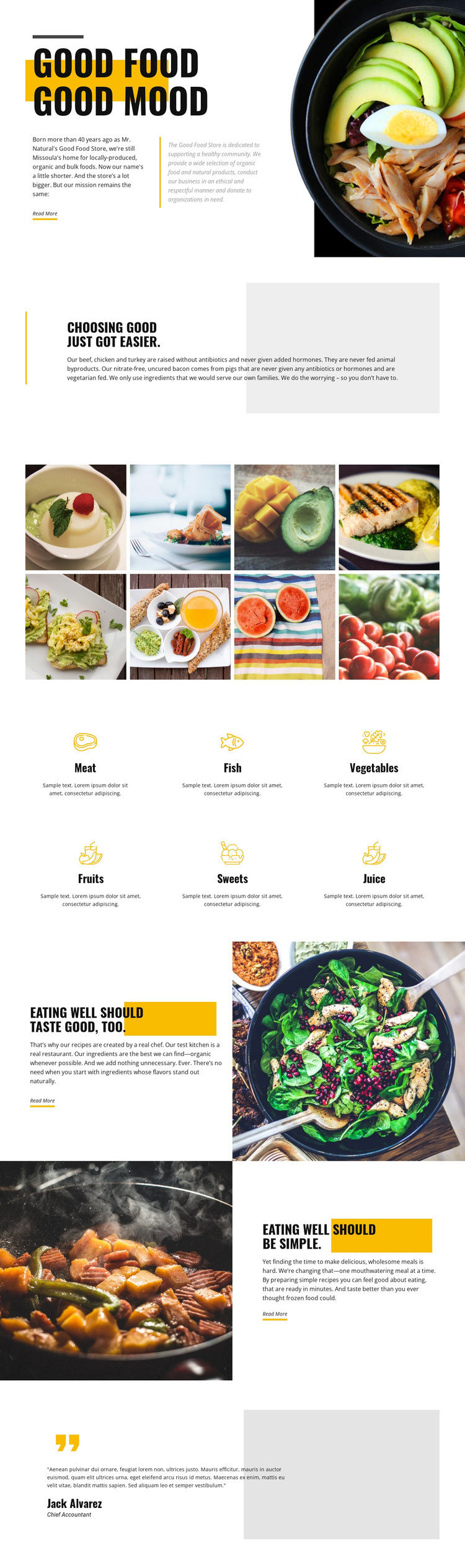
Large food photography carries much of the page’s character, but it is not used alone. The opening bowl image introduces the Good Food Store identity, and the following quality section gives the visual message a concrete foundation through locally produced, organic, and bulk food content. The page also states that its meat is raised without antibiotics and added hormones, allowing the design to connect appetite with a specific sourcing position.
The eight-image gallery is the most distinctive visual choice in the layout. It creates a concentrated image moment between explanatory sections, while the six evenly arranged category items provide a more orderly counterpoint. Meat, fish, vegetables, fruits, sweets, and juice show that the design can present a broad selection without relying on dense product tables or long lists. The later recipe and convenience sections widen the story from what the store offers to how food can be prepared and used.
This combination makes the template worth considering when a project needs food imagery to work alongside concise editorial copy. The asymmetrical split layouts, warm yellow accents, pale gray shapes, and bold condensed headings give the content a recognizable direction, while the repeated gallery and category structures provide practical coverage. It is a strong design option for presenting a natural food brand whose message depends on both ingredient standards and approachable meals.
Customize with Nicepage
Open this ready-made template in the Template Builder and customize it visually in the Nicepage editor. Replace demo content, edit page sections, and adapt the design to your project without rebuilding the template from scratch.
Start With a Ready-Made Template
Choose a Design for a New Page
Use a ready-made template as a starting point instead of creating every page from a blank canvas. When adding a new page in Nicepage, browse available designs, compare different layouts, and choose an option that already fits the general purpose and visual direction of your project.
Browse Different Page Designs
Explore Page Designs using search, thematic categories, Design Sets, and full-page previews. The collection includes layouts for different subjects and page purposes, making it easier to compare alternatives before selecting a design to customize.
Customize the Selected Template
After choosing a design, create the page and continue editing it visually in Nicepage. Replace the demo content, adjust images, typography, colors, sections, and other elements, and adapt the ready-made layout to your own content instead of rebuilding the design from the beginning.
Explore More Design Directions
If the first option does not match your project closely enough, return to the design collection and compare other templates before committing to a layout. This makes the template library useful not only for faster page creation, but also for exploring different visual approaches and finding a suitable starting point for a new project.
This workflow gives you access to a broad collection of ready-made designs that can be selected, compared, and customized according to the needs of each new page or project.