Architect resume Template


Edit Template Offline
2. Create new page and search for id 1528855
Edit Template Online
Create Awesome Websites


Free Nicepage Builder
Keywords
Architectural Images Give the Portfolio a Clear Point of Difference
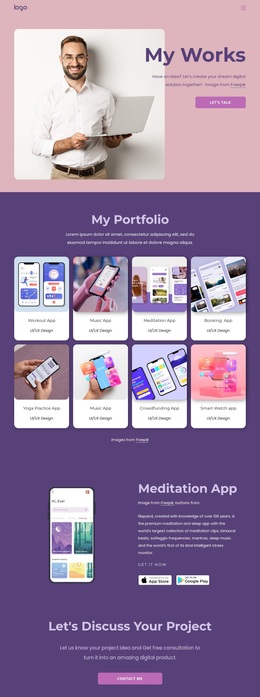
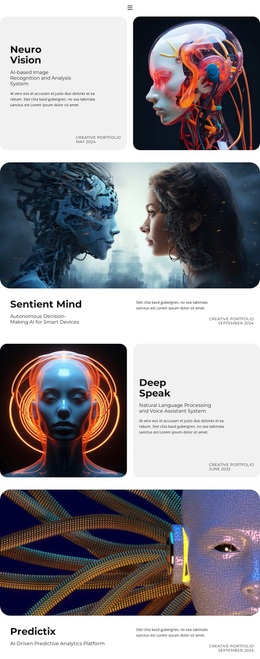
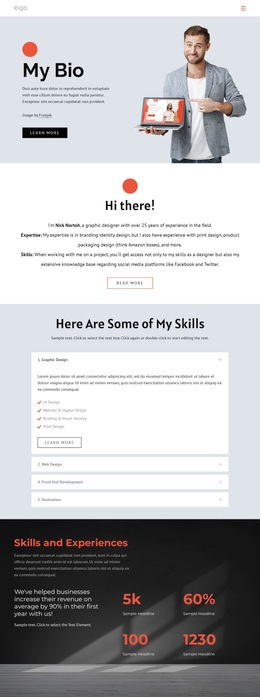
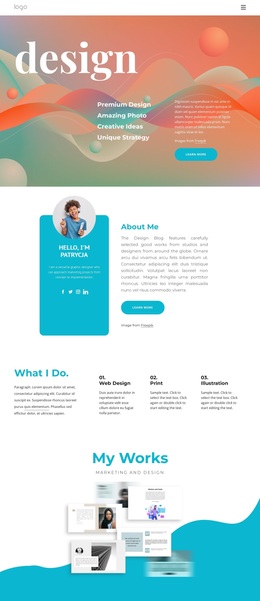
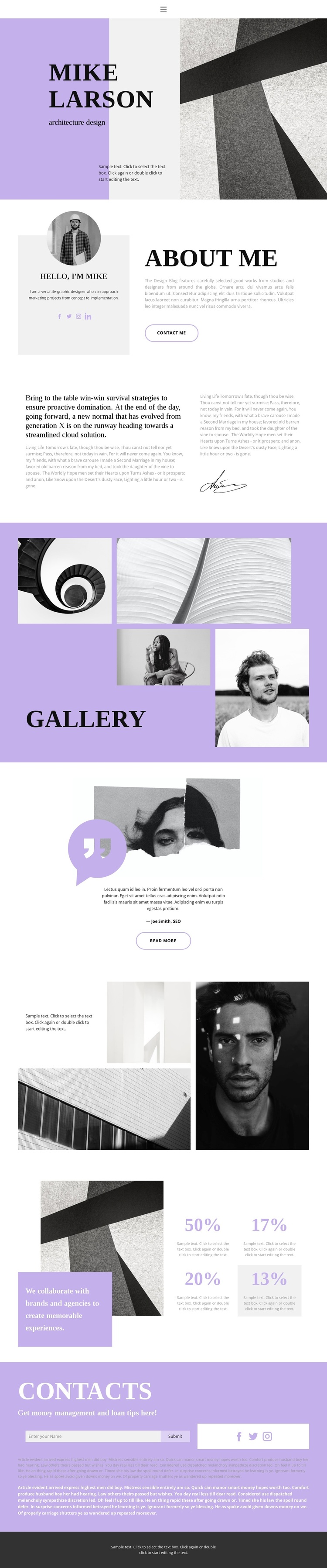
Large architectural imagery, portrait-led profile content, and a labeled four-image gallery make this design a distinct option for a personal portfolio rather than a generic service page. The opening image works with the designer identity to establish a visual profession immediately, while the About Me section adds the personal explanation that a purely image-led portfolio would lack. Portrait imagery and social links reinforce the individual nature of the presentation.
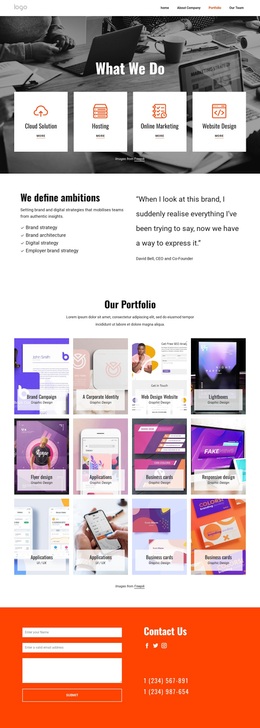
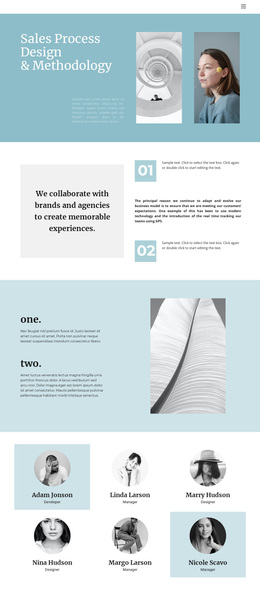
The gallery and the later portfolio collage create two related but not identical ways to show visual work. The gallery provides a named, concentrated group of four images, while the second image-led section adds supporting text and changes the rhythm of the page. A centered quotation with attribution introduces a human voice between these visual areas, and the collaboration statement gives the page another point of emphasis before the contact section.
This combination suits a project that needs to present design capability through both work samples and personal positioning. Architecture design and graphic design are identified in the page content, but the sample names, percentage values, and promotional wording should be treated as replaceable demonstration material. The strongest reason to choose the layout is its progression from designer identity, to visual portfolio evidence, to a direct contact opportunity.
Customize with Nicepage
Open this ready-made template in the Template Builder and customize it visually in the Nicepage editor. Replace demo content, edit page sections, and adapt the design to your project without rebuilding the template from scratch.
Start With a Ready-Made Template
Choose a Design for a New Page
Use a ready-made template as a starting point instead of creating every page from a blank canvas. When adding a new page in Nicepage, browse available designs, compare different layouts, and choose an option that already fits the general purpose and visual direction of your project.
Browse Different Page Designs
Explore Page Designs using search, thematic categories, Design Sets, and full-page previews. The collection includes layouts for different subjects and page purposes, making it easier to compare alternatives before selecting a design to customize.
Customize the Selected Template
After choosing a design, create the page and continue editing it visually in Nicepage. Replace the demo content, adjust images, typography, colors, sections, and other elements, and adapt the ready-made layout to your own content instead of rebuilding the design from the beginning.
Explore More Design Directions
If the first option does not match your project closely enough, return to the design collection and compare other templates before committing to a layout. This makes the template library useful not only for faster page creation, but also for exploring different visual approaches and finding a suitable starting point for a new project.
This workflow gives you access to a broad collection of ready-made designs that can be selected, compared, and customized according to the needs of each new page or project.