Hard work good result Template


Edit Template Offline
2. Create new page and search for id 160154
Edit Template Online
Create Awesome Websites


Free Nicepage Builder
Keywords
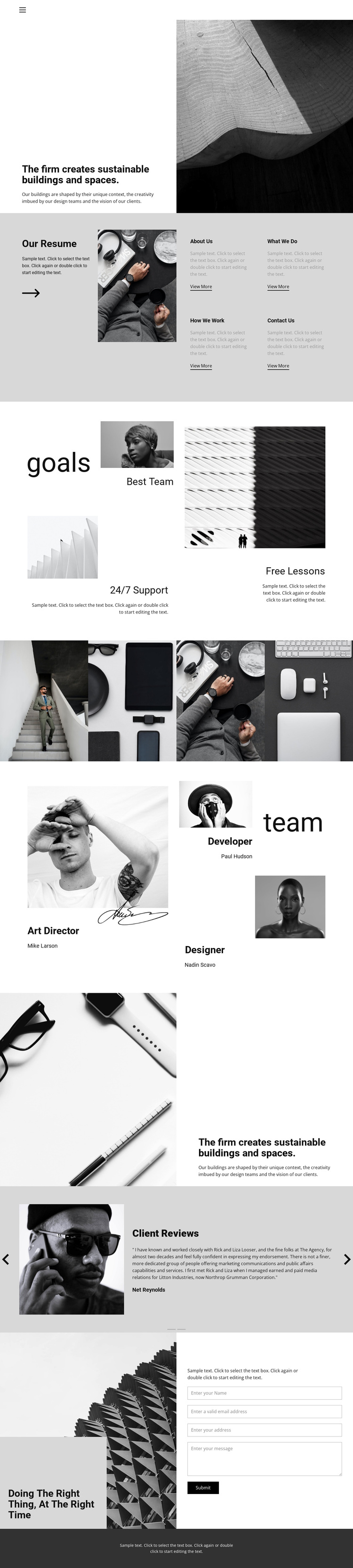
A Four-Image Gallery Connects Firm Story and Team Evidence
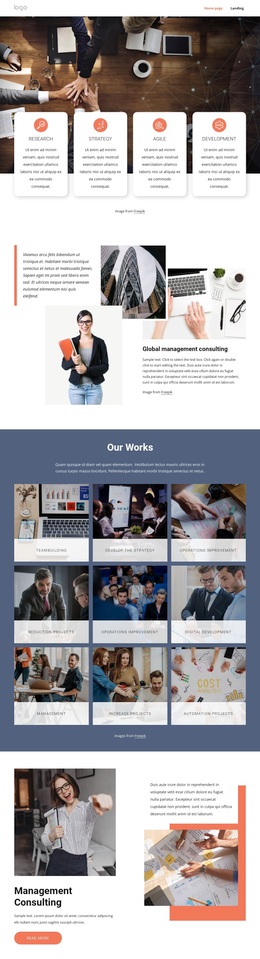
The design is a useful option for architecture and spatial-design projects because it combines a clear subject with several kinds of supporting content. Its opening statement identifies sustainable buildings and spaces, while the large architectural image immediately gives that idea a visual setting. The four orientation cards and resume area then make room for firm information without turning the page into a dense block of text.
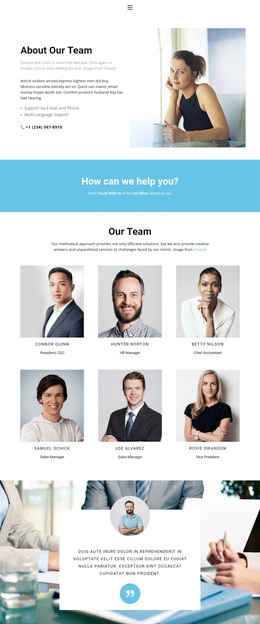
Several sections reinforce the same presentation from different directions. The goals block introduces three feature highlights, and the four-image gallery allows visual work to carry more of the explanation. The asymmetrical team section adds three role-based profiles, so the design can present both the studio’s output and the people associated with its work. The repeated statement section, with its reversed image-and-text arrangement, prevents the long page from becoming visually predictable while returning attention to the central architectural focus.
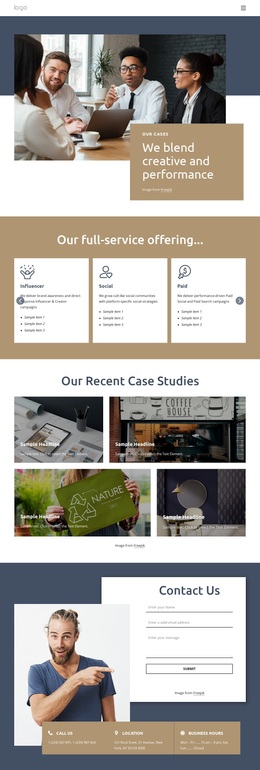
The closing sequence is another reason to select this design. A two-slide Client Reviews carousel provides a dedicated place for testimonial content, then the final image and statement lead into a contact inquiry form. This combination suits a firm that needs to show its approach, work, team, and client-facing response within one visually directed template rather than relying on a purely text-led business layout.
Customize with Nicepage
Open this ready-made template in the Template Builder and customize it visually in the Nicepage editor. Replace demo content, edit page sections, and adapt the design to your project without rebuilding the template from scratch.
Start With a Ready-Made Template
Choose a Design for a New Page
Use a ready-made template as a starting point instead of creating every page from a blank canvas. When adding a new page in Nicepage, browse available designs, compare different layouts, and choose an option that already fits the general purpose and visual direction of your project.
Browse Different Page Designs
Explore Page Designs using search, thematic categories, Design Sets, and full-page previews. The collection includes layouts for different subjects and page purposes, making it easier to compare alternatives before selecting a design to customize.
Customize the Selected Template
After choosing a design, create the page and continue editing it visually in Nicepage. Replace the demo content, adjust images, typography, colors, sections, and other elements, and adapt the ready-made layout to your own content instead of rebuilding the design from the beginning.
Explore More Design Directions
If the first option does not match your project closely enough, return to the design collection and compare other templates before committing to a layout. This makes the template library useful not only for faster page creation, but also for exploring different visual approaches and finding a suitable starting point for a new project.
This workflow gives you access to a broad collection of ready-made designs that can be selected, compared, and customized according to the needs of each new page or project.