Tips for Making Meals for Friends WordPress Theme


Stable Food Content With a Clear Reading Path
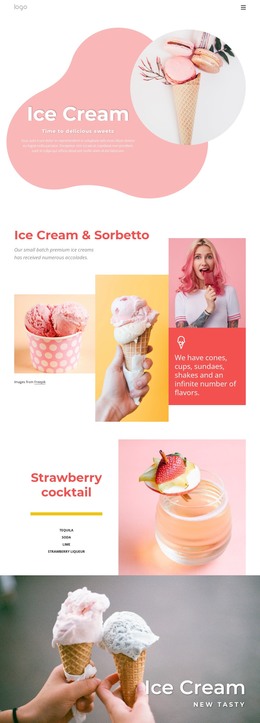
The left panel treats the cooking question as durable page content rather than a stream of separate updates. Its heading, compact supporting line, and “read more” button form one readable message, while the photograph beside it adds a visual explanation through layered desserts, cups, and a pitcher. This relationship gives the section a clear subject without requiring a larger collection of cards, posts, or product records inside the block.
In a WordPress-managed page, the section can provide a consistent visual area for a food introduction, recipe feature, or related editorial topic. WordPress can support the wider project’s publishable content, while this block preserves its own arrangement of text panel, image, and action. The deep berry background separates the message from the photograph, and the pale pink typography and button accents give the content a recognizable treatment that can sit within a wider page style. The overlapping image creates emphasis at the boundary between text and visual content, but the block remains one contained section. Additional WordPress-managed pages or sections can provide full recipes, categories, galleries, and contact details around it.
Customize with Nicepage
Open this ready-made template in the WordPress Website Builder and customize it visually in the Nicepage editor. Replace demo content, edit page sections, and adapt the design to your project without rebuilding the template from scratch.
Edit Template Offline
2. Create a new page or select existing
3. Click Add new block, search for id 72983 and click enter
Edit Template Online
Create Awesome Websites


Free Nicepage Builder
Keywords
Use This Block in a WordPress-Managed Website
Keep the Block as Page Content
Use the block as one content/layout section inside a WordPress-oriented site rather than treating the Block ID as a complete WordPress Theme. Its verified text, images, repeated items, forms, galleries, or other elements can remain part of permanent page content while WordPress manages the wider site.
Work With Nicepage and WordPress
A Nicepage WordPress project can be installed using the WordPress Theme, Plugin, and Pages workflow. After installation, the same visual section can participate in WordPress-managed pages as part of the broader theme/site structure.
Continue Editing in WordPress
Nicepage supports editing the WordPress Theme directly in WordPress. Use WordPress Pages, Posts, Blog structures, and other CMS concepts only when they are relevant to the surrounding project; their existence must not be inferred from the analyzed block alone.
This workflow keeps the block's verified section function separate from the WordPress theme architecture while allowing it to participate in a CMS-managed website.