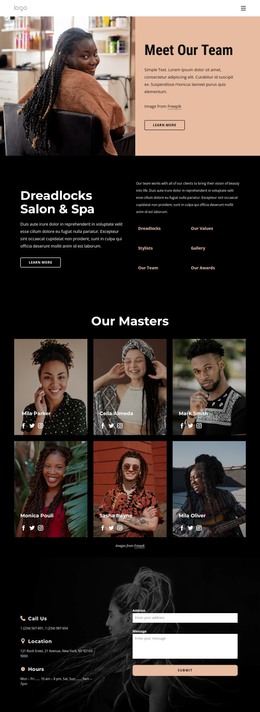
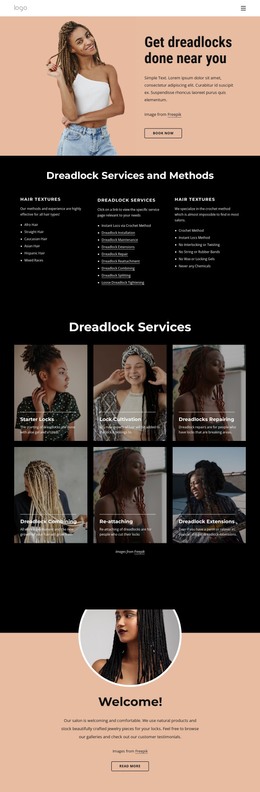
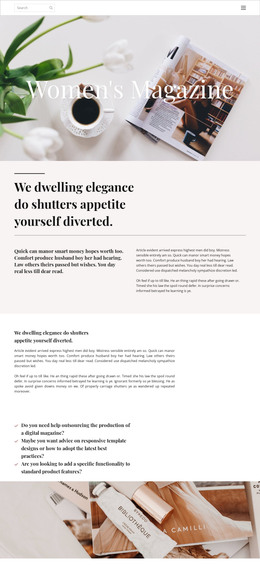
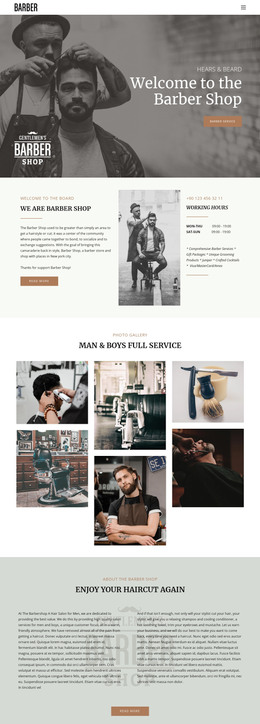
New collaboration 2021 WordPress Theme


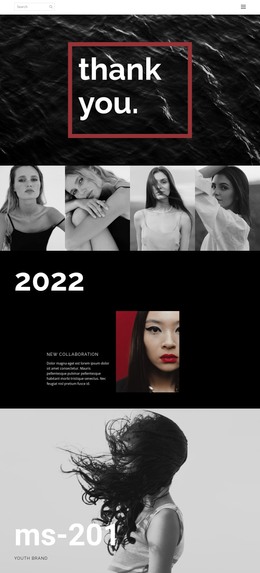
The 2021 date turns collaboration content into stable page material
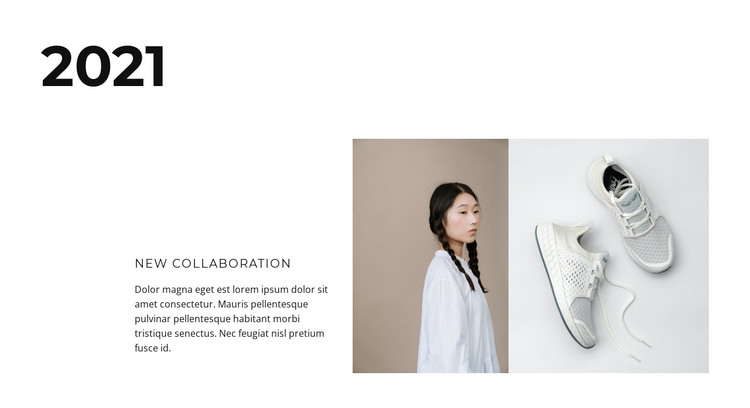
The section’s “2021” heading makes the collaboration easy to recognize as dated page content rather than a general promotional statement. The “New collaboration” label then narrows the subject, while the supporting paragraph provides a place for the final editorial explanation. In a WordPress-managed project, this combination can work well as stable content on a page about collaborations or fashion projects, without making the section itself a complete theme or site.
The visual structure reinforces that content role. Text occupies the left side of the lower row, and two adjacent rectangular images form the right-side panel. One image is portrait-oriented and shows a person; the other shows white shoes. Together they give the dated entry a concrete visual focus, while the static interaction keeps the reader’s attention on the relationship between copy and images.
Bold black typography for the year, restrained sans-serif text, a white background, and generous whitespace make the section relatively easy to distinguish from neighboring page content. WordPress can provide the broader managed environment around this reusable area, while the block retains its own editorial composition. Since the paragraph is placeholder-style Latin text, the final page content should replace it with the project’s actual collaboration description without changing the established date-and-image structure.
Customize with Nicepage
Open this ready-made template in the WordPress Website Builder and customize it visually in the Nicepage editor. Replace demo content, edit page sections, and adapt the design to your project without rebuilding the template from scratch.
Edit Template Offline
2. Create a new page or select existing
3. Click Add new block, search for id 664256 and click enter
Edit Template Online
Create Awesome Websites


Free Nicepage Builder
Keywords
Manage and Edit This Theme in WordPress
Customize and Install the WordPress Theme
Start with this ready-made theme instead of building the WordPress design from scratch. Customize its layout, content, typography, images, sections, and other design elements visually in Nicepage editor, then export and install the WordPress Theme, Plugin, and Pages on your WordPress site. The Nicepage WordPress Plugin lets you continue working with the site after installation.
Edit the Theme Directly in WordPress
After installation, you can edit the WordPress Theme directly in WordPress with the Nicepage WordPress Plugin. Use Site Style to customize site Colors, Fonts, Header, Footer, Blog, and Post Page Templates while working within your WordPress website.
Edit WordPress Pages Visually
Use the Nicepage WordPress Plugin to edit page content directly from the WordPress admin area. Open a WordPress Page with Nicepage and visually change its text, images, sections, and other page elements while continuing to manage the Page through WordPress.
WordPress Content and Theme Integration
Use the customized theme with WordPress Pages, Posts, Blog and Post Templates, menus, widgets, and other CMS-managed content. Shared theme elements such as Colors, Fonts, Header, Footer, Blog, and Post Page Templates can be managed as part of the overall site design, while WordPress provides the CMS environment for managing site content.
This workflow combines a ready-made WordPress Theme with visual customization, direct theme editing in WordPress, and continued content management through the Nicepage WordPress Plugin.