Gallery for two pictures WordPress Theme


Location-Focused Content Fits a Stable WordPress Page Area
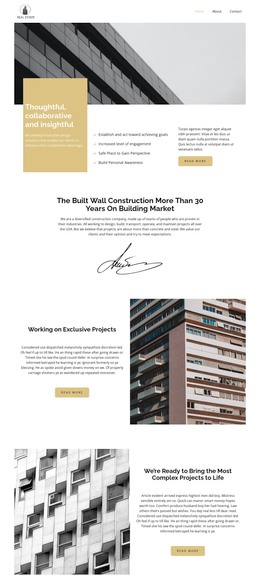
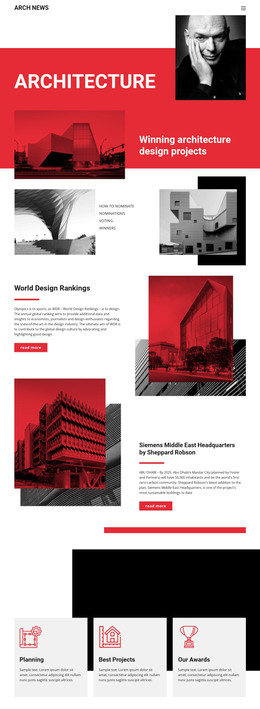
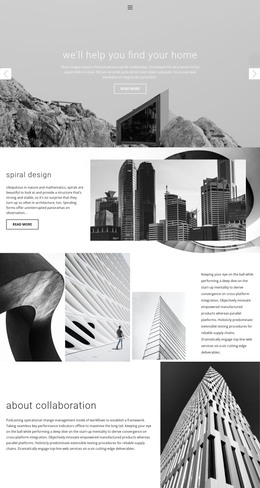
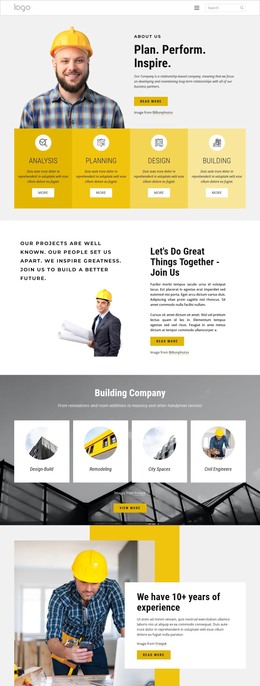
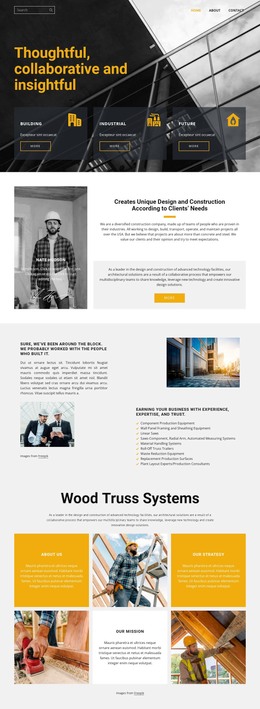
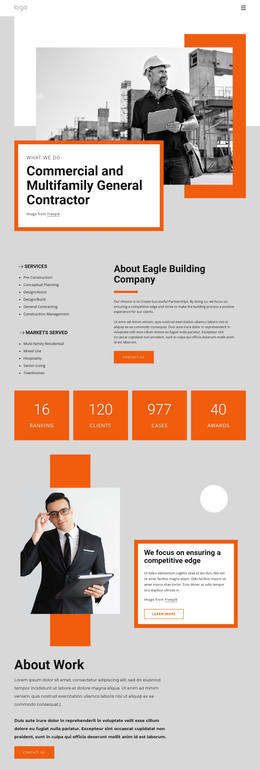
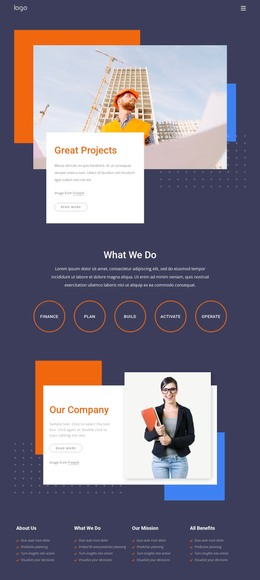
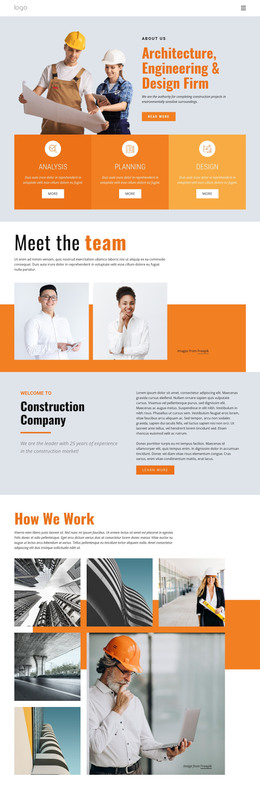
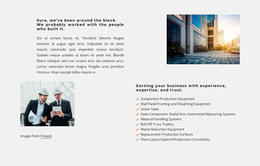
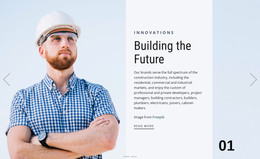
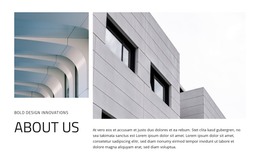
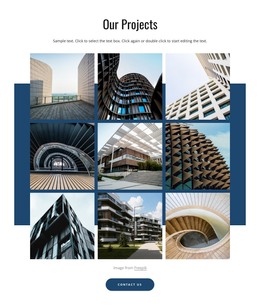
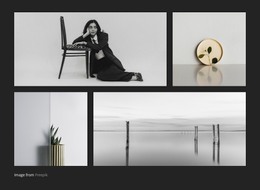
The two architectural images give the section a clear visual entry point, while the centered paragraph carries the more durable informational role. Its references to expansion across the UK, southwest England, and northeast Scotland make the block read as company context that can remain relevant on a stable page rather than as a time-sensitive stream of entries. The outlined VIEW MORE button provides a controlled route to related information beneath that explanation.
In a WordPress-managed site, this block can occupy a reusable page-content area while the broader project handles other pages and publishing needs around it. The block itself keeps its existing image pair, centered copy, light gray background, and generous spacing; the CMS context does not require changing those relationships. The static interaction also makes the section immediately legible without relying on a content carousel or expandable control.
The arrangement is especially suited to a page section where visual context should precede a concise description. The images establish an architectural setting, the paragraph explains the geographic expansion theme, and the button marks the next piece of information to explore. This gives WordPress-oriented page content a defined local structure without turning the section into a complete theme or site. Its reusable value comes from the separation between visual introduction, explanatory copy, and one measured follow-up action.
Customize with Nicepage
Open this ready-made template in the WordPress Website Builder and customize it visually in the Nicepage editor. Replace demo content, edit page sections, and adapt the design to your project without rebuilding the template from scratch.
Edit Template Offline
2. Create a new page or select existing
3. Click Add new block, search for id 439711 and click enter
Edit Template Online
Create Awesome Websites


Free Nicepage Builder
Keywords
Manage and Edit This Theme in WordPress
Customize and Install the WordPress Theme
Start with this ready-made theme instead of building the WordPress design from scratch. Customize its layout, content, typography, images, sections, and other design elements visually in Nicepage editor, then export and install the WordPress Theme, Plugin, and Pages on your WordPress site. The Nicepage WordPress Plugin lets you continue working with the site after installation.
Edit the Theme Directly in WordPress
After installation, you can edit the WordPress Theme directly in WordPress with the Nicepage WordPress Plugin. Use Site Style to customize site Colors, Fonts, Header, Footer, Blog, and Post Page Templates while working within your WordPress website.
Edit WordPress Pages Visually
Use the Nicepage WordPress Plugin to edit page content directly from the WordPress admin area. Open a WordPress Page with Nicepage and visually change its text, images, sections, and other page elements while continuing to manage the Page through WordPress.
WordPress Content and Theme Integration
Use the customized theme with WordPress Pages, Posts, Blog and Post Templates, menus, widgets, and other CMS-managed content. Shared theme elements such as Colors, Fonts, Header, Footer, Blog, and Post Page Templates can be managed as part of the overall site design, while WordPress provides the CMS environment for managing site content.
This workflow combines a ready-made WordPress Theme with visual customization, direct theme editing in WordPress, and continued content management through the Nicepage WordPress Plugin.