Fashionable construction project WordPress Theme


A Centered Question Gives the Page Content a Clear Opening
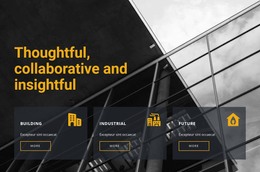
The block’s main content relationship is between the architectural image and the question, “How to build homes for the future?” Placing the image first gives the visitor an immediate visual cue, while the large centered heading turns that cue into a defined topic. Its multiple lines create a broad text shape beneath the image, and the vertical divider below provides a measured pause before any following section. The arrangement is static, so the meaning comes from order, scale, alignment, and contrast rather than from changing slides or expandable content.
For WordPress-managed page content, this section can work as a stable introduction that remains recognizable when the surrounding site develops additional information about homes, architecture, or construction. The pale blue background separates the content area from neighboring sections, while the thick white image border and white accents give the block a consistent visual treatment. The block can therefore sit within a broader page where other content handles explanations, project examples, services, or contact details. WordPress manages the wider page environment, but this section keeps its own focused role: presenting one architectural subject and inviting the reader to consider the question before moving deeper into the content.
Customize with Nicepage
Open this ready-made template in the WordPress Website Builder and customize it visually in the Nicepage editor. Replace demo content, edit page sections, and adapt the design to your project without rebuilding the template from scratch.
Edit Template Offline
2. Create a new page or select existing
3. Click Add new block, search for id 337057 and click enter
Edit Template Online
Create Awesome Websites


Free Nicepage Builder
Keywords
Manage and Edit This Theme in WordPress
Customize and Install the WordPress Theme
Start with this ready-made theme instead of building the WordPress design from scratch. Customize its layout, content, typography, images, sections, and other design elements visually in Nicepage editor, then export and install the WordPress Theme, Plugin, and Pages on your WordPress site. The Nicepage WordPress Plugin lets you continue working with the site after installation.
Edit the Theme Directly in WordPress
After installation, you can edit the WordPress Theme directly in WordPress with the Nicepage WordPress Plugin. Use Site Style to customize site Colors, Fonts, Header, Footer, Blog, and Post Page Templates while working within your WordPress website.
Edit WordPress Pages Visually
Use the Nicepage WordPress Plugin to edit page content directly from the WordPress admin area. Open a WordPress Page with Nicepage and visually change its text, images, sections, and other page elements while continuing to manage the Page through WordPress.
WordPress Content and Theme Integration
Use the customized theme with WordPress Pages, Posts, Blog and Post Templates, menus, widgets, and other CMS-managed content. Shared theme elements such as Colors, Fonts, Header, Footer, Blog, and Post Page Templates can be managed as part of the overall site design, while WordPress provides the CMS environment for managing site content.
This workflow combines a ready-made WordPress Theme with visual customization, direct theme editing in WordPress, and continued content management through the Nicepage WordPress Plugin.