Rent office space WordPress Theme


Stable Coworking Content With a Clear Image-to-Text Relationship
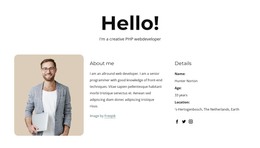
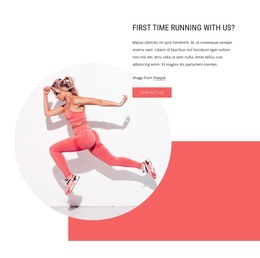
The block reads as stable informational content because its main parts explain one subject rather than presenting a changing list or a transactional interface. “Find a space to work” introduces the idea, the portrait image supplies visual context, and the “Coworking Space” label identifies the content area more precisely. The descriptive paragraph can carry the main explanation, while the supporting attribution paragraph provides a secondary text layer. Beneath them, three social icons form a distinct supporting group.
That structure fits a WordPress-managed page when the section is used as part of a wider business-services presentation. The image remains a strong visual anchor on the left, while the copy column gives editors a defined area for maintaining the section’s message. The pale circular shape adds depth behind the middle of the composition without changing the underlying content relationship. Orange accents and muted gray typography can also sit comfortably within a broader site style supplied by the surrounding WordPress project.
As page content, the block can introduce a coworking offering before other sections explain amenities, plans, location, or contact details. It does not need to carry those functions itself. Its value lies in preserving a recognizable image-and-copy unit that can be placed within a WordPress-managed page while the broader site handles navigation and additional content.
Customize with Nicepage
Open this ready-made template in the WordPress Website Builder and customize it visually in the Nicepage editor. Replace demo content, edit page sections, and adapt the design to your project without rebuilding the template from scratch.
Edit Template Offline
2. Create a new page or select existing
3. Click Add new block, search for id 194254 and click enter
Edit Template Online
Create Awesome Websites


Free Nicepage Builder
Keywords
Manage and Edit This Theme in WordPress
Customize and Install the WordPress Theme
Start with this ready-made theme instead of building the WordPress design from scratch. Customize its layout, content, typography, images, sections, and other design elements visually in Nicepage editor, then export and install the WordPress Theme, Plugin, and Pages on your WordPress site. The Nicepage WordPress Plugin lets you continue working with the site after installation.
Edit the Theme Directly in WordPress
After installation, you can edit the WordPress Theme directly in WordPress with the Nicepage WordPress Plugin. Use Site Style to customize site Colors, Fonts, Header, Footer, Blog, and Post Page Templates while working within your WordPress website.
Edit WordPress Pages Visually
Use the Nicepage WordPress Plugin to edit page content directly from the WordPress admin area. Open a WordPress Page with Nicepage and visually change its text, images, sections, and other page elements while continuing to manage the Page through WordPress.
WordPress Content and Theme Integration
Use the customized theme with WordPress Pages, Posts, Blog and Post Templates, menus, widgets, and other CMS-managed content. Shared theme elements such as Colors, Fonts, Header, Footer, Blog, and Post Page Templates can be managed as part of the overall site design, while WordPress provides the CMS environment for managing site content.
This workflow combines a ready-made WordPress Theme with visual customization, direct theme editing in WordPress, and continued content management through the Nicepage WordPress Plugin.