Basic formula for a great training plan WordPress Theme


The Running Topic Reads as Stable Page Content
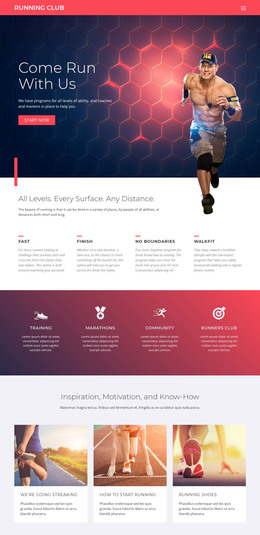
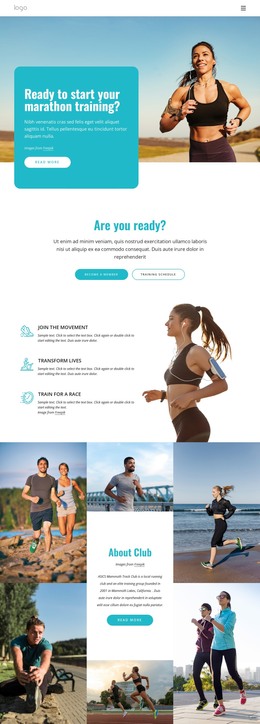
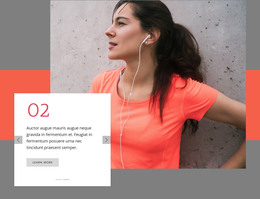
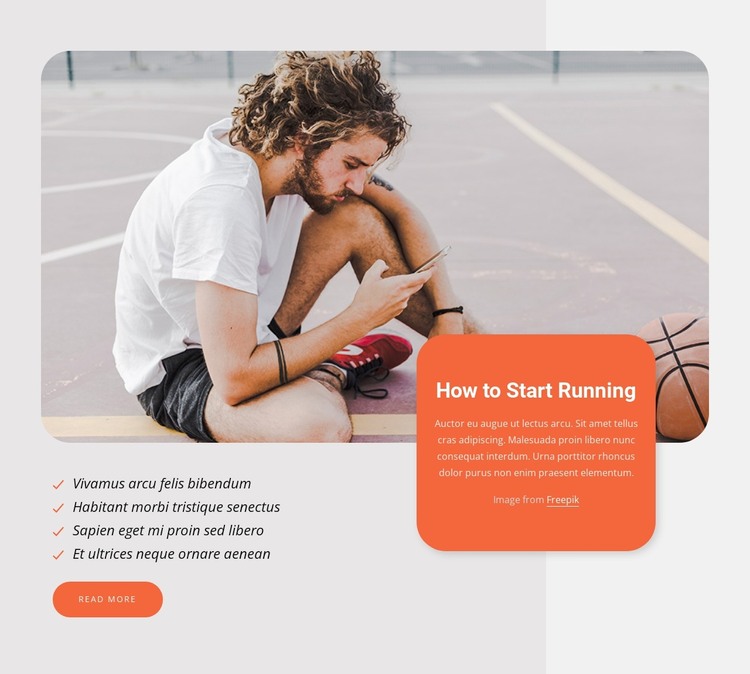
The heading “How to Start Running” and its supporting paragraph establish the block as focused informational content rather than a collection of unrelated promotional elements. The seated-runner photograph supplies immediate subject context, while the rounded orange card gives the written introduction a defined area that overlaps the image. Beneath it, four checklist entries divide the topic into readable points, and the “read more” action provides a natural path to further material elsewhere in the surrounding project.
In a WordPress-oriented context, this arrangement can function as one reusable section of permanent page content. The section’s visual identity is carried by the image-and-card relationship, the light gray background, and the repeated orange treatment across checklist marks and the rounded action button. Those details allow the running information to remain recognizable when placed alongside other content areas, while the broader site handles its own pages and publishing structure.
The block does not need to carry the entire site role to be useful in a CMS-managed page. It can introduce a running topic, summarize several points, and direct readers onward without competing with neighboring sections. Nicepage supports editing page content through its WordPress workflow, including the WordPress Theme, Plugin, and Pages workflow. Here, that product context supports placing this specific section within managed page content; it does not change the section into a standalone theme.
Customize with Nicepage
Open this ready-made template in the WordPress Website Builder and customize it visually in the Nicepage editor. Replace demo content, edit page sections, and adapt the design to your project without rebuilding the template from scratch.
Edit Template Offline
2. Create a new page or select existing
3. Click Add new block, search for id 1734550 and click enter
Edit Template Online
Create Awesome Websites


Free Nicepage Builder
Keywords
Manage and Edit This Theme in WordPress
Customize and Install the WordPress Theme
Start with this ready-made theme instead of building the WordPress design from scratch. Customize its layout, content, typography, images, sections, and other design elements visually in Nicepage editor, then export and install the WordPress Theme, Plugin, and Pages on your WordPress site. The Nicepage WordPress Plugin lets you continue working with the site after installation.
Edit the Theme Directly in WordPress
After installation, you can edit the WordPress Theme directly in WordPress with the Nicepage WordPress Plugin. Use Site Style to customize site Colors, Fonts, Header, Footer, Blog, and Post Page Templates while working within your WordPress website.
Edit WordPress Pages Visually
Use the Nicepage WordPress Plugin to edit page content directly from the WordPress admin area. Open a WordPress Page with Nicepage and visually change its text, images, sections, and other page elements while continuing to manage the Page through WordPress.
WordPress Content and Theme Integration
Use the customized theme with WordPress Pages, Posts, Blog and Post Templates, menus, widgets, and other CMS-managed content. Shared theme elements such as Colors, Fonts, Header, Footer, Blog, and Post Page Templates can be managed as part of the overall site design, while WordPress provides the CMS environment for managing site content.
This workflow combines a ready-made WordPress Theme with visual customization, direct theme editing in WordPress, and continued content management through the Nicepage WordPress Plugin.