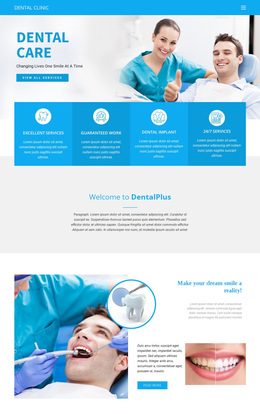
Teeth whitening Template


A Photograph, Overlap, and Clinic Message in One Section Choice
The large treatment photograph and the centered overlapping panel distinguish this block from a conventional text-only About Us section. The image supplies immediate dental-care context, while the white rectangle creates a deliberate foreground layer for the About Us label, Dental Clinic heading, descriptive paragraph, and Read More button. That combination gives the section both visual evidence and a contained information point without adding multiple cards or a dense grid. The prominent serif heading also gives the design a more editorial entry than a plain utility panel.
This makes the block a useful choice when a page needs to introduce a dental practice with more visual emphasis than a standard paragraph arrangement. The centered composition keeps the message easy to scan, and the restrained blue accents can coordinate with other healthcare-oriented sections without dictating their content. The single button provides a clear continuation point, while the surrounding project can handle services, treatment explanations, credentials, or contact details elsewhere. The design is therefore distinctive because of how its image and panel work together, not because it attempts to solve every page function. It remains one focused section that can be compared with other About Us alternatives.
Customize with Nicepage
Open this ready-made template in the Template Builder and customize it visually in the Nicepage editor. Replace demo content, edit page sections, and adapt the design to your project without rebuilding the template from scratch.
Edit Template Offline
2. Create a new page or select existing
3. Click Add new block, search for id 71985 and click enter
Edit Template Online
Create Awesome Websites


Free Nicepage Builder
Keywords
Start With a Ready-Made Template
Choose a Design for a New Page
Use a ready-made template as a starting point instead of creating every page from a blank canvas. When adding a new page in Nicepage, browse available designs, compare different layouts, and choose an option that already fits the general purpose and visual direction of your project.
Browse Different Page Designs
Explore Page Designs using search, thematic categories, Design Sets, and full-page previews. The collection includes layouts for different subjects and page purposes, making it easier to compare alternatives before selecting a design to customize.
Customize the Selected Template
After choosing a design, create the page and continue editing it visually in Nicepage. Replace the demo content, adjust images, typography, colors, sections, and other elements, and adapt the ready-made layout to your own content instead of rebuilding the design from the beginning.
Explore More Design Directions
If the first option does not match your project closely enough, return to the design collection and compare other templates before committing to a layout. This makes the template library useful not only for faster page creation, but also for exploring different visual approaches and finding a suitable starting point for a new project.
This workflow gives you access to a broad collection of ready-made designs that can be selected, compared, and customized according to the needs of each new page or project.