Serving and helping medicine Template


Edit Template Offline
2. Create new page and search for id 16755
Edit Template Online
Create Awesome Websites


Free Nicepage Builder
Keywords
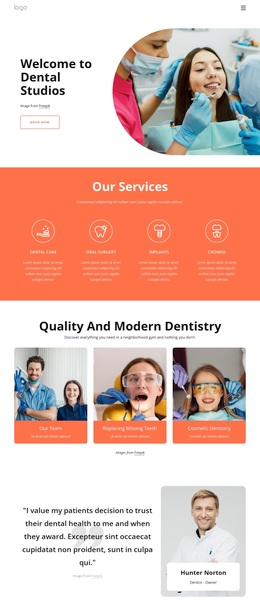
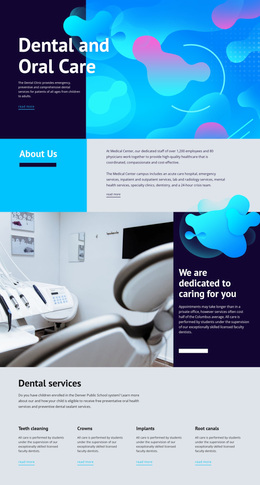
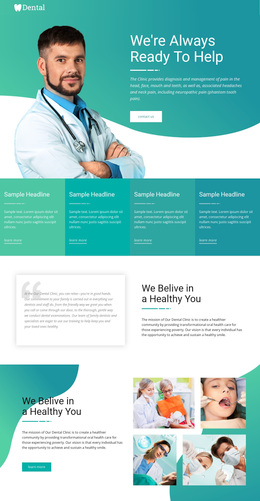
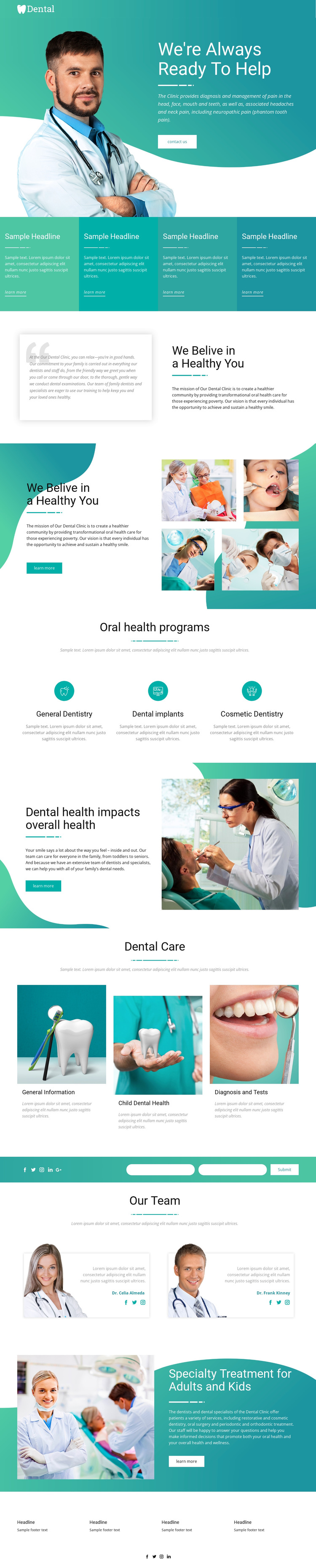
Curved Teal Fields Bring Services and Family Care Together
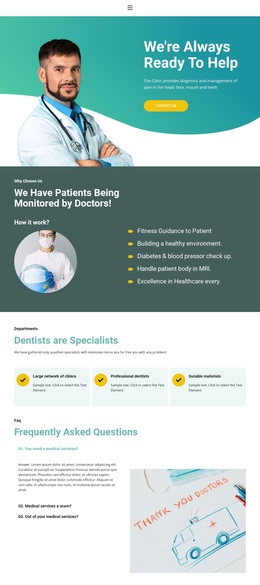
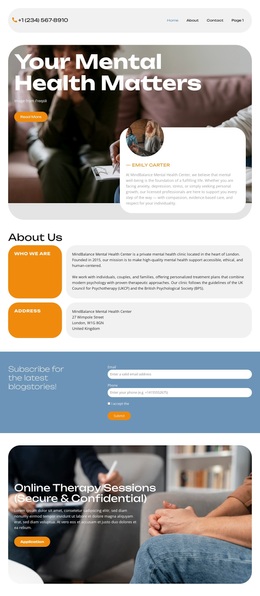
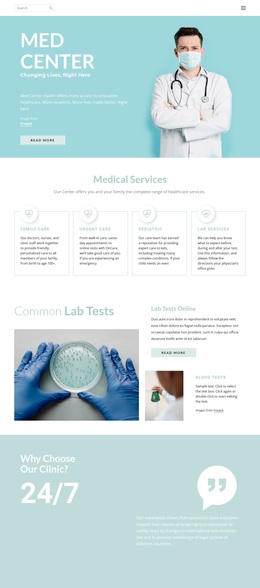
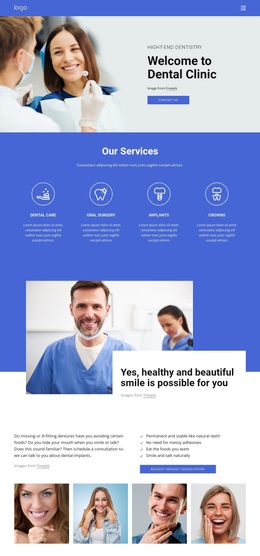
The curved teal, turquoise, white, and coral palette immediately distinguishes this option from a dental layout built around plain clinical panels. Large medical and dental photographs carry much of the subject matter, while bold sans-serif headings make the page’s health-focused statements easy to identify. Rounded image treatments and spacious composition keep the visual tone approachable as the design moves between professional treatment information and family-oriented care.
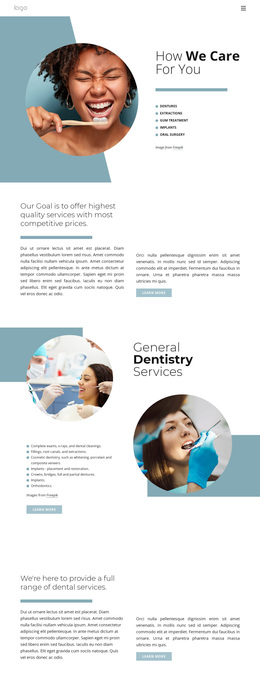
Its content coverage is another reason to consider this particular template. Four colored feature panels create a quick overview, then the page expands into mission sections, three oral health program categories, and dental-care information for general topics, children, diagnosis, and tests. The combination supports projects that need to explain care without relying only on a treatment list. The two team profiles add a people-centered layer, and the specialty-treatment section explicitly includes adults and children.
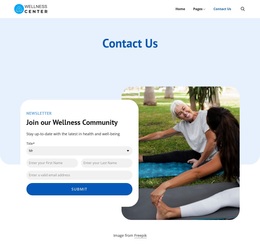
The design also balances visual identity with practical access. A clinician-led hero includes a Contact Us action, the contact form provides name and email inputs, and social links recur in multiple page areas. This means the template can suit a dental clinic that wants its presentation to feel informative, welcoming, and image-led while still leaving room for direct communication. Its strongest selection argument is the relationship between approachable color treatment, broad dental content, family-care emphasis, and visible contact access—not a generic claim that it fits every healthcare project.
Customize with Nicepage
Open this ready-made template in the Template Builder and customize it visually in the Nicepage editor. Replace demo content, edit page sections, and adapt the design to your project without rebuilding the template from scratch.
Start With a Ready-Made Template
Choose a Design for a New Page
Use a ready-made template as a starting point instead of creating every page from a blank canvas. When adding a new page in Nicepage, browse available designs, compare different layouts, and choose an option that already fits the general purpose and visual direction of your project.
Browse Different Page Designs
Explore Page Designs using search, thematic categories, Design Sets, and full-page previews. The collection includes layouts for different subjects and page purposes, making it easier to compare alternatives before selecting a design to customize.
Customize the Selected Template
After choosing a design, create the page and continue editing it visually in Nicepage. Replace the demo content, adjust images, typography, colors, sections, and other elements, and adapt the ready-made layout to your own content instead of rebuilding the design from the beginning.
Explore More Design Directions
If the first option does not match your project closely enough, return to the design collection and compare other templates before committing to a layout. This makes the template library useful not only for faster page creation, but also for exploring different visual approaches and finding a suitable starting point for a new project.
This workflow gives you access to a broad collection of ready-made designs that can be selected, compared, and customized according to the needs of each new page or project.