Babysitting blog Template


Edit Template Offline
2. Create new page and search for id 6485645
Edit Template Online
Create Awesome Websites


Free Nicepage Builder
Keywords
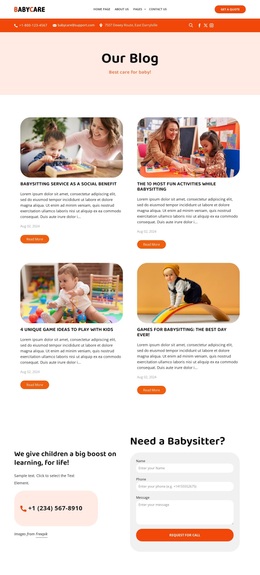
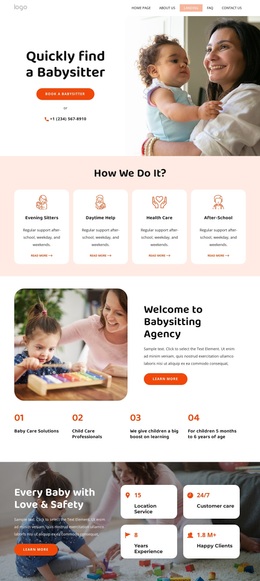
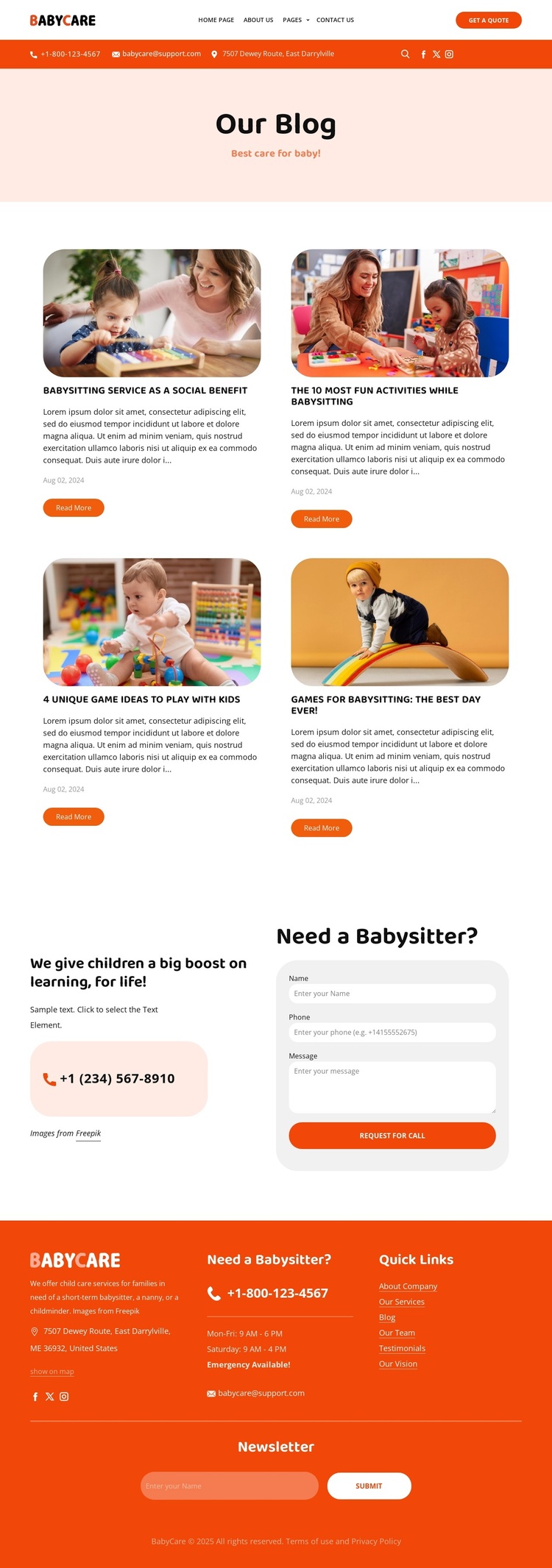
Four childcare stories balance information with service access
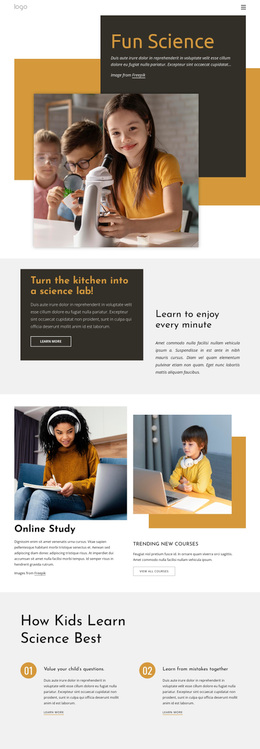
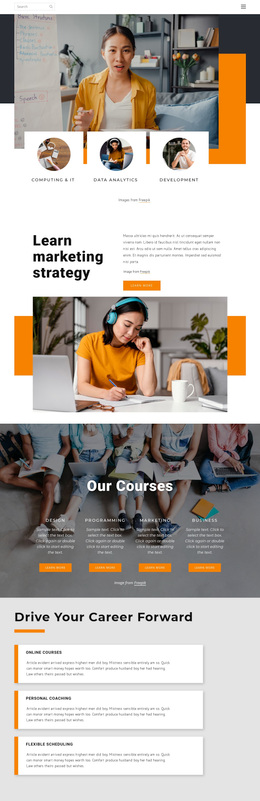
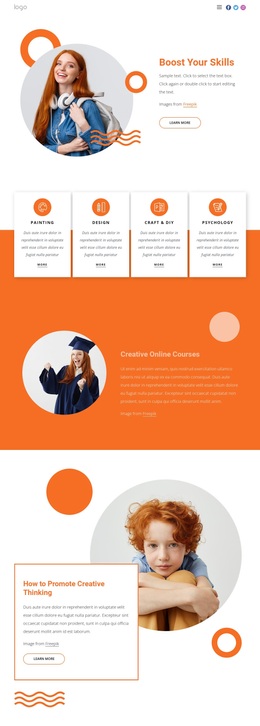
The strongest reason to choose this design is the way it combines a focused editorial topic with practical childcare response points. Four image-led article cards make the blog subject immediately recognizable: the displayed titles address babysitting as a social benefit, fun activities, game ideas, and the experience of a best day. Because every card includes an image, title, excerpt, date, and Read More action, the design supports visual discovery without relying on a dense wall of text.
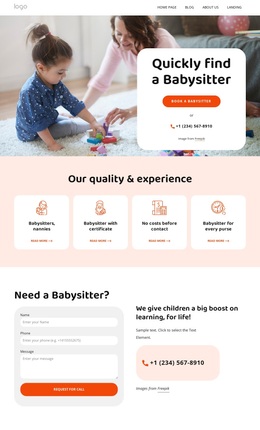
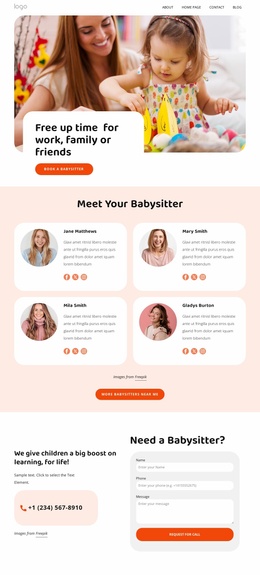
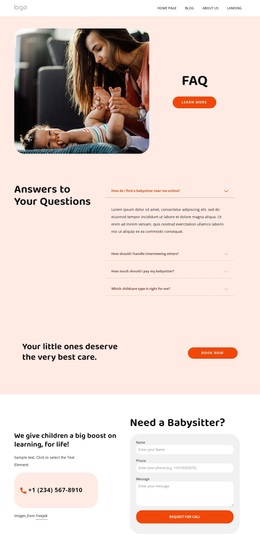
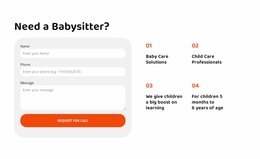
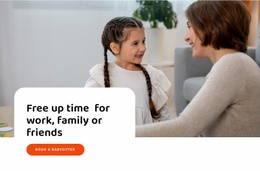
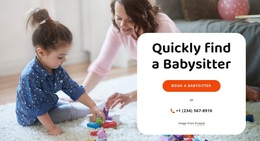
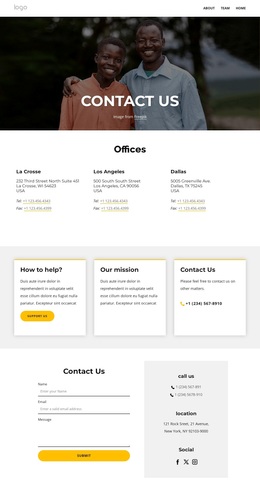
That editorial center is connected to a clear service context. The header places a Get a Quote button before the content begins, while the Need a Babysitter? section changes the page from reading material to direct inquiry. Its childcare message, phone channel, and form fields give families a visible route toward requesting a call. The newsletter signup in the footer adds a second, lower-commitment response path, and the social links extend the family-oriented content direction beyond the page itself.
This combination makes the template a useful option for a childcare service that wants to share helpful ideas while remaining easy to contact. It is more distinctive than a purely promotional service layout because the four articles carry the initial communication, while the inquiry and subscription areas preserve a practical connection to babysitting services.
Customize with Nicepage
Open this ready-made template in the Template Builder and customize it visually in the Nicepage editor. Replace demo content, edit page sections, and adapt the design to your project without rebuilding the template from scratch.
Start With a Ready-Made Template
Choose a Design for a New Page
Use a ready-made template as a starting point instead of creating every page from a blank canvas. When adding a new page in Nicepage, browse available designs, compare different layouts, and choose an option that already fits the general purpose and visual direction of your project.
Browse Different Page Designs
Explore Page Designs using search, thematic categories, Design Sets, and full-page previews. The collection includes layouts for different subjects and page purposes, making it easier to compare alternatives before selecting a design to customize.
Customize the Selected Template
After choosing a design, create the page and continue editing it visually in Nicepage. Replace the demo content, adjust images, typography, colors, sections, and other elements, and adapt the ready-made layout to your own content instead of rebuilding the design from the beginning.
Explore More Design Directions
If the first option does not match your project closely enough, return to the design collection and compare other templates before committing to a layout. This makes the template library useful not only for faster page creation, but also for exploring different visual approaches and finding a suitable starting point for a new project.
This workflow gives you access to a broad collection of ready-made designs that can be selected, compared, and customized according to the needs of each new page or project.

Design Set (21)
-

-
-
-
-
-
-
-
-
-
-
-
-
Free Website Builder SoftwareDownload
-