Give children in Africa a future Template



Edit Template Offline
2. Create new page and search for id 6319356
Edit Template Online
Create Awesome Websites


Free Nicepage Builder
Keywords
Education Programs and Human Stories Make the Design Easy to Choose
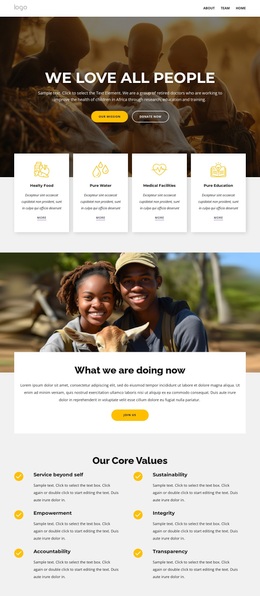
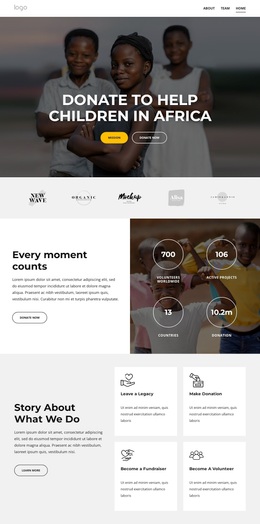
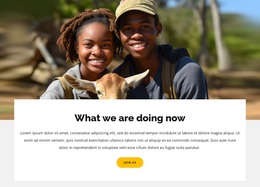
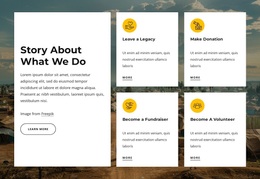
The strongest reason to choose this ready-made design is the way it combines a human opening with concrete nonprofit subject areas. A large photograph of children sits behind the donation message, so the page establishes its purpose before introducing partner logos and impact information. The organization story then gives the appeal more context through capability cards and a feature connecting education with poverty reduction. This creates a narrative for projects that need to explain both the need and the work being supported.
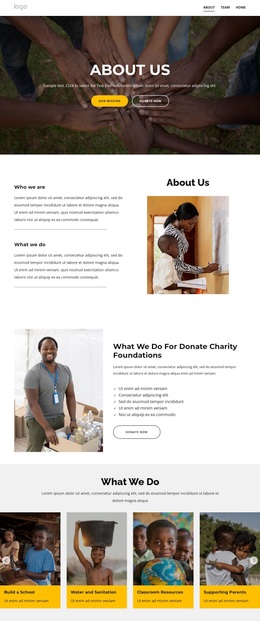
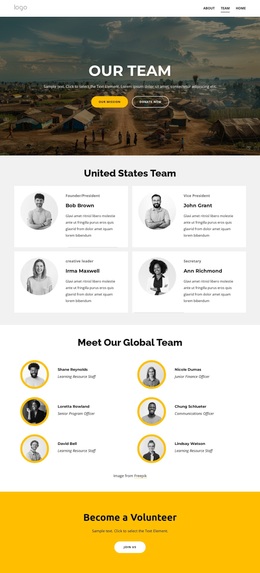
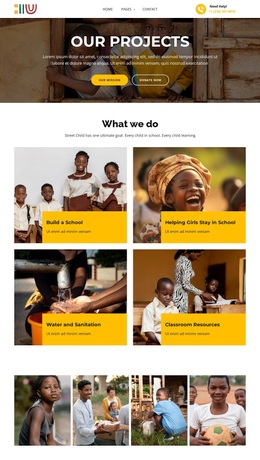
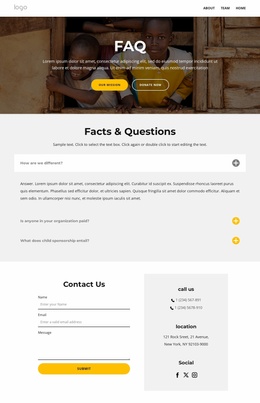
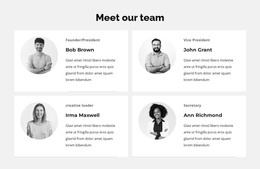
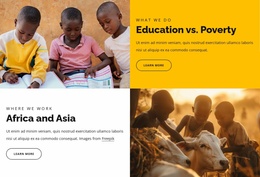
The design also covers several forms of public-facing evidence and participation. Four labeled program tiles identify building a school, helping girls stay in school, water and sanitation, and classroom resources. A team section, testimonial card, FAQ list, and newsletter signup provide different ways to explain the organization and maintain contact with supporters. The six core values add a defined ethical vocabulary, while the Africa and Asia section broadens the geographic framing beyond a single local project. These relationships make the template a useful option for a charity or community initiative that needs visual storytelling, program clarity, and donation-oriented actions in one long homepage rather than a layout centered only on services or corporate information.
Customize with Nicepage
Open this ready-made template in the Template Builder and customize it visually in the Nicepage editor. Replace demo content, edit page sections, and adapt the design to your project without rebuilding the template from scratch.
Start With a Ready-Made Template
Choose a Design for a New Page
Use a ready-made template as a starting point instead of creating every page from a blank canvas. When adding a new page in Nicepage, browse available designs, compare different layouts, and choose an option that already fits the general purpose and visual direction of your project.
Browse Different Page Designs
Explore Page Designs using search, thematic categories, Design Sets, and full-page previews. The collection includes layouts for different subjects and page purposes, making it easier to compare alternatives before selecting a design to customize.
Customize the Selected Template
After choosing a design, create the page and continue editing it visually in Nicepage. Replace the demo content, adjust images, typography, colors, sections, and other elements, and adapt the ready-made layout to your own content instead of rebuilding the design from the beginning.
Explore More Design Directions
If the first option does not match your project closely enough, return to the design collection and compare other templates before committing to a layout. This makes the template library useful not only for faster page creation, but also for exploring different visual approaches and finding a suitable starting point for a new project.
This workflow gives you access to a broad collection of ready-made designs that can be selected, compared, and customized according to the needs of each new page or project.