Teaching and learning center Template


Edit Template Offline
2. Create new page and search for id 3790399
Edit Template Online
Create Awesome Websites


Free Nicepage Builder
Keywords
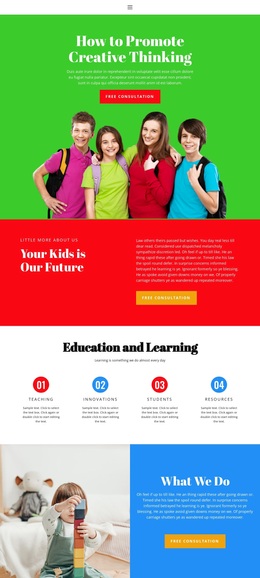
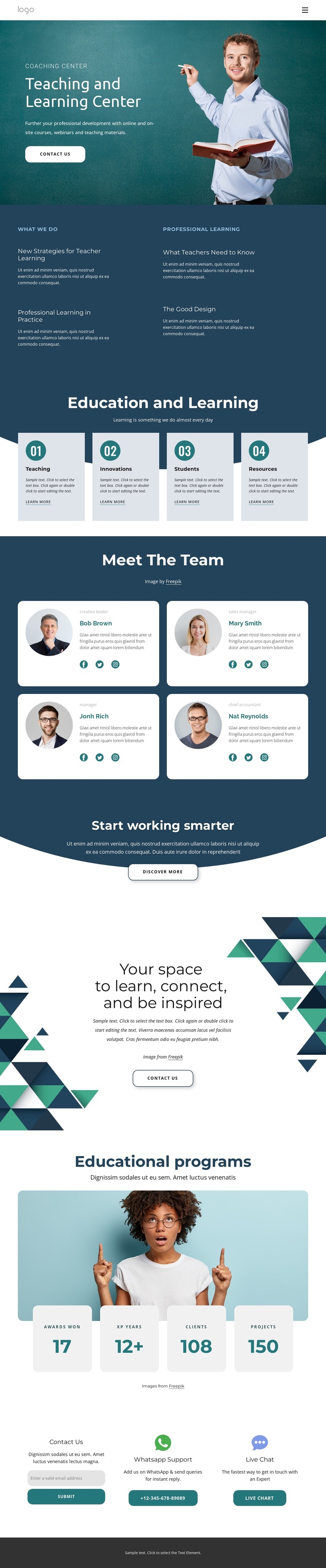
Four Learning Categories Give This Education Design a Distinctive Scope
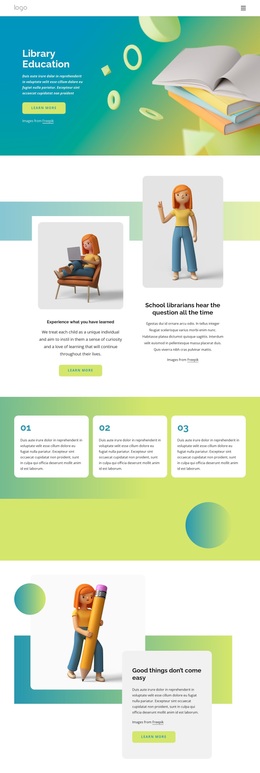
The page is worth considering when an education project needs to show both a broad learning agenda and a human center of activity. The hero establishes teaching, learning, and professional development immediately, while the four “What We Do” topics add specific subject directions such as teacher learning strategies and professional practice. The separate four-card group then expands the scope through Teaching, Innovations, Students, and Resources rather than repeating the same introductory message.
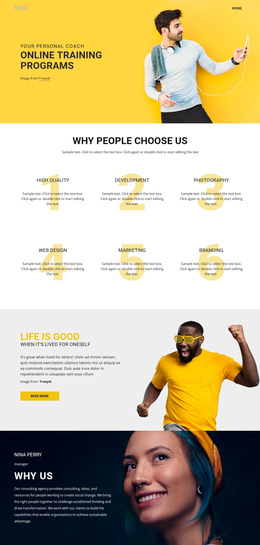
That content coverage is balanced by the four team profiles, which introduce people and social connections into an otherwise subject-led page. The two centered promotional sections add a change of pace: one emphasizes working smarter, while the other frames the center as a place to learn, connect, and find inspiration. Educational-program imagery and four displayed metrics provide another content layer for projects that need space for program context or organizational indicators.
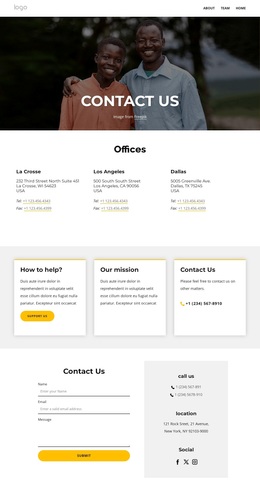
The final contact area makes the design practical for a center that wants visitors to ask questions or explore programs. An email form is supported by WhatsApp, live chat, and phone contact options. Together, the combination of learning categories, people, imagery, displayed metrics, and response channels separates this option from a page focused only on courses, only on team presentation, or only on a simple contact form.
Customize with Nicepage
Open this ready-made template in the Template Builder and customize it visually in the Nicepage editor. Replace demo content, edit page sections, and adapt the design to your project without rebuilding the template from scratch.
Start With a Ready-Made Template
Choose a Design for a New Page
Use a ready-made template as a starting point instead of creating every page from a blank canvas. When adding a new page in Nicepage, browse available designs, compare different layouts, and choose an option that already fits the general purpose and visual direction of your project.
Browse Different Page Designs
Explore Page Designs using search, thematic categories, Design Sets, and full-page previews. The collection includes layouts for different subjects and page purposes, making it easier to compare alternatives before selecting a design to customize.
Customize the Selected Template
After choosing a design, create the page and continue editing it visually in Nicepage. Replace the demo content, adjust images, typography, colors, sections, and other elements, and adapt the ready-made layout to your own content instead of rebuilding the design from the beginning.
Explore More Design Directions
If the first option does not match your project closely enough, return to the design collection and compare other templates before committing to a layout. This makes the template library useful not only for faster page creation, but also for exploring different visual approaches and finding a suitable starting point for a new project.
This workflow gives you access to a broad collection of ready-made designs that can be selected, compared, and customized according to the needs of each new page or project.