Online Education Tutorial Template


Edit Template Offline
2. Create new page and search for id 6673153
Edit Template Online
Create Awesome Websites


Free Nicepage Builder
Keywords
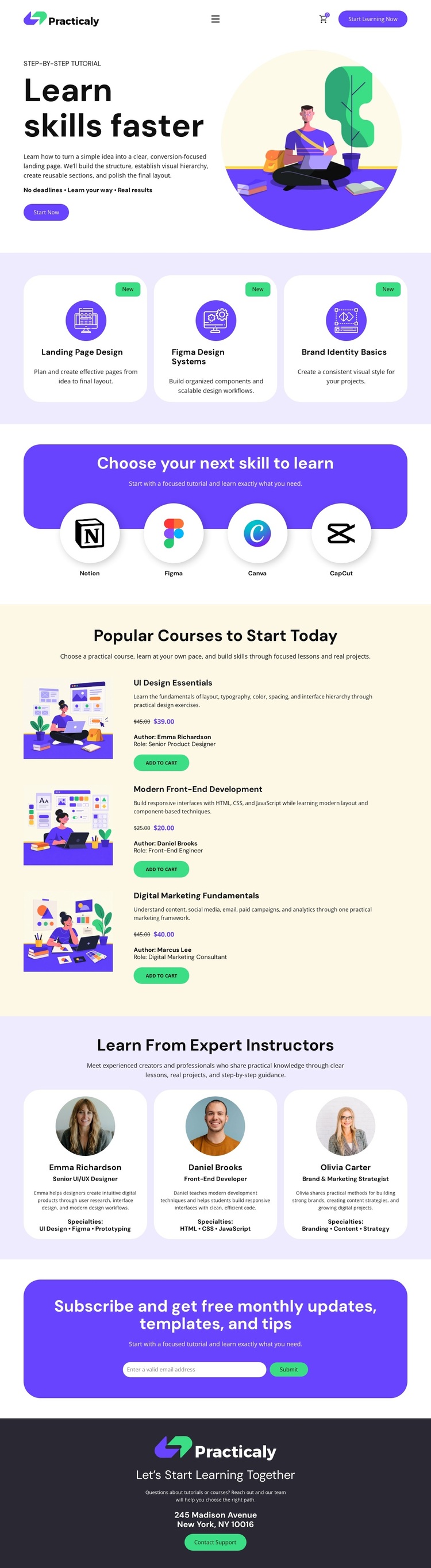
Three course listings anchor a practical learning choice
The design stands out through the way it combines learning discovery with concrete course selection. Three introductory cards first present focused categories—Landing Page Design, Figma Design Systems, and Brand Identity Basics—so the page communicates practical subject areas before asking visitors to choose a specific course. The separate tool section then adds Notion, Figma, Canva, and CapCut as recognizable references, reinforcing a hands-on rather than purely theoretical direction.
The strongest reason to choose this template is the featured-course area. Three listings are presented with illustrations, descriptions, prices, author information, and Add to Cart actions, giving the design enough content coverage to support a real course-promotion scenario. The three instructor profiles add a human layer through portraits, professional roles, biographies, and specialties. This combination distinguishes the page from layouts that rely only on generic service cards or a single educational hero.
The subscription form broadens the use case by inviting visitors to receive monthly updates, templates, and tips. It connects immediate course interest with an ongoing learning relationship, while the dark footer provides a clear closing identity and support point. The result is a ready-made option for projects that need to show what people can learn, which tools are involved, who teaches the material, and how visitors can continue the conversation after reviewing the offer.
Customize with Nicepage
Open this ready-made template in the Template Builder and customize it visually in the Nicepage editor. Replace demo content, edit page sections, and adapt the design to your project without rebuilding the template from scratch.
Start With a Ready-Made Template
Choose a Design for a New Page
Use a ready-made template as a starting point instead of creating every page from a blank canvas. When adding a new page in Nicepage, browse available designs, compare different layouts, and choose an option that already fits the general purpose and visual direction of your project.
Browse Different Page Designs
Explore Page Designs using search, thematic categories, Design Sets, and full-page previews. The collection includes layouts for different subjects and page purposes, making it easier to compare alternatives before selecting a design to customize.
Customize the Selected Template
After choosing a design, create the page and continue editing it visually in Nicepage. Replace the demo content, adjust images, typography, colors, sections, and other elements, and adapt the ready-made layout to your own content instead of rebuilding the design from the beginning.
Explore More Design Directions
If the first option does not match your project closely enough, return to the design collection and compare other templates before committing to a layout. This makes the template library useful not only for faster page creation, but also for exploring different visual approaches and finding a suitable starting point for a new project.
This workflow gives you access to a broad collection of ready-made designs that can be selected, compared, and customized according to the needs of each new page or project.