Welcome to dental studios Template


Edit Template Offline
2. Create new page and search for id 6216588
Edit Template Online
Create Awesome Websites


Free Nicepage Builder
Keywords
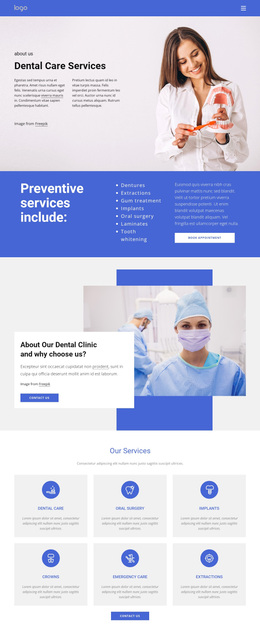
Four Services and Six Dental Categories Shape the Design Choice
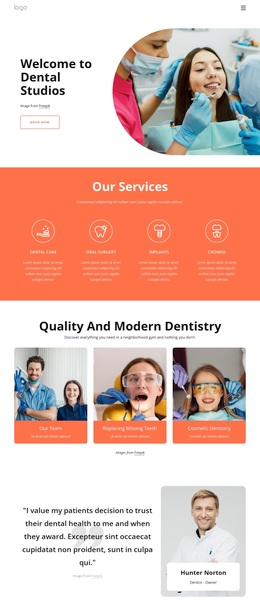
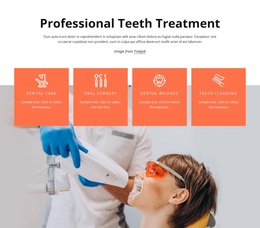
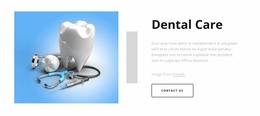
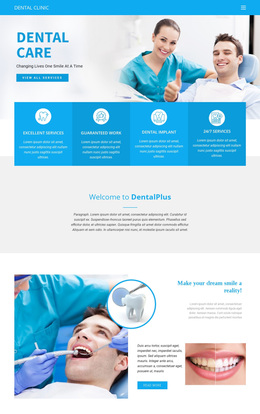
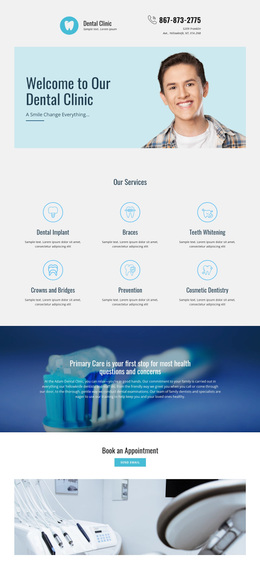
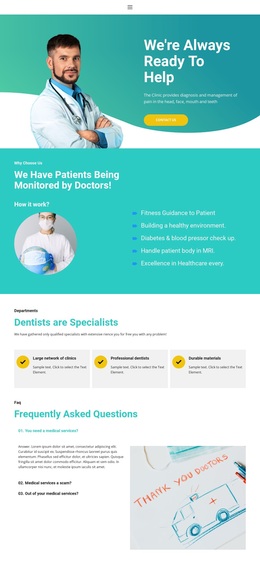
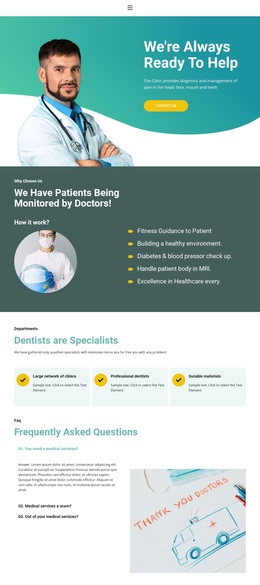
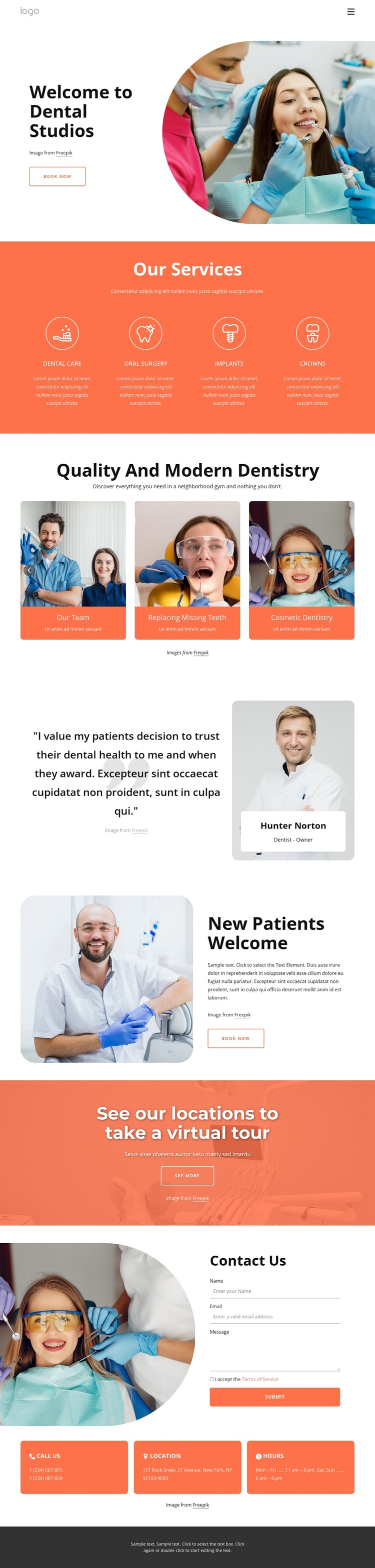
Four evenly spaced service cards give this design immediate content coverage: dental care, oral surgery, implants, and crowns are presented as separate starting points rather than compressed into one paragraph. That structure suits a dental project that needs to introduce several treatment areas while keeping the first explanation easy to scan. The coral section also creates a strong visual anchor between the welcoming hero and the more exploratory content that follows.
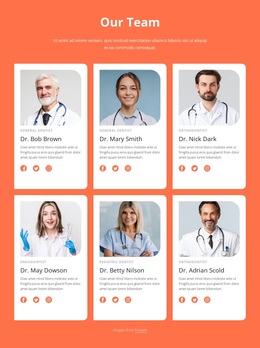
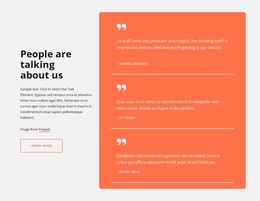
The six-part gallery adds a distinctive reason to consider this layout. Our Team, Replacing Missing Teeth, Cosmetic Dentistry, Orthodontics, Family Friendly, and Teeth Implants appear as image-led categories with labels and navigation controls. The design can therefore communicate both clinical services and the broader experience around them. A testimonial-style dentist profile supports that story with a human point of view, while the New Patients Welcome section gives the page a direct invitation for people who may be unfamiliar with the practice.
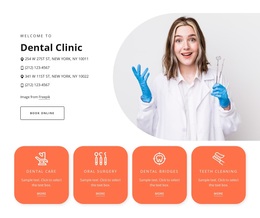
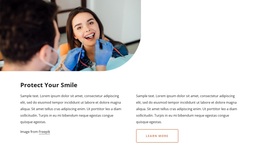
Booking actions appear in the hero and new-patient section, then the location banner and final contact area extend the choice beyond visual presentation. The contact form, telephone, location, and hours channels give visitors several ways to understand the next step without turning the page into a dense list. This combination makes the template a useful option for dental projects that need treatment coverage, approachable imagery, patient-oriented reassurance, and a clear route toward appointment inquiries.
Customize with Nicepage
Open this ready-made template in the Template Builder and customize it visually in the Nicepage editor. Replace demo content, edit page sections, and adapt the design to your project without rebuilding the template from scratch.
Start With a Ready-Made Template
Choose a Design for a New Page
Use a ready-made template as a starting point instead of creating every page from a blank canvas. When adding a new page in Nicepage, browse available designs, compare different layouts, and choose an option that already fits the general purpose and visual direction of your project.
Browse Different Page Designs
Explore Page Designs using search, thematic categories, Design Sets, and full-page previews. The collection includes layouts for different subjects and page purposes, making it easier to compare alternatives before selecting a design to customize.
Customize the Selected Template
After choosing a design, create the page and continue editing it visually in Nicepage. Replace the demo content, adjust images, typography, colors, sections, and other elements, and adapt the ready-made layout to your own content instead of rebuilding the design from the beginning.
Explore More Design Directions
If the first option does not match your project closely enough, return to the design collection and compare other templates before committing to a layout. This makes the template library useful not only for faster page creation, but also for exploring different visual approaches and finding a suitable starting point for a new project.
This workflow gives you access to a broad collection of ready-made designs that can be selected, compared, and customized according to the needs of each new page or project.