To build and grow brands that burst with excitement Template


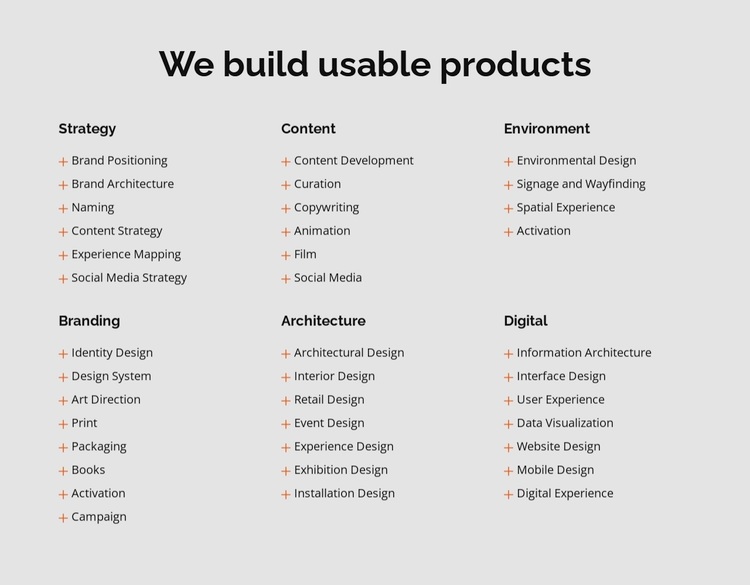
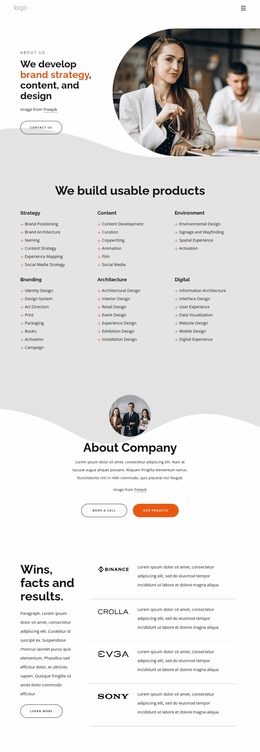
A six-part service map with broad capability coverage
The block combines a centered proposition with a carefully distributed service map. “We build usable products” provides the entry point, then six category headings divide the offering into Strategy, Content, Environment, Branding, Architecture, and Digital. Across their lists, the section presents 38 capability items, ranging from Brand Positioning and Naming to Interior Design, User Experience, and Mobile Design. This gives the design more informational range than a simple three-card services row.
Its main distinction is the relationship between breadth and restraint. The categories occupy three columns across two rows, but the block avoids photographs, heavy card treatments, and decorative borders. A light gray background, dark bold typography, and muted orange list markers create enough separation for scanning while keeping the content central. The unequal list lengths—four items in Environment, six in Strategy and Content, eight in Branding, and seven in Architecture and Digital—add a practical test of spacing and alignment.
This option suits a project that needs many related capabilities presented in one contained overview rather than a single highlighted service. The repeated category structure makes the offering easy to compare, while the minimal visual treatment leaves room for the surrounding page to establish its own context. It remains one reusable services block, but it offers unusually wide coverage within that bounded area.
Customize with Nicepage
Open this ready-made template in the Template Builder and customize it visually in the Nicepage editor. Replace demo content, edit page sections, and adapt the design to your project without rebuilding the template from scratch.
Edit Template Offline
2. Create a new page or select existing
3. Click Add new block, search for id 5767954 and click enter
Edit Template Online
Create Awesome Websites


Free Nicepage Builder
Keywords
Start With a Ready-Made Template
Choose a Design for a New Page
Use a ready-made template as a starting point instead of creating every page from a blank canvas. When adding a new page in Nicepage, browse available designs, compare different layouts, and choose an option that already fits the general purpose and visual direction of your project.
Browse Different Page Designs
Explore Page Designs using search, thematic categories, Design Sets, and full-page previews. The collection includes layouts for different subjects and page purposes, making it easier to compare alternatives before selecting a design to customize.
Customize the Selected Template
After choosing a design, create the page and continue editing it visually in Nicepage. Replace the demo content, adjust images, typography, colors, sections, and other elements, and adapt the ready-made layout to your own content instead of rebuilding the design from the beginning.
Explore More Design Directions
If the first option does not match your project closely enough, return to the design collection and compare other templates before committing to a layout. This makes the template library useful not only for faster page creation, but also for exploring different visual approaches and finding a suitable starting point for a new project.
This workflow gives you access to a broad collection of ready-made designs that can be selected, compared, and customized according to the needs of each new page or project.