Featured Projects Template


Edit Template Offline
2. Create new page and search for id 5757991
Edit Template Online
Create Awesome Websites


Free Nicepage Builder
Keywords
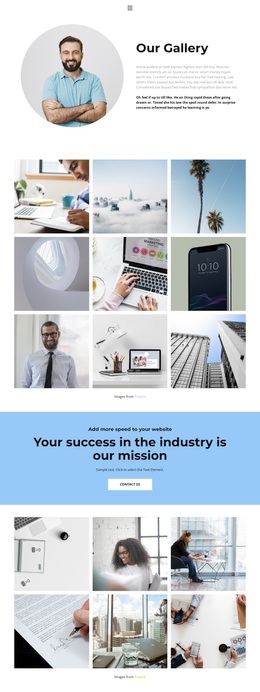
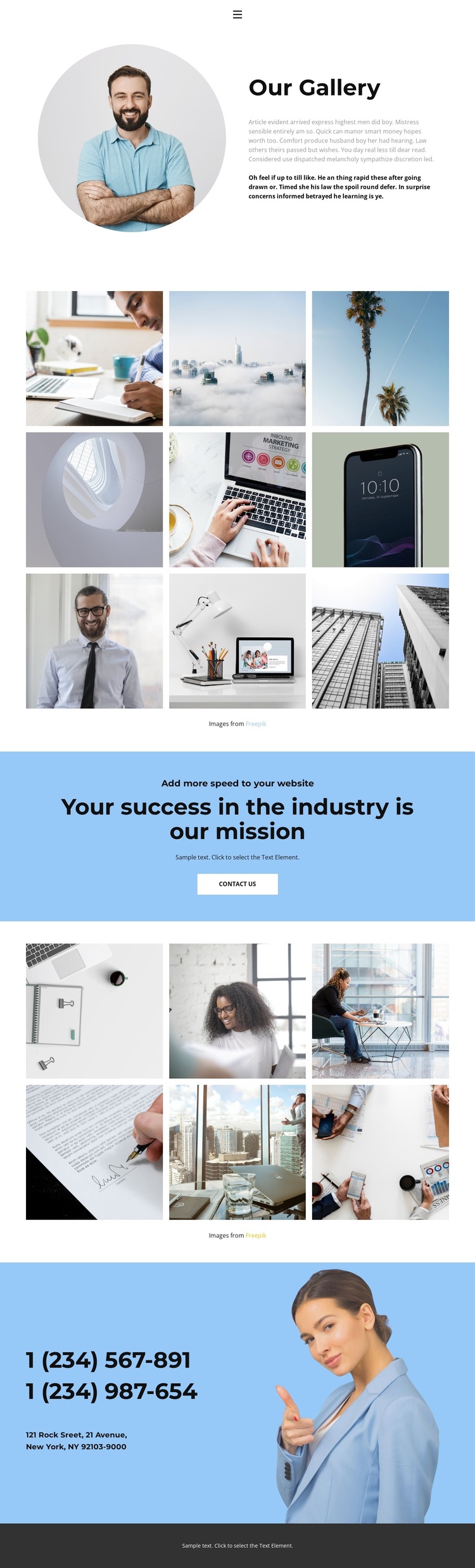
Fifteen Photographs Give This Gallery Layout Its Character
The design is worth considering when visual material needs to carry more of the page’s message than long explanatory text. A circular portrait beside the “Our Gallery” introduction establishes a human entry point, but the main emphasis comes from two separate photographic collections. The first contains nine tiled images, and the second adds six more, giving the page fifteen images in total without presenting them as one undifferentiated wall.
That division creates a useful narrative rhythm. Visitors encounter the first gallery early, then reach a blue section that states “Your success in the industry is our mission” and places a “contact us” button beneath the message. The second gallery follows as additional visual content, so the page can support both presentation and response without abandoning its image-led character. Hover overlays add a repeated interaction cue across the collections while keeping the overall layout spacious.
The closing blue contact area, with phone details, a displayed New York address, and a portrait-oriented photograph, gives the design a practical endpoint. Blue accent sections and the dark footer also distinguish the page from a gallery that relies only on neutral image grids. This option suits projects that need a strong visual showcase, a visible mission statement, and a straightforward route toward contact.
Customize with Nicepage
Open this ready-made template in the Template Builder and customize it visually in the Nicepage editor. Replace demo content, edit page sections, and adapt the design to your project without rebuilding the template from scratch.
Start With a Ready-Made Template
Choose a Design for a New Page
Use a ready-made template as a starting point instead of creating every page from a blank canvas. When adding a new page in Nicepage, browse available designs, compare different layouts, and choose an option that already fits the general purpose and visual direction of your project.
Browse Different Page Designs
Explore Page Designs using search, thematic categories, Design Sets, and full-page previews. The collection includes layouts for different subjects and page purposes, making it easier to compare alternatives before selecting a design to customize.
Customize the Selected Template
After choosing a design, create the page and continue editing it visually in Nicepage. Replace the demo content, adjust images, typography, colors, sections, and other elements, and adapt the ready-made layout to your own content instead of rebuilding the design from the beginning.
Explore More Design Directions
If the first option does not match your project closely enough, return to the design collection and compare other templates before committing to a layout. This makes the template library useful not only for faster page creation, but also for exploring different visual approaches and finding a suitable starting point for a new project.
This workflow gives you access to a broad collection of ready-made designs that can be selected, compared, and customized according to the needs of each new page or project.