Long hiking trip Template


A mountain-led alternative to a conventional hiking section
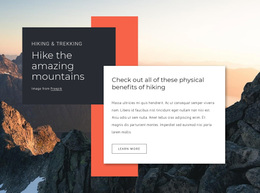
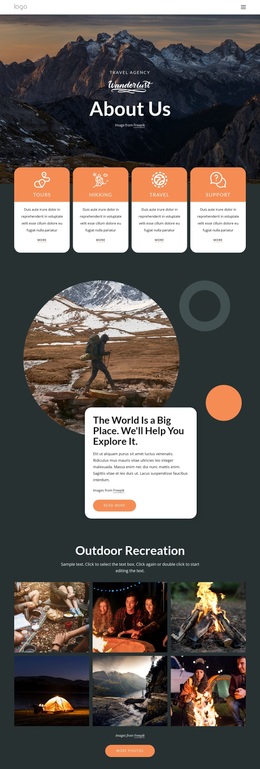
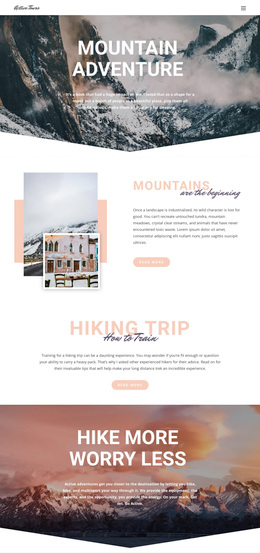
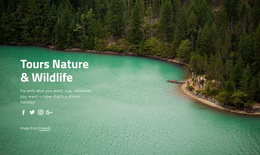
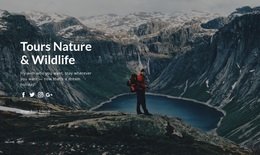
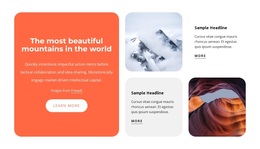
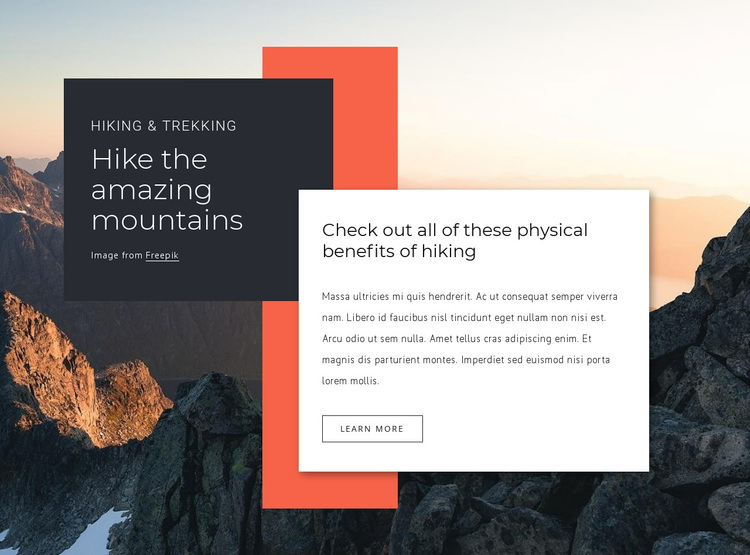
The block stands out through the way it combines a scenic full-bleed mountain image with two overlapping rectangular content surfaces. Rather than placing hiking information in a simple flat column or a conventional row of cards, it uses a dark left panel for the “Hiking & Trekking” label and “Hike the amazing mountains” heading. A white card crosses the composition on the right, carrying the physical-benefits heading, descriptive paragraph, and “learn more” button. The tall coral rectangle supplies another layer of shape and color behind this arrangement.
Those choices make the design useful when a page needs an outdoor recreation section with strong image presence and a compact amount of supporting information. The viewer receives the broad subject first, then a more detailed explanation without the block needing multiple repeated cards or complex interaction. The static layout also keeps the message visible as one connected composition. Among ready-made block alternatives, this option is most distinctive for its asymmetrical overlap, high-contrast panel treatment, and transition from scenic introduction to benefit-focused content. It remains one reusable section, so surrounding blocks can provide additional trip details, imagery, navigation, or contact content as the wider page requires.
Customize with Nicepage
Open this ready-made template in the Template Builder and customize it visually in the Nicepage editor. Replace demo content, edit page sections, and adapt the design to your project without rebuilding the template from scratch.
Edit Template Offline
2. Create a new page or select existing
3. Click Add new block, search for id 499011 and click enter
Edit Template Online
Create Awesome Websites


Free Nicepage Builder
Keywords
Start With a Ready-Made Template
Choose a Design for a New Page
Use a ready-made template as a starting point instead of creating every page from a blank canvas. When adding a new page in Nicepage, browse available designs, compare different layouts, and choose an option that already fits the general purpose and visual direction of your project.
Browse Different Page Designs
Explore Page Designs using search, thematic categories, Design Sets, and full-page previews. The collection includes layouts for different subjects and page purposes, making it easier to compare alternatives before selecting a design to customize.
Customize the Selected Template
After choosing a design, create the page and continue editing it visually in Nicepage. Replace the demo content, adjust images, typography, colors, sections, and other elements, and adapt the ready-made layout to your own content instead of rebuilding the design from the beginning.
Explore More Design Directions
If the first option does not match your project closely enough, return to the design collection and compare other templates before committing to a layout. This makes the template library useful not only for faster page creation, but also for exploring different visual approaches and finding a suitable starting point for a new project.
This workflow gives you access to a broad collection of ready-made designs that can be selected, compared, and customized according to the needs of each new page or project.