Login on image background Template


A Compact Login Design With Strong Image Contrast
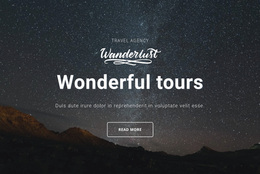
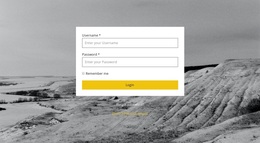
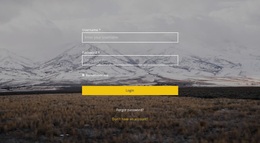
The section's most distinctive choice is the contrast between a practical credential form and an expansive mountain image. Instead of placing the login controls on a plain background, the design uses a muted landscape with a dark translucent overlay, allowing the centered form to remain readable while giving the section a recognizable visual setting. White outlined fields and light labels keep the two required inputs visually consistent with the image treatment.
The content coverage is equally focused. Username and password fields address the main sign-in task, the remember-me checkbox supports returning users, and the bright yellow full-width Login button provides a strong endpoint beneath the fields. The smaller Forgot password? and account-creation links add useful account paths without competing with that primary control. Their placement below the form keeps recovery and registration visible but secondary.
This is a useful ready-made choice when a project needs more than a generic credential panel but does not need a dense dashboard or multi-column account layout. The block offers a clear authentication function, a memorable landscape-led presentation, and enough supporting account access to stand on its own as one section. Surrounding content can determine the broader service, travel context, or page journey.
Customize with Nicepage
Open this ready-made template in the Template Builder and customize it visually in the Nicepage editor. Replace demo content, edit page sections, and adapt the design to your project without rebuilding the template from scratch.
Edit Template Offline
2. Create a new page or select existing
3. Click Add new block, search for id 1442379 and click enter
Edit Template Online
Create Awesome Websites


Free Nicepage Builder
Keywords
Start With a Ready-Made Template
Choose a Design for a New Page
Use a ready-made template as a starting point instead of creating every page from a blank canvas. When adding a new page in Nicepage, browse available designs, compare different layouts, and choose an option that already fits the general purpose and visual direction of your project.
Browse Different Page Designs
Explore Page Designs using search, thematic categories, Design Sets, and full-page previews. The collection includes layouts for different subjects and page purposes, making it easier to compare alternatives before selecting a design to customize.
Customize the Selected Template
After choosing a design, create the page and continue editing it visually in Nicepage. Replace the demo content, adjust images, typography, colors, sections, and other elements, and adapt the ready-made layout to your own content instead of rebuilding the design from the beginning.
Explore More Design Directions
If the first option does not match your project closely enough, return to the design collection and compare other templates before committing to a layout. This makes the template library useful not only for faster page creation, but also for exploring different visual approaches and finding a suitable starting point for a new project.
This workflow gives you access to a broad collection of ready-made designs that can be selected, compared, and customized according to the needs of each new page or project.