Make planning easier Template


Portrait Contrast Gives the Planning Checklist a Distinctive Form
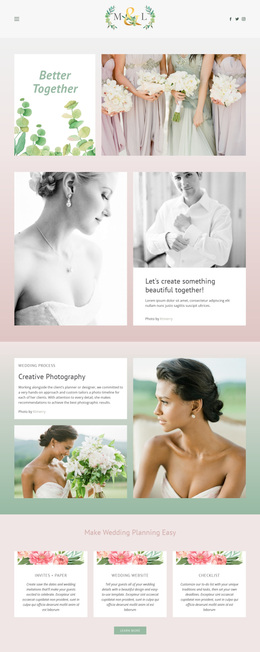
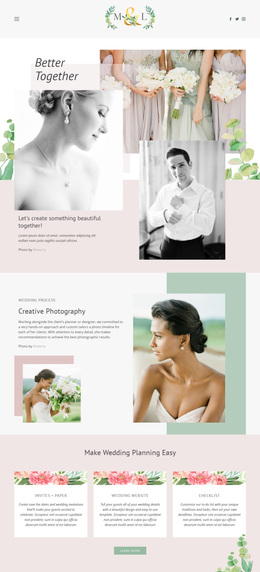
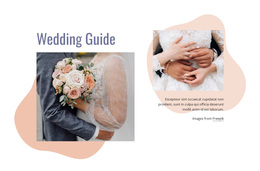
The block combines a strong typographic introduction, two black-and-white wedding portraits, and a practical six-item checklist instead of presenting planning guidance as a plain list. Its asymmetrical arrangement places the title above the bridal portrait on the left and the groom portrait above the black checklist panel on the right. That pairing gives the section both an editorial image rhythm and a clearly bounded information area, making it a distinctive option when a wedding page needs useful guidance with more visual presence.
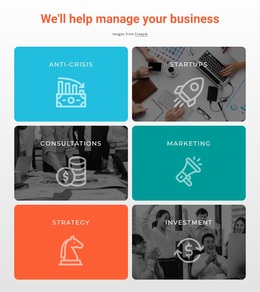
The checklist covers attire and accessories for the bridal party, ceremony and reception venues, an officiant, Save the Dates, wedding dress and related clothing, and a fitness routine. Those varied reminders give the section meaningful content coverage, while the black panel gathers them into one scannable group. The white title and portrait tiles balance the darker task area, and the large heading creates a clear first reading point. This design is especially suitable when the page needs a mid-page planning section that feels composed rather than generic. Its four-tile logic can sit alongside other wedding sections while retaining a recognizable visual character and a focused practical role.
Customize with Nicepage
Open this ready-made template in the Template Builder and customize it visually in the Nicepage editor. Replace demo content, edit page sections, and adapt the design to your project without rebuilding the template from scratch.
Edit Template Offline
2. Create a new page or select existing
3. Click Add new block, search for id 47721 and click enter
Edit Template Online
Create Awesome Websites


Free Nicepage Builder
Keywords
Start With a Ready-Made Template
Choose a Design for a New Page
Use a ready-made template as a starting point instead of creating every page from a blank canvas. When adding a new page in Nicepage, browse available designs, compare different layouts, and choose an option that already fits the general purpose and visual direction of your project.
Browse Different Page Designs
Explore Page Designs using search, thematic categories, Design Sets, and full-page previews. The collection includes layouts for different subjects and page purposes, making it easier to compare alternatives before selecting a design to customize.
Customize the Selected Template
After choosing a design, create the page and continue editing it visually in Nicepage. Replace the demo content, adjust images, typography, colors, sections, and other elements, and adapt the ready-made layout to your own content instead of rebuilding the design from the beginning.
Explore More Design Directions
If the first option does not match your project closely enough, return to the design collection and compare other templates before committing to a layout. This makes the template library useful not only for faster page creation, but also for exploring different visual approaches and finding a suitable starting point for a new project.
This workflow gives you access to a broad collection of ready-made designs that can be selected, compared, and customized according to the needs of each new page or project.