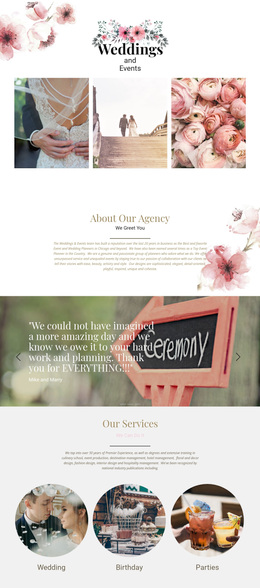
Unique wedding ceremony Template



Edit Template Offline
2. Create new page and search for id 238078
Edit Template Online
Create Awesome Websites


Free Nicepage Builder
Keywords
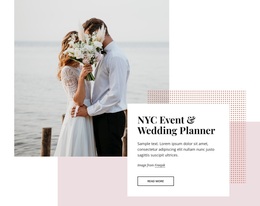
Circular Ceremony Imagery Gives This Wedding Design a Distinctive Direction
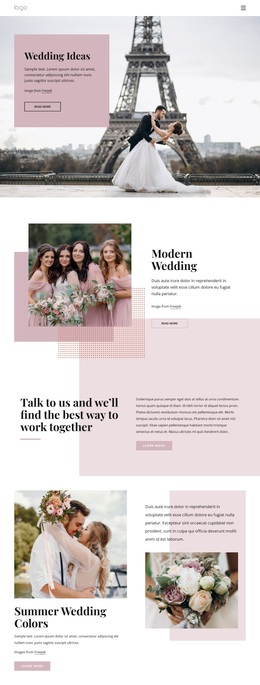
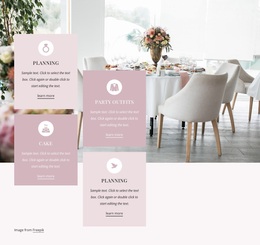
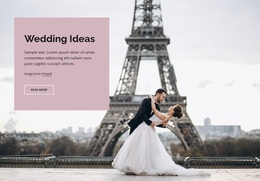
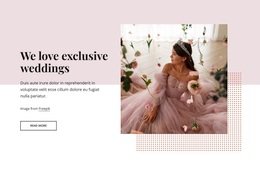
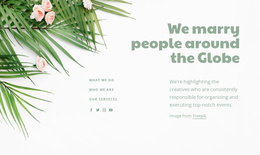
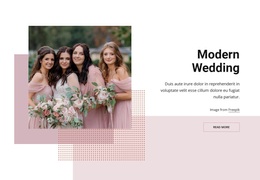
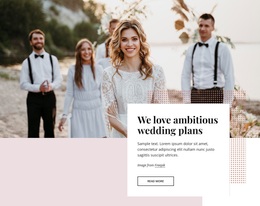
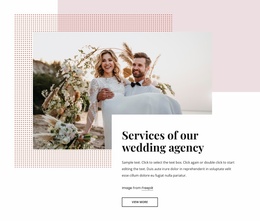
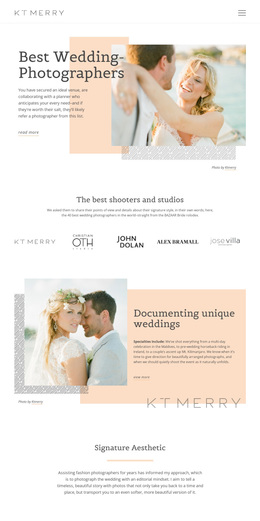
The strongest reason to choose this design is the way it treats photography as the main carrier of the wedding message. The opening Wedding Ideas section combines a blush text panel with a full-width photograph, establishing a soft editorial introduction rather than beginning with a dense list of services. Modern Wedding and Summer Wedding Colors then show how the same subject can be divided into different inspiration themes while retaining the image-and-copy relationship.
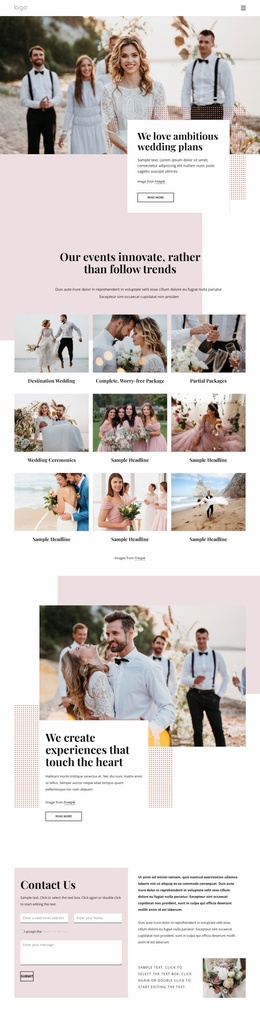
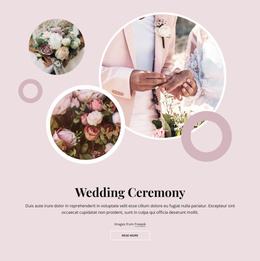
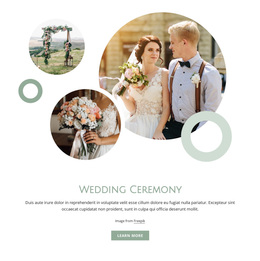
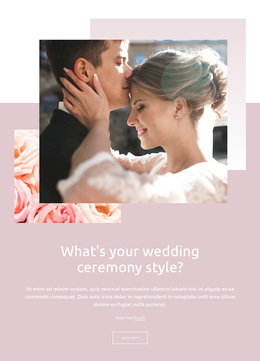
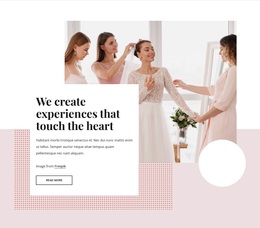
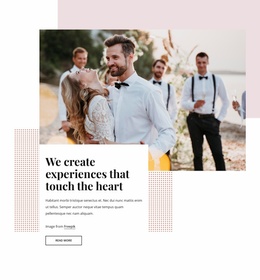
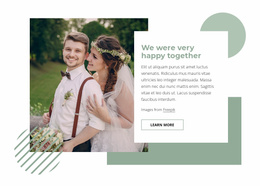
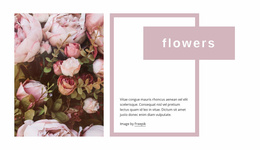
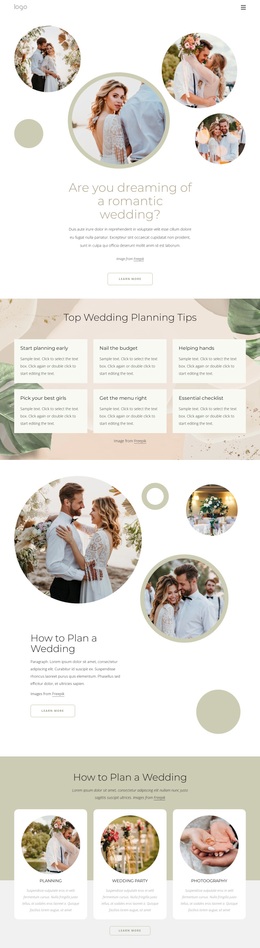
The Wedding Ceremony section provides the most distinctive visual change. Its centered text panel sits over a blush background and is surrounded by three circular wedding photographs, creating a collage-like focal point that differs from the page’s earlier split compositions. The following three-image gallery continues the emphasis on visual examples in a simpler horizontal format. Between these larger sections, the Happiness and Modern statements add short editorial ideas beside a tall portrait.
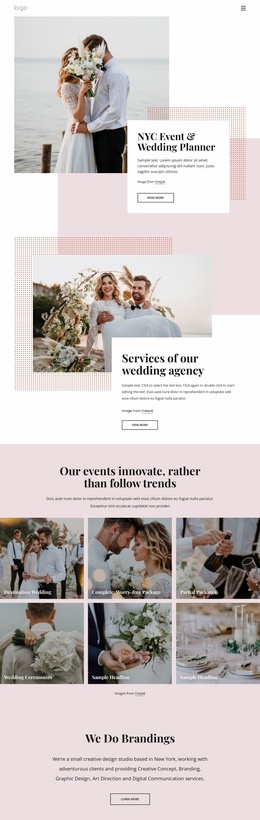
This combination suits a project that needs to communicate atmosphere, ceremony, and styling through imagery before asking visitors to make contact. The page covers broad ideas, modern direction, summer colors, ceremonial content, and a compact gallery without relying on one repeated card pattern. The Contact Us form gives the design a practical endpoint, so the template can support both inspiration-led presentation and a service conversation.
Customize with Nicepage
Open this ready-made template in the Template Builder and customize it visually in the Nicepage editor. Replace demo content, edit page sections, and adapt the design to your project without rebuilding the template from scratch.
Start With a Ready-Made Template
Choose a Design for a New Page
Use a ready-made template as a starting point instead of creating every page from a blank canvas. When adding a new page in Nicepage, browse available designs, compare different layouts, and choose an option that already fits the general purpose and visual direction of your project.
Browse Different Page Designs
Explore Page Designs using search, thematic categories, Design Sets, and full-page previews. The collection includes layouts for different subjects and page purposes, making it easier to compare alternatives before selecting a design to customize.
Customize the Selected Template
After choosing a design, create the page and continue editing it visually in Nicepage. Replace the demo content, adjust images, typography, colors, sections, and other elements, and adapt the ready-made layout to your own content instead of rebuilding the design from the beginning.
Explore More Design Directions
If the first option does not match your project closely enough, return to the design collection and compare other templates before committing to a layout. This makes the template library useful not only for faster page creation, but also for exploring different visual approaches and finding a suitable starting point for a new project.
This workflow gives you access to a broad collection of ready-made designs that can be selected, compared, and customized according to the needs of each new page or project.

Design Set (22)
-

-
-
-
-
-
-
-
-
-
-
-
-
-
-
-
-
-
Free Website Builder SoftwareDownload
-
-