Our Latest Projects Template


A Three-by-Two Grid Gives the Portfolio Presence
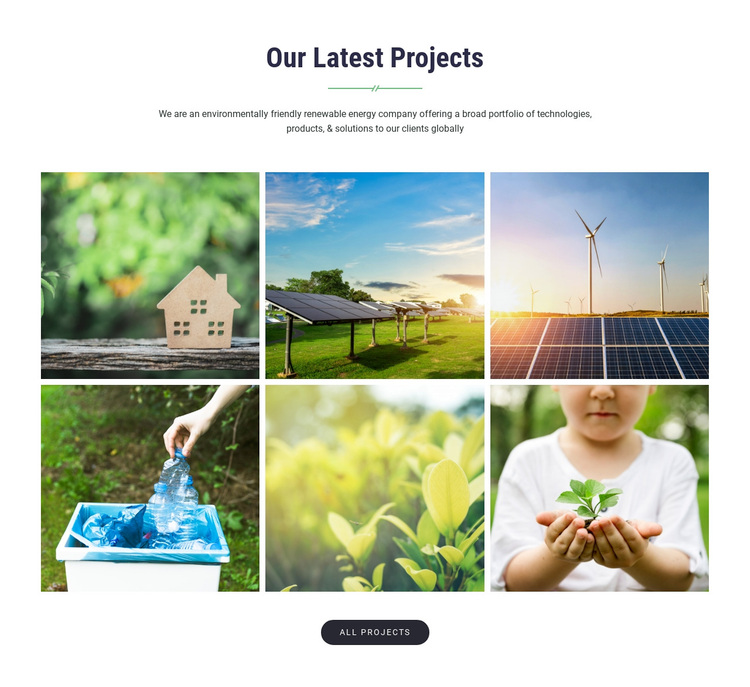
The section opens with a centered “Our Latest Projects” heading, a decorative accent, and supporting copy that identifies an environmentally friendly renewable energy company. Mentioning technologies, products, and solutions gives the gallery a useful subject frame before the images appear. The design then shifts from explanation to visual evidence: six project photographs are arranged as two rows of three equal rectangular tiles, creating a compact portfolio display with consistent proportions.
The image selection gives this block a distinctive reason to choose it over a generic card layout. Homes, solar panels, wind turbines, recycling, plants, and a child holding a seedling cover several visible expressions of environmental and renewable-energy work. Because the tiles share their dimensions and sit in a tightly spaced grid, the collection feels broad without becoming a long vertical list. That combination is useful when a page needs to communicate project variety while preserving a controlled visual rhythm.
A centered All Projects button sits beneath the imagery, extending the section beyond a simple showcase. It creates a natural continuation for visitors who want more examples, while the block itself remains focused on selected project visuals. White space around the text, dark navy type, green accents, and the rounded dark button provide enough contrast for the colorful photographs to remain the dominant feature. The result is a ready-made portfolio choice with clear content coverage, visual variety, and a defined next step.
Customize with Nicepage
Open this ready-made template in the Template Builder and customize it visually in the Nicepage editor. Replace demo content, edit page sections, and adapt the design to your project without rebuilding the template from scratch.
Edit Template Offline
2. Create a new page or select existing
3. Click Add new block, search for id 43621 and click enter
Edit Template Online
Create Awesome Websites


Free Nicepage Builder
Keywords
Start With a Ready-Made Template
Choose a Design for a New Page
Use a ready-made template as a starting point instead of creating every page from a blank canvas. When adding a new page in Nicepage, browse available designs, compare different layouts, and choose an option that already fits the general purpose and visual direction of your project.
Browse Different Page Designs
Explore Page Designs using search, thematic categories, Design Sets, and full-page previews. The collection includes layouts for different subjects and page purposes, making it easier to compare alternatives before selecting a design to customize.
Customize the Selected Template
After choosing a design, create the page and continue editing it visually in Nicepage. Replace the demo content, adjust images, typography, colors, sections, and other elements, and adapt the ready-made layout to your own content instead of rebuilding the design from the beginning.
Explore More Design Directions
If the first option does not match your project closely enough, return to the design collection and compare other templates before committing to a layout. This makes the template library useful not only for faster page creation, but also for exploring different visual approaches and finding a suitable starting point for a new project.
This workflow gives you access to a broad collection of ready-made designs that can be selected, compared, and customized according to the needs of each new page or project.