Property Management Template


Edit Template Offline
2. Create new page and search for id 4460252
Edit Template Online
Create Awesome Websites


Free Nicepage Builder
Keywords
City Choices, Rental Cards, and a Clear Housing Story
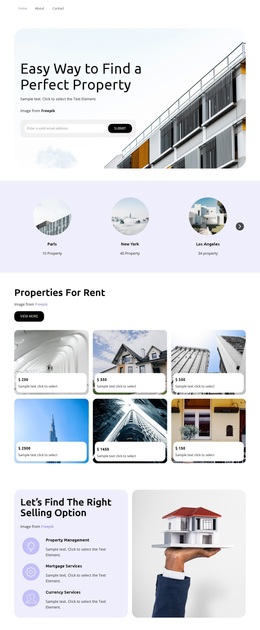
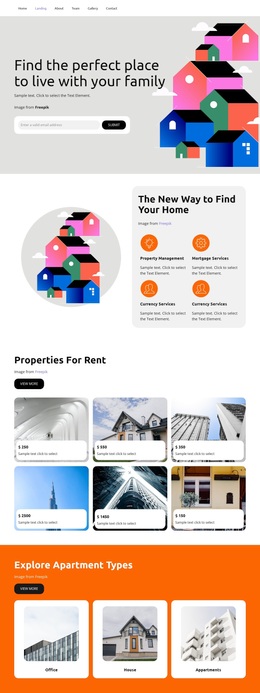
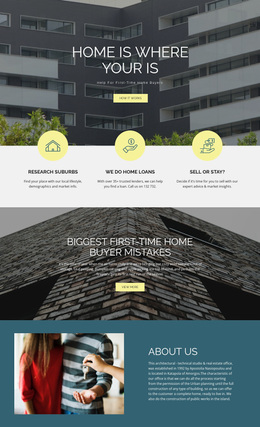
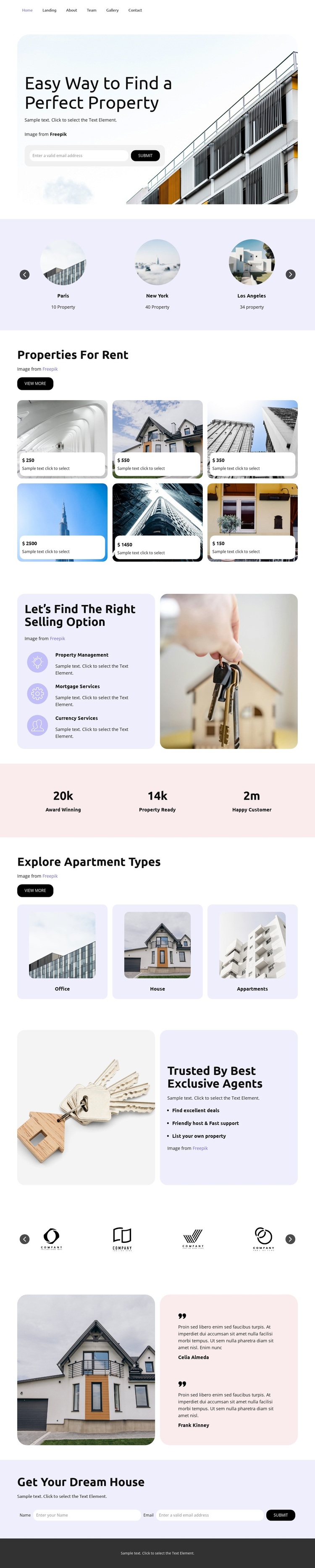
The design opens with a direct property-search message rather than a generic corporate introduction. A large building photograph gives the subject immediate visual context, while the search controls make the opening section relevant to visitors looking for housing. The next location slider presents Paris, New York, and Los Angeles as three recognizable discovery choices, giving the page a broader geographic frame before the six-card rental listing brings attention back to individual properties.
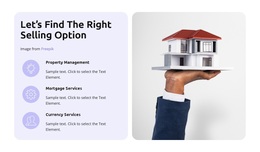
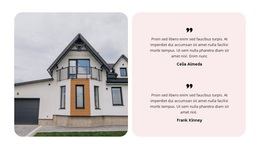
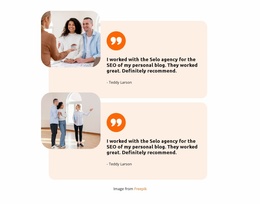
Its content coverage is one of the strongest reasons to consider this design. The page does not stop at listings: Property Management, Rental Services, and Currency Services explain supporting options; Office, House, and Apartments organize property categories; and the agent section adds “Friendly & Fast,” “Find your dream house,” and “List your property.” A partner row and a house-image testimonial extend the presentation into service reassurance without overwhelming the central rental theme.
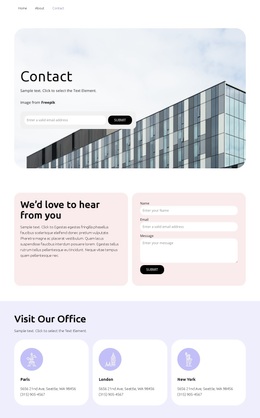
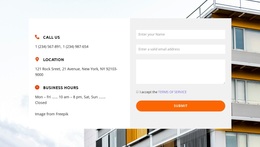
The final inquiry form gives the visitor a clear next step after browsing. Together, the search, location, listing, category, service, and contact sections create a ready-made direction for a housing project that needs visual storytelling and practical content choices. The combination is more specific than a generic property homepage because it connects exploration with an eventual dream-home inquiry.
Customize with Nicepage
Open this ready-made template in the Template Builder and customize it visually in the Nicepage editor. Replace demo content, edit page sections, and adapt the design to your project without rebuilding the template from scratch.
Start With a Ready-Made Template
Choose a Design for a New Page
Use a ready-made template as a starting point instead of creating every page from a blank canvas. When adding a new page in Nicepage, browse available designs, compare different layouts, and choose an option that already fits the general purpose and visual direction of your project.
Browse Different Page Designs
Explore Page Designs using search, thematic categories, Design Sets, and full-page previews. The collection includes layouts for different subjects and page purposes, making it easier to compare alternatives before selecting a design to customize.
Customize the Selected Template
After choosing a design, create the page and continue editing it visually in Nicepage. Replace the demo content, adjust images, typography, colors, sections, and other elements, and adapt the ready-made layout to your own content instead of rebuilding the design from the beginning.
Explore More Design Directions
If the first option does not match your project closely enough, return to the design collection and compare other templates before committing to a layout. This makes the template library useful not only for faster page creation, but also for exploring different visual approaches and finding a suitable starting point for a new project.
This workflow gives you access to a broad collection of ready-made designs that can be selected, compared, and customized according to the needs of each new page or project.