Luxury Real Estate Properties Template



Edit Template Offline
2. Create new page and search for id 6670117
Edit Template Online
Create Awesome Websites


Free Nicepage Builder
Keywords
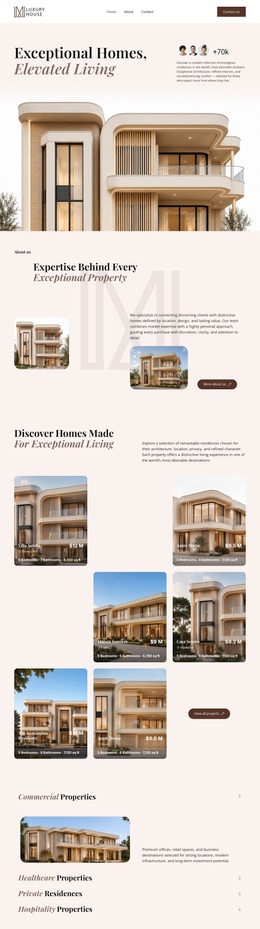
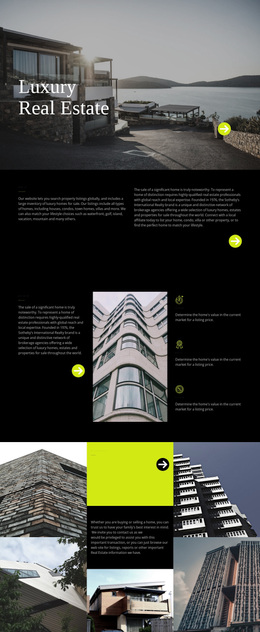
Six Homes, Four Categories, and Four Named Projects Shape the Choice
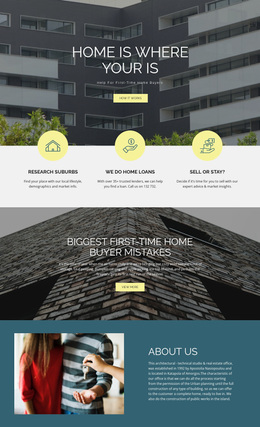
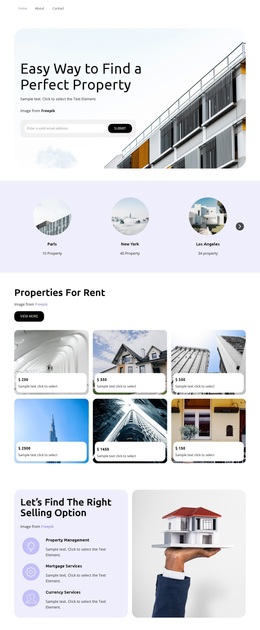
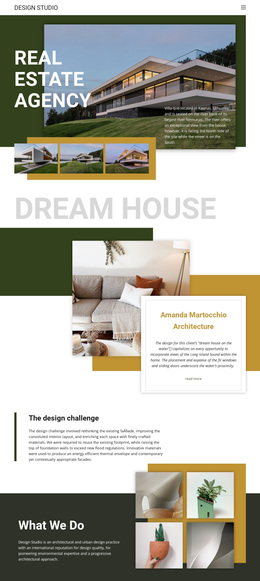
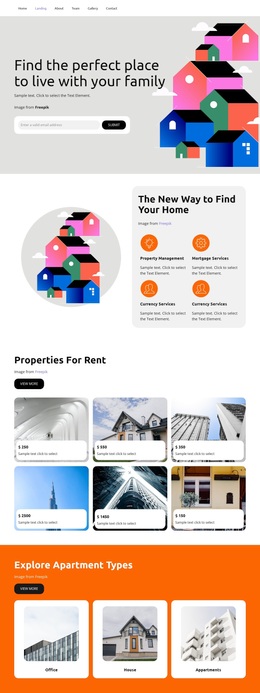
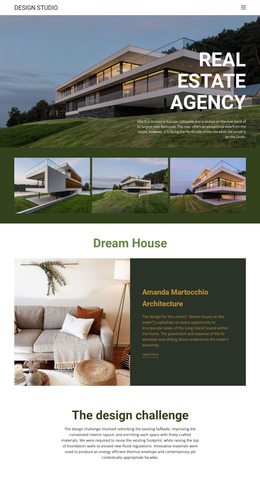
Large architectural imagery carries much of the page’s initial meaning. The opening residence photograph and the later gallery of multiple homes make visual presentation the first way visitors encounter the property portfolio. That emphasis suits projects that need to communicate atmosphere, scale, and living character before asking the audience to process dense information.
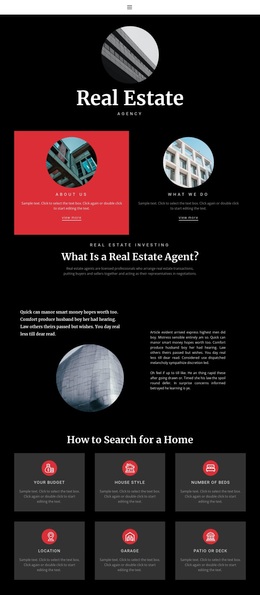
The design also covers several levels of property choice. Four category links identify Commercial Properties, Healthcare Properties, Private Residences, and Hospitality Properties, giving the layout broader coverage than a page limited to one residential offer. The four signature project cards then narrow the focus again through named developments: Aurelia Residences, The Meridian, Solara Villas, and Azure Bay Resort. This movement from visual impression to category breadth and then to specific projects makes the design a useful option for a real estate brand presenting more than one type of property.
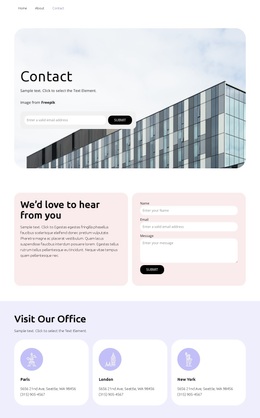
The closing inquiry section adds a practical next step through “Let’s Find Your Next Property” and visible phone, office, and email details. Contact us, View all properties, Learn more, and View details actions are distributed across the page without turning the design into a list of unsupported claims or sample prices. The result is a ready-made direction for luxury property presentation where imagery, portfolio coverage, and inquiry access need to work together.
Customize with Nicepage
Open this ready-made template in the Template Builder and customize it visually in the Nicepage editor. Replace demo content, edit page sections, and adapt the design to your project without rebuilding the template from scratch.
Start With a Ready-Made Template
Choose a Design for a New Page
Use a ready-made template as a starting point instead of creating every page from a blank canvas. When adding a new page in Nicepage, browse available designs, compare different layouts, and choose an option that already fits the general purpose and visual direction of your project.
Browse Different Page Designs
Explore Page Designs using search, thematic categories, Design Sets, and full-page previews. The collection includes layouts for different subjects and page purposes, making it easier to compare alternatives before selecting a design to customize.
Customize the Selected Template
After choosing a design, create the page and continue editing it visually in Nicepage. Replace the demo content, adjust images, typography, colors, sections, and other elements, and adapt the ready-made layout to your own content instead of rebuilding the design from the beginning.
Explore More Design Directions
If the first option does not match your project closely enough, return to the design collection and compare other templates before committing to a layout. This makes the template library useful not only for faster page creation, but also for exploring different visual approaches and finding a suitable starting point for a new project.
This workflow gives you access to a broad collection of ready-made designs that can be selected, compared, and customized according to the needs of each new page or project.