Live smarter Template


Edit Template Offline
2. Create new page and search for id 6540431
Edit Template Online
Create Awesome Websites


Free Nicepage Builder
Keywords
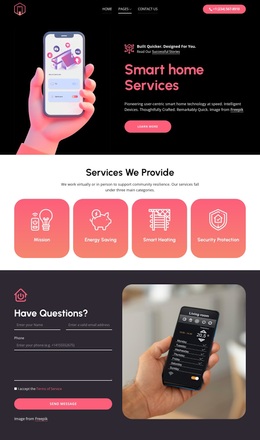
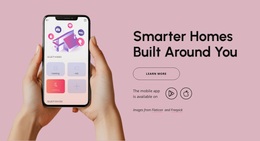
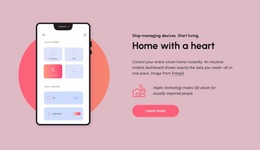
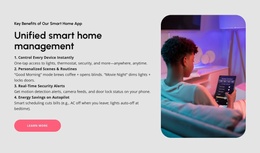
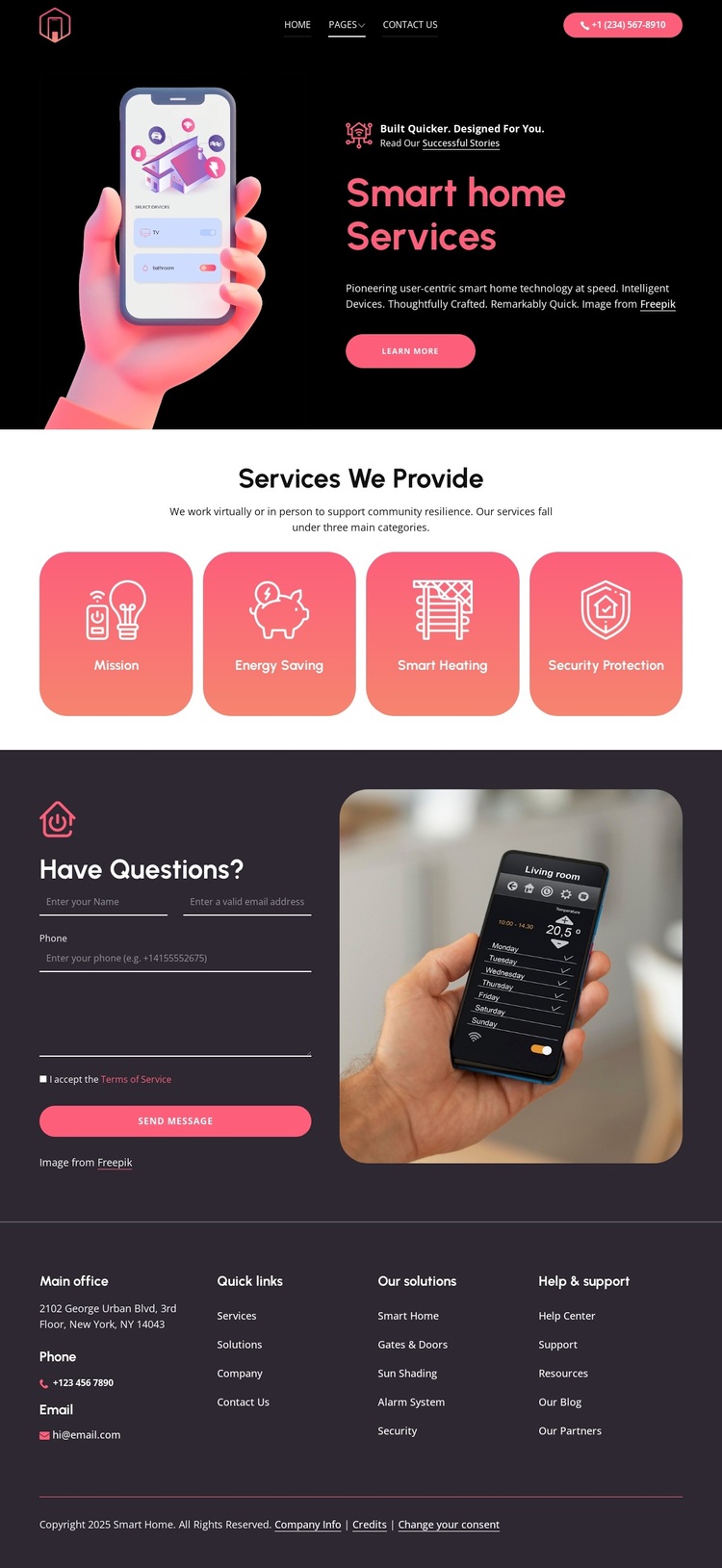
Device imagery and four service cards give the design a clear focus
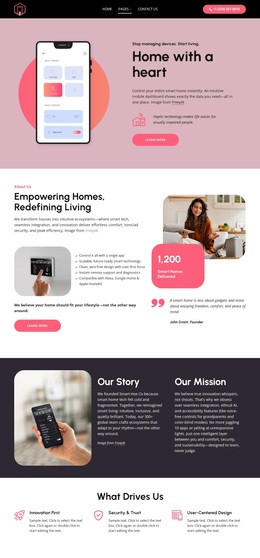
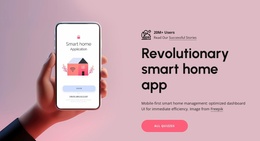
The smartphone hero immediately establishes the design’s subject without relying on dense introductory text. Its large device image sits beside the “Smart home Services” heading, supporting tagline, and learn more action, creating a visual direction suited to projects that need technology to remain visible in the first impression. The dark black and charcoal surfaces, coral and pink accents, rounded cards, and white typography reinforce that direction throughout the page.
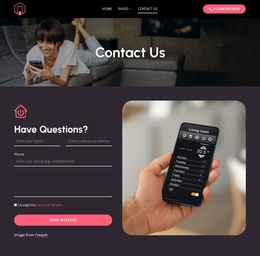
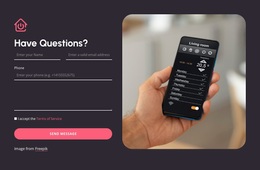
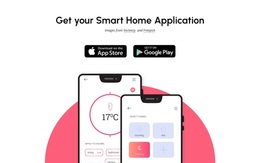
The four service cards make the design more specific than a general technology layout. Mission, Energy Saving, Smart Heating, and Security Protection cover different aspects of the smart home offering while preserving a repeated visual form. This gives the page practical content coverage and makes it easier to choose the design for a service project that needs several categories presented together. The later inquiry section adds a second device photograph beside the “Have Questions?” form and Send Message action, balancing explanation with an opportunity to respond.
The footer completes the choice by including office, phone, email, Quick links, Our solutions, and Help & support groups. Together, these facts create a ready-made direction for smart home services rather than an interchangeable business page. The design is strongest where product imagery, service categorization, and inquiry content work as one focused presentation.
Customize with Nicepage
Open this ready-made template in the Template Builder and customize it visually in the Nicepage editor. Replace demo content, edit page sections, and adapt the design to your project without rebuilding the template from scratch.
Start With a Ready-Made Template
Choose a Design for a New Page
Use a ready-made template as a starting point instead of creating every page from a blank canvas. When adding a new page in Nicepage, browse available designs, compare different layouts, and choose an option that already fits the general purpose and visual direction of your project.
Browse Different Page Designs
Explore Page Designs using search, thematic categories, Design Sets, and full-page previews. The collection includes layouts for different subjects and page purposes, making it easier to compare alternatives before selecting a design to customize.
Customize the Selected Template
After choosing a design, create the page and continue editing it visually in Nicepage. Replace the demo content, adjust images, typography, colors, sections, and other elements, and adapt the ready-made layout to your own content instead of rebuilding the design from the beginning.
Explore More Design Directions
If the first option does not match your project closely enough, return to the design collection and compare other templates before committing to a layout. This makes the template library useful not only for faster page creation, but also for exploring different visual approaches and finding a suitable starting point for a new project.
This workflow gives you access to a broad collection of ready-made designs that can be selected, compared, and customized according to the needs of each new page or project.

Design Set (23)
-

-
-
-
-
-
-
-
-
-
-
Free Website Builder SoftwareDownload
-
-
-