Art school education Template


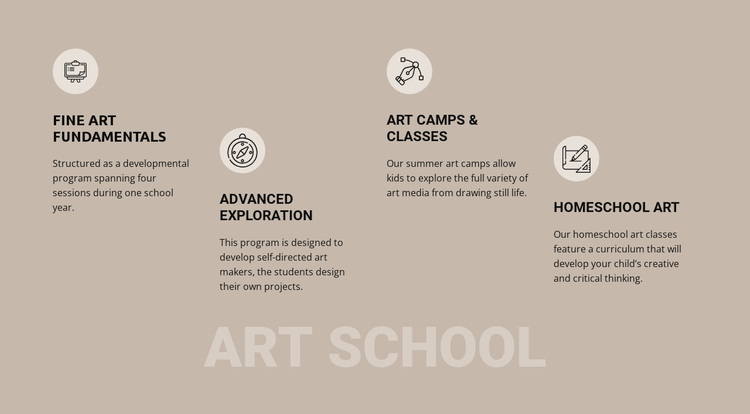
Staggered Program Columns Give the Art School Section a Distinctive Shape
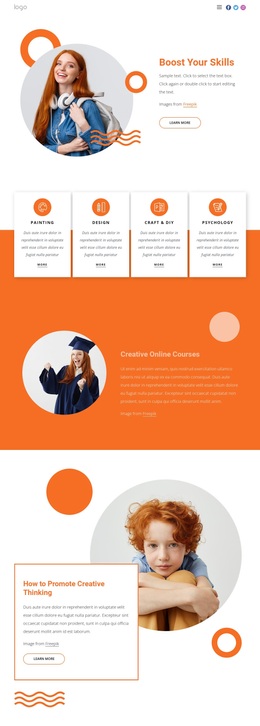
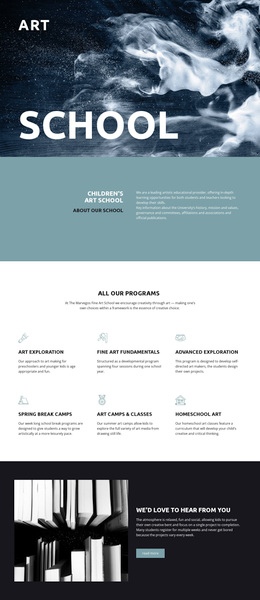
The section combines four specific program categories with a layout that is more expressive than a uniform list. Fine Art Fundamentals, Advanced Exploration, Art Camps & Classes, and Homeschool Art are distributed across four columns, each with a circular icon, title, and description. Their alternating vertical placement creates movement across the section, while the shared content pattern keeps the choices easy to compare.
This design is particularly suitable when a project needs to show range without expanding the program overview into a large card grid. The content already covers different educational directions: a four-session school-year fundamentals program, advanced work built around student-designed projects, camps and classes using varied media, and homeschool study centered on creative and critical thinking. Those differences give the four columns meaningful content rather than merely decorative labels.
The large “art school” title beneath the offerings adds a strong identifying gesture and gives the block a recognizable lower anchor. Pale circular icon treatments stand out against the warm taupe background, while black typography keeps the titles and descriptions clear. Among alternative section designs, this option works well when a page needs a compact feature block with named offerings, repeated visual markers, and a staggered composition that adds character without introducing interaction or unnecessary complexity.
Customize with Nicepage
Open this ready-made template in the Template Builder and customize it visually in the Nicepage editor. Replace demo content, edit page sections, and adapt the design to your project without rebuilding the template from scratch.
Edit Template Offline
2. Create a new page or select existing
3. Click Add new block, search for id 161387 and click enter
Edit Template Online
Create Awesome Websites


Free Nicepage Builder
Keywords
Start With a Ready-Made Template
Choose a Design for a New Page
Use a ready-made template as a starting point instead of creating every page from a blank canvas. When adding a new page in Nicepage, browse available designs, compare different layouts, and choose an option that already fits the general purpose and visual direction of your project.
Browse Different Page Designs
Explore Page Designs using search, thematic categories, Design Sets, and full-page previews. The collection includes layouts for different subjects and page purposes, making it easier to compare alternatives before selecting a design to customize.
Customize the Selected Template
After choosing a design, create the page and continue editing it visually in Nicepage. Replace the demo content, adjust images, typography, colors, sections, and other elements, and adapt the ready-made layout to your own content instead of rebuilding the design from the beginning.
Explore More Design Directions
If the first option does not match your project closely enough, return to the design collection and compare other templates before committing to a layout. This makes the template library useful not only for faster page creation, but also for exploring different visual approaches and finding a suitable starting point for a new project.
This workflow gives you access to a broad collection of ready-made designs that can be selected, compared, and customized according to the needs of each new page or project.