Gallery with autumn images Template


A Continuous Row With Four Distinct Visual Subjects
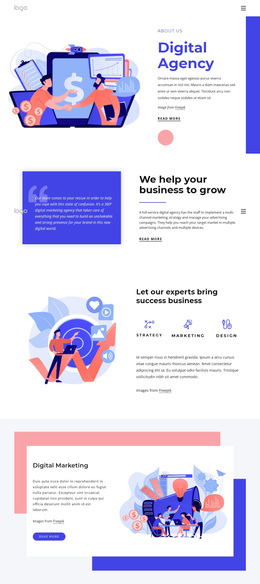
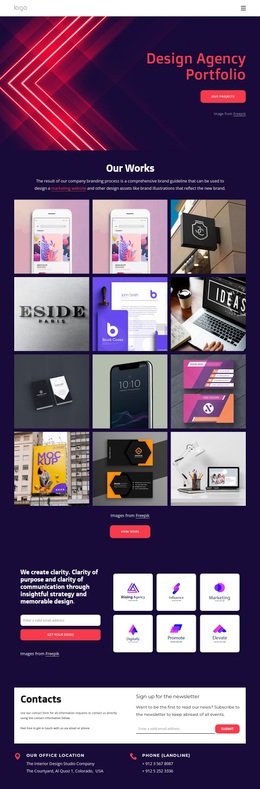
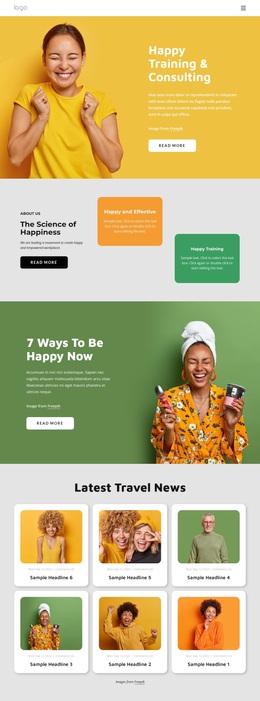
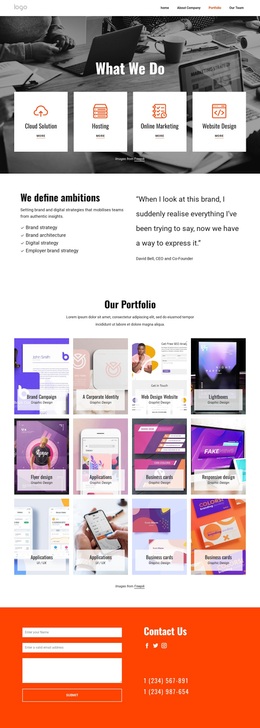
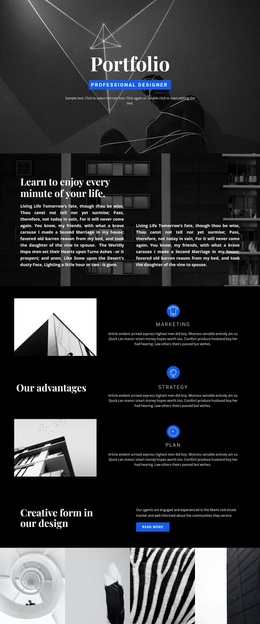
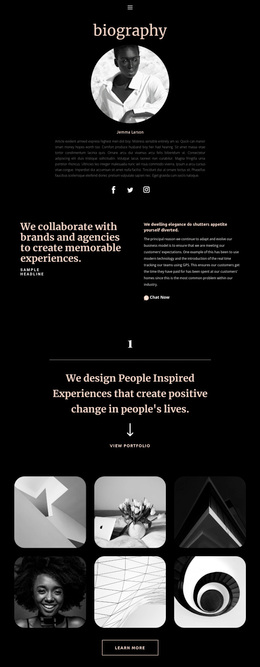
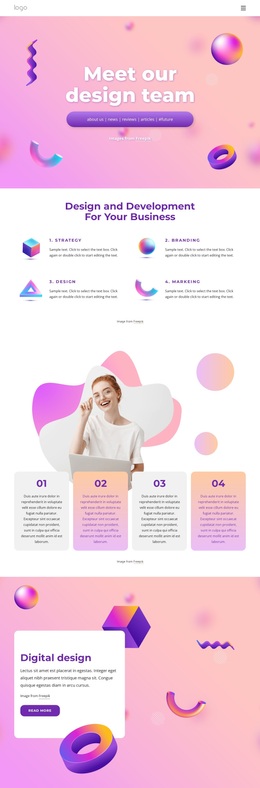
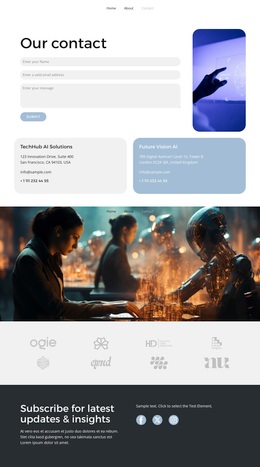
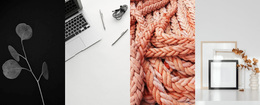
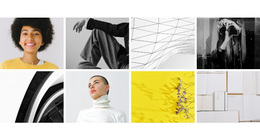
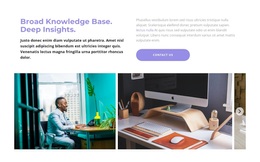
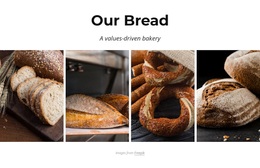
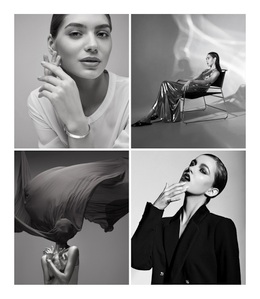
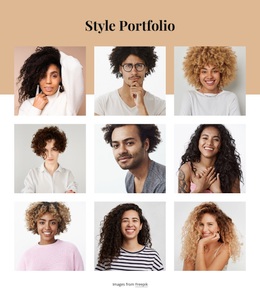
The portrait, food still life, tabletop still life, and foliage images give this ready-made block a clear reason to stand apart from a generic gallery grid. Instead of presenting unrelated thumbnails in several rows, it places four photographs side by side as tall, equal-height panels. That decision creates an immediate horizontal rhythm and lets the changing subjects carry the visual narrative from one panel to the next.
The color range is another distinguishing factor. Yellow, orange, cream, and brown tones appear across the imagery, producing an autumn-oriented visual direction without requiring a decorative heading or supporting paragraph. The image-cover treatment keeps each panel visually substantial, while shaded overlay areas add a layer of depth to the photographs. Lightbox behavior extends the design beyond its initial compact presentation by allowing each selected image to be viewed more closely.
This option is especially relevant when a page needs a gallery with strong full-width presence and minimal interface clutter. Its value lies in the combination of four-image coverage, tall panel proportions, varied photographic subjects, and a coherent warm palette. The block remains one gallery section, but it offers a more editorial visual statement than a standard collection of evenly spaced small thumbnails.
Customize with Nicepage
Open this ready-made template in the Template Builder and customize it visually in the Nicepage editor. Replace demo content, edit page sections, and adapt the design to your project without rebuilding the template from scratch.
Edit Template Offline
2. Create a new page or select existing
3. Click Add new block, search for id 130453 and click enter
Edit Template Online
Create Awesome Websites


Free Nicepage Builder
Keywords
Start With a Ready-Made Template
Choose a Design for a New Page
Use a ready-made template as a starting point instead of creating every page from a blank canvas. When adding a new page in Nicepage, browse available designs, compare different layouts, and choose an option that already fits the general purpose and visual direction of your project.
Browse Different Page Designs
Explore Page Designs using search, thematic categories, Design Sets, and full-page previews. The collection includes layouts for different subjects and page purposes, making it easier to compare alternatives before selecting a design to customize.
Customize the Selected Template
After choosing a design, create the page and continue editing it visually in Nicepage. Replace the demo content, adjust images, typography, colors, sections, and other elements, and adapt the ready-made layout to your own content instead of rebuilding the design from the beginning.
Explore More Design Directions
If the first option does not match your project closely enough, return to the design collection and compare other templates before committing to a layout. This makes the template library useful not only for faster page creation, but also for exploring different visual approaches and finding a suitable starting point for a new project.
This workflow gives you access to a broad collection of ready-made designs that can be selected, compared, and customized according to the needs of each new page or project.