Creative thinking skills Template

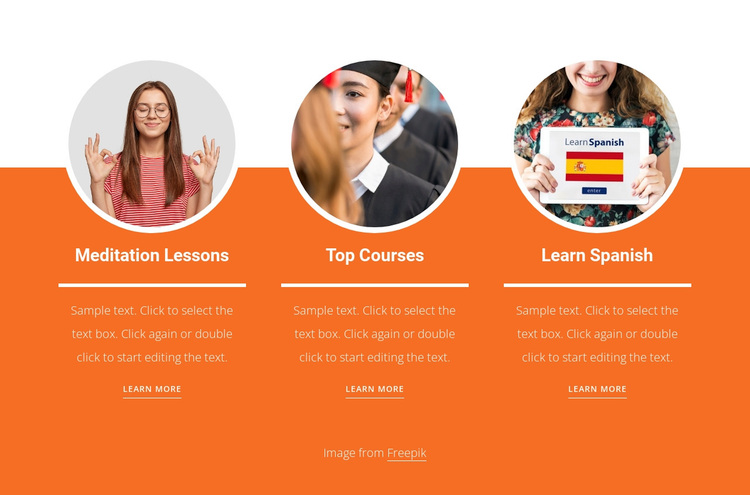
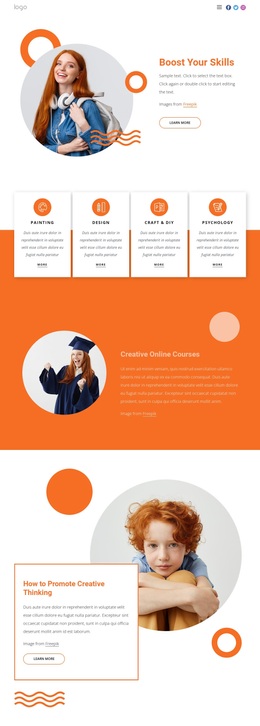
A strong three-column pattern gives this section a clear visual and content identity. It presents Meditation Lessons, Top Courses, and Learn Spanish as three equal offering cards, each pairing a circular white-bordered image with a title, divider, supporting paragraph, and learn-more button. The bright orange background and white band behind the upper image areas create immediate contrast, while generous spacing keeps the cards distinct. This design suits a page that needs to show several educational lesson or course choices together without expanding into a long list.
ID : 1084027   |   Category : Education, Grid Repeater

Circular Images and Three Equal Choices Define the Design

The section combines a repeated three-card structure with a visual treatment that is more distinctive than a plain list of course links. Meditation Lessons, Top Courses, and Learn Spanish appear as equal choices, each supported by a circular image, a title, a divider, descriptive text, and a learn-more action. That combination gives the design enough content coverage to introduce several educational options while keeping every choice within the same compact row.

The bright orange background supplies a strong field for the centered white typography, and the white horizontal band behind the upper image portions creates a visible connection across the three cards. Thick white borders around the circular images add another repeated motif, while generous column spacing prevents the composition from feeling crowded. The underlined buttons retain a text-led appearance rather than introducing large competing controls.

This makes the block a useful design choice when a page needs a compact educational offerings section with image emphasis and clear onward actions. It can distinguish course categories visually without relying on a dense grid of small tiles or a single large text panel. The static presentation also keeps all three options available for immediate comparison. In a broader page, surrounding sections can add context or detailed destinations while this particular block remains the recognizable choice area.

Customize with Nicepage

Open this ready-made template in the Template Builder and customize it visually in the Nicepage editor. Replace demo content, edit page sections, and adapt the design to your project without rebuilding the template from scratch.

Edit Template Offline

1. Download and Install the Nicepage application for Windows and Mac. Or WordPress and Joomla plugins from the download page
2. Create a new page or select existing
3. Click Add new block, search for id 1084027 and click enter

Edit Template Online

Run Online Builder to edit this template on our hosting

Create Awesome Websites

WordPress Plugin WordPress
Windows Application Windows App
Joomla Plugin Joomla
Mac OS Application Mac OS App
HTML5 HTML5
Online Builder Online

Free Nicepage Builder

15,000+ Templates
Easy Drag-n-Drop
No Coding
Mobile-Friendly

Keywords


Start With a Ready-Made Template

Choose a Design for a New Page

Use a ready-made template as a starting point instead of creating every page from a blank canvas. When adding a new page in Nicepage, browse available designs, compare different layouts, and choose an option that already fits the general purpose and visual direction of your project.

Browse Different Page Designs

Explore Page Designs using search, thematic categories, Design Sets, and full-page previews. The collection includes layouts for different subjects and page purposes, making it easier to compare alternatives before selecting a design to customize.

Customize the Selected Template

After choosing a design, create the page and continue editing it visually in Nicepage. Replace the demo content, adjust images, typography, colors, sections, and other elements, and adapt the ready-made layout to your own content instead of rebuilding the design from the beginning.

Explore More Design Directions

If the first option does not match your project closely enough, return to the design collection and compare other templates before committing to a layout. This makes the template library useful not only for faster page creation, but also for exploring different visual approaches and finding a suitable starting point for a new project.

This workflow gives you access to a broad collection of ready-made designs that can be selected, compared, and customized according to the needs of each new page or project.

Template selection in the Nicepage New Page dialog

More from Education Templates