Plants can increase productivity Joomla Template


A Structured Plant Gallery for Joomla-Managed Interior Content
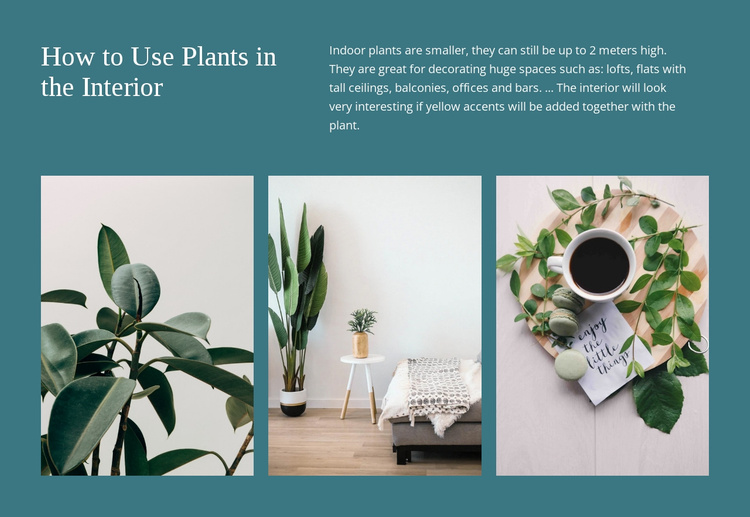
The heading “How to Use Plants in the Interior” establishes a focused subject before the visual examples begin. A two-column introductory row places the serif heading on the left and the explanatory paragraph on the right, allowing the text to provide context without competing with the images below. The paragraph discusses indoor plant height and names several settings where plants may decorate interiors, including lofts, flats with tall ceilings, balconies, offices, and bars.
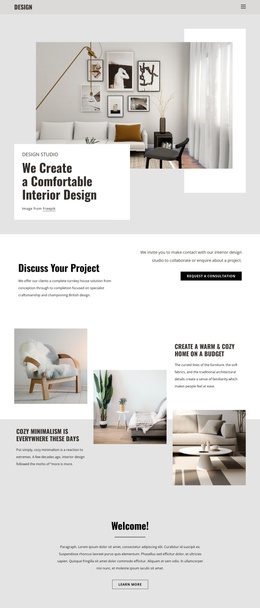
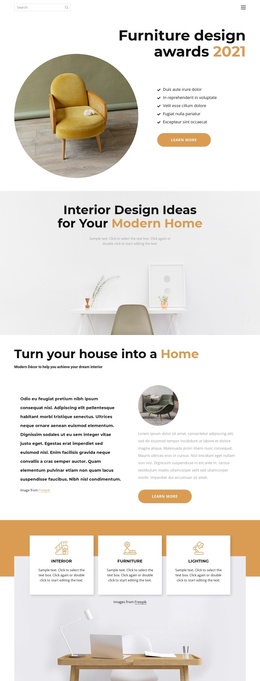
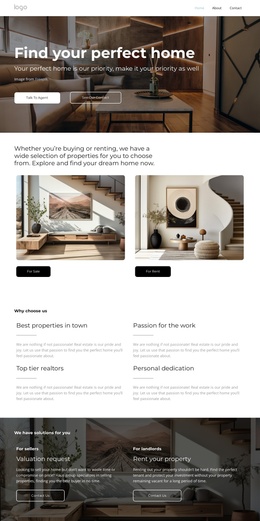
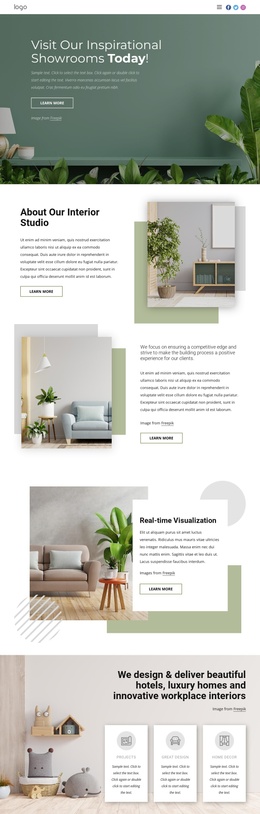
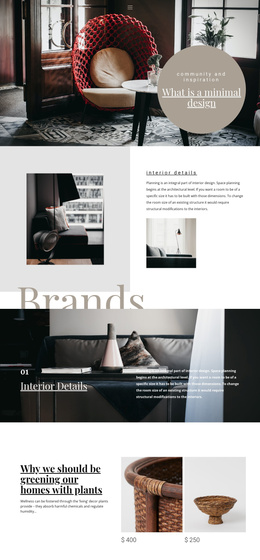
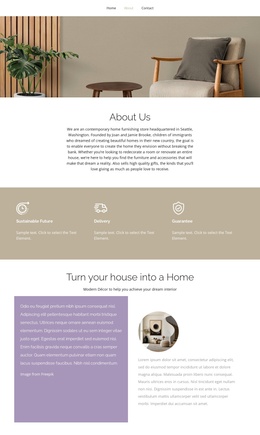
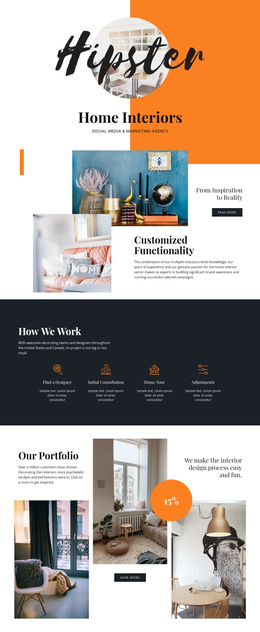
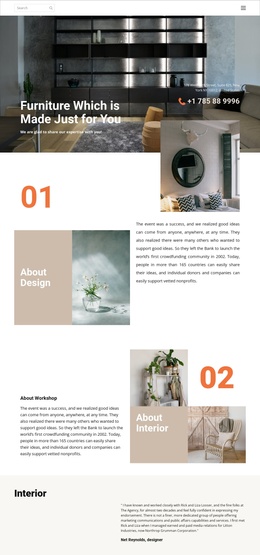
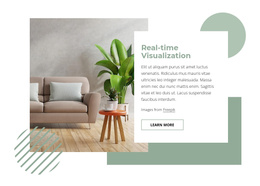
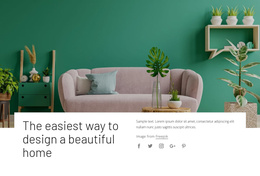
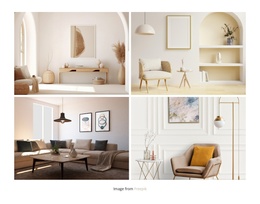
The lower region presents three tall photographs in one evenly spaced row. Each image shows indoor plants or plant arrangements in an interior setting, so the gallery works as a compact visual reference rather than a long list of separate content items. Lightbox viewing gives visitors a closer look when an image needs more attention, while the original three-column arrangement keeps the section easy to scan.
Within a Joomla-managed website, this block can serve as a structured visual content region for an article-like page about interiors, plant styling, or related design ideas. Its heading, explanatory copy, and gallery can remain a recognizable section while the surrounding Joomla project manages other editorial content and page areas. The block therefore contributes a defined gallery role without standing in for the broader Joomla template or site structure.
Customize with Nicepage
Open this ready-made template in the Joomla Page Builder and customize it visually in the Nicepage editor. Replace demo content, edit page sections, and adapt the design to your project without rebuilding the template from scratch.
Edit Template Offline
2. Create a new page or select existing
3. Click Add new block, search for id 62428 and click enter
Edit Template Online
Create Awesome Websites


Free Nicepage Builder
Keywords
Work With This Template in Joomla
Customize and Install the Joomla Template
Start with this ready-made template instead of building the Joomla design from scratch. Customize its layout, content, typography, images, sections, and other design elements visually in the Nicepage application, then export and install the Joomla Template, Nicepage Extension, and supported content on your Joomla website.
Edit the Template Directly in Joomla
After installation, you can edit the Joomla Template directly in Joomla with the Nicepage Joomla Extension. Customize the Header, Footer, Colors, Fonts, typography, and Page Templates from the Joomla workflow while keeping the site design connected with your CMS content.
Edit Joomla Articles Visually
Use the Nicepage Joomla Extension to open and edit Joomla Articles visually from the Joomla Administrator. Change text, images, sections, layouts, and other page content in the Nicepage editor while continuing to manage the Articles through Joomla.
Joomla Content and Template Integration
Use the customized template together with Joomla Articles, module Positions, menus, forms, Blog Pages, and other supported CMS elements. With the Nicepage Extension used as the Site Style Source, shared design settings can be applied across Joomla Articles while Joomla continues to provide the CMS environment for managing site content.
This workflow combines a ready-made Joomla Template with visual customization, direct template editing in Joomla, and continued content management through the Nicepage Joomla Extension.