Team of three Joomla Template



Three Portraits Frame Structured Team Information
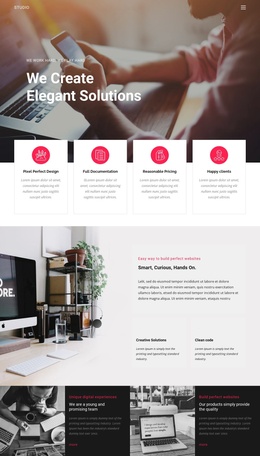
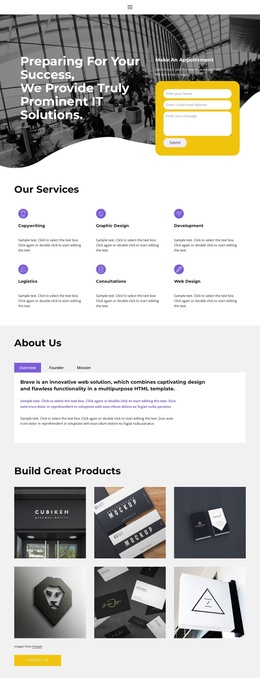
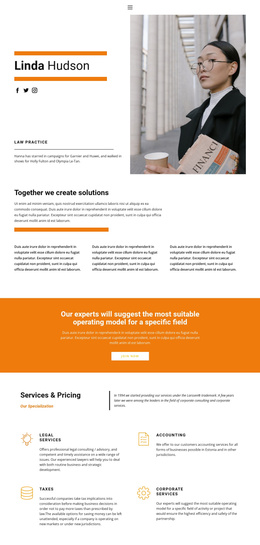
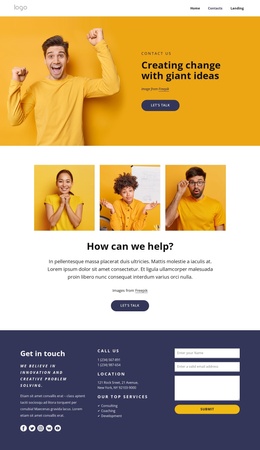
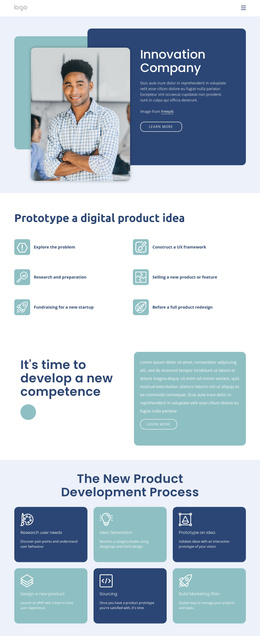
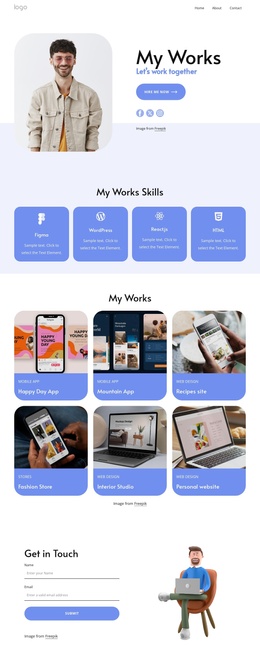
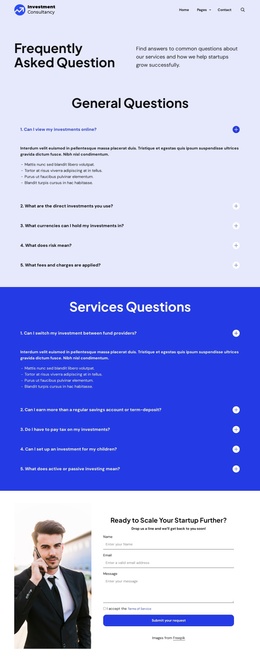
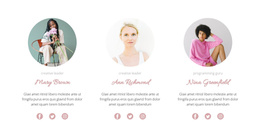
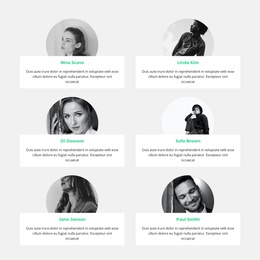
Three monochrome portraits establish the block’s subject before the lower row explains the surrounding business context. The images are arranged across the top of a three-column composition, while the content below keeps the center panel visually distinct from the two side text areas. A light-gray center panel contains the centered “Our Team” heading and sample editing instruction text; the white side columns carry paragraphs about adapting the business model, GPS tracking, online booking, and customer service control.
In a Joomla-managed page, this arrangement can function as a reusable team-information region within broader article or site content. The portrait row gives the section an immediate people-focused identity, while the side paragraphs provide room for organizational or service-related context. The middle panel acts as the visual anchor, separating the heading from the longer narrative areas without introducing tabs, sliders, or other interaction. Because the composition is static, its role depends on the relationship between the three portraits, the centered title, and the supporting copy.
The sample instruction text should be replaced with the project’s own team description during content editing. The surrounding Joomla-managed page can provide navigation and additional sections, while this block remains focused on introducing people and the context in which they work. Its three aligned columns also create a consistent content region that can sit between introductory material and later service or contact sections.
Customize with Nicepage
Open this ready-made template in the Joomla Page Builder and customize it visually in the Nicepage editor. Replace demo content, edit page sections, and adapt the design to your project without rebuilding the template from scratch.
Edit Template Offline
2. Create a new page or select existing
3. Click Add new block, search for id 439934 and click enter
Edit Template Online
Create Awesome Websites


Free Nicepage Builder
Keywords
Work With This Template in Joomla
Customize and Install the Joomla Template
Start with this ready-made template instead of building the Joomla design from scratch. Customize its layout, content, typography, images, sections, and other design elements visually in the Nicepage application, then export and install the Joomla Template, Nicepage Extension, and supported content on your Joomla website.
Edit the Template Directly in Joomla
After installation, you can edit the Joomla Template directly in Joomla with the Nicepage Joomla Extension. Customize the Header, Footer, Colors, Fonts, typography, and Page Templates from the Joomla workflow while keeping the site design connected with your CMS content.
Edit Joomla Articles Visually
Use the Nicepage Joomla Extension to open and edit Joomla Articles visually from the Joomla Administrator. Change text, images, sections, layouts, and other page content in the Nicepage editor while continuing to manage the Articles through Joomla.
Joomla Content and Template Integration
Use the customized template together with Joomla Articles, module Positions, menus, forms, Blog Pages, and other supported CMS elements. With the Nicepage Extension used as the Site Style Source, shared design settings can be applied across Joomla Articles while Joomla continues to provide the CMS environment for managing site content.
This workflow combines a ready-made Joomla Template with visual customization, direct template editing in Joomla, and continued content management through the Nicepage Joomla Extension.