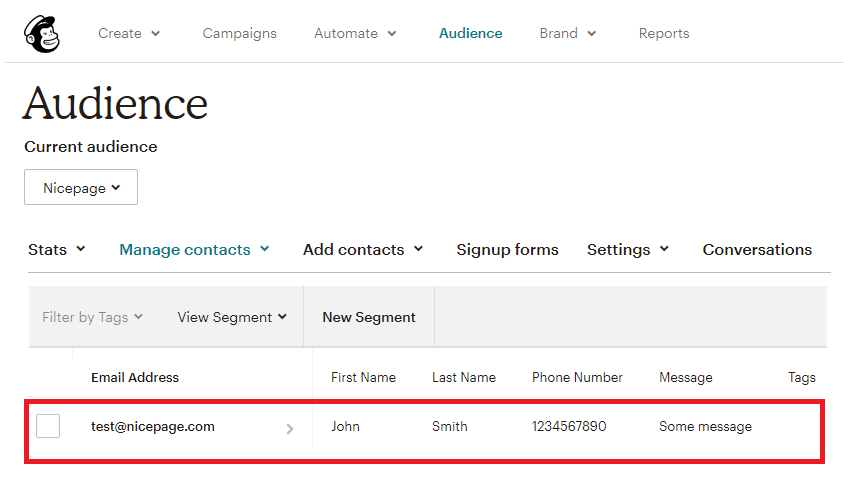
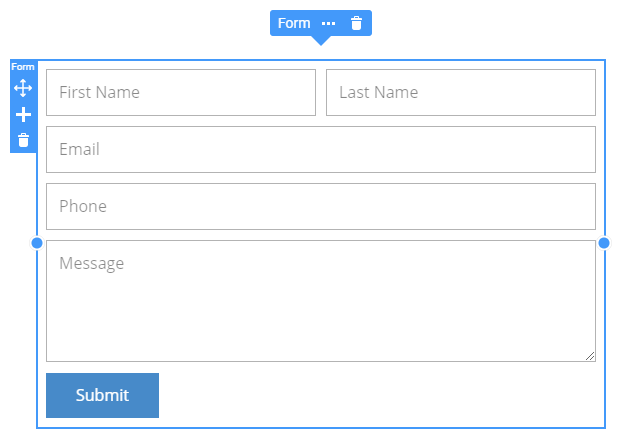
This article describes filling MailChimp's list with data captured by the Nicepage Form. For example, you need a Form containing the Email, First Name, Last Name, Phone, and Message fields. The Form should send this data to Mailchimp.
Nicepage Form supports basic fields like Email, Message, and Phone and custom fields like Text, Textarea, and Checkbox. You can use the custom First Name and Last Name fields.
Add Contact Form
You can add the Contact Form Element from the Add Menu.
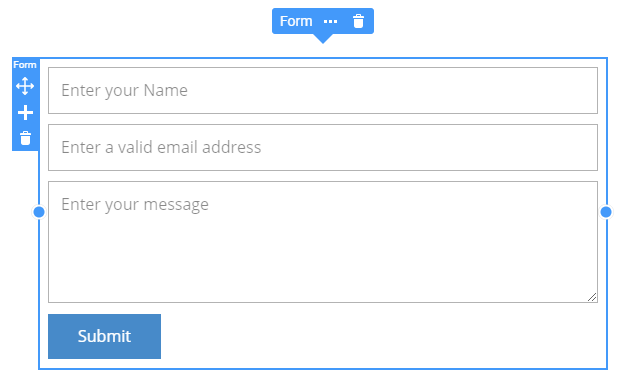
Modify Contact Form
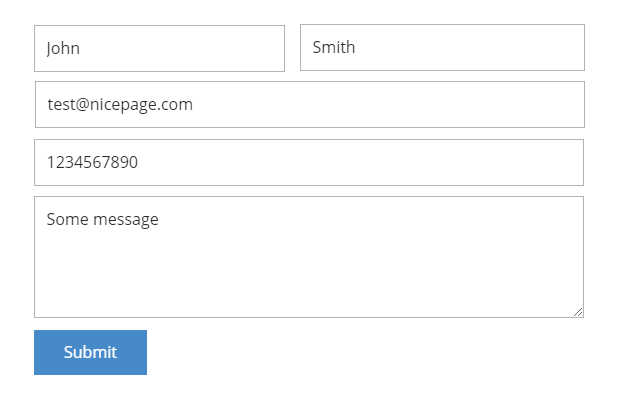
Remove the unnecessary fields and add custom fields of Input type for First Name and Last Name:
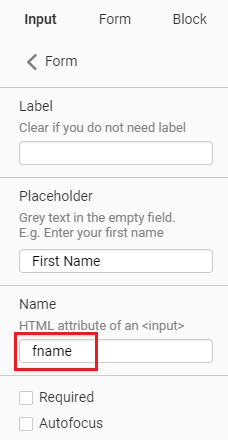
Add unique name attributes for the custom fields.
Create Audience
For the new Mailchimp account, the Audience is created automatically, and Mailchimp fills it in with the details you provide.
Read more about adding a new Audience
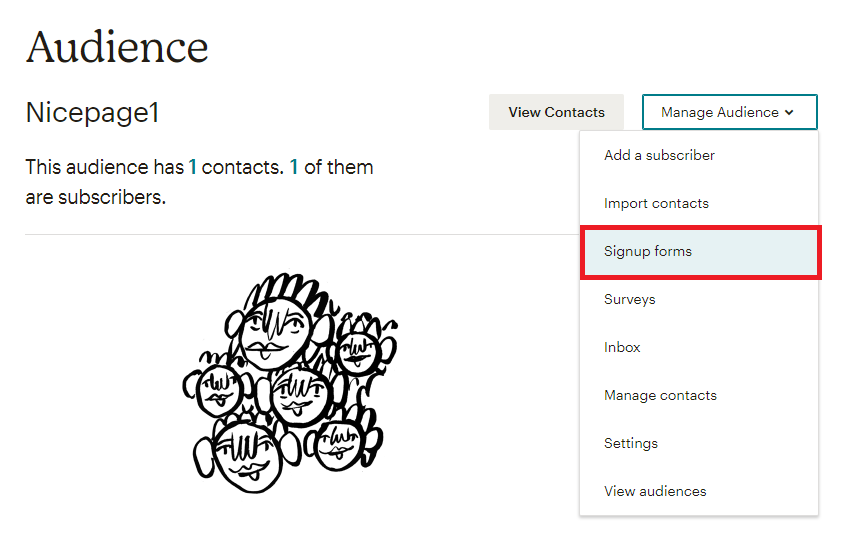
Once the Audience is created, select it in the list and click Signup forms.
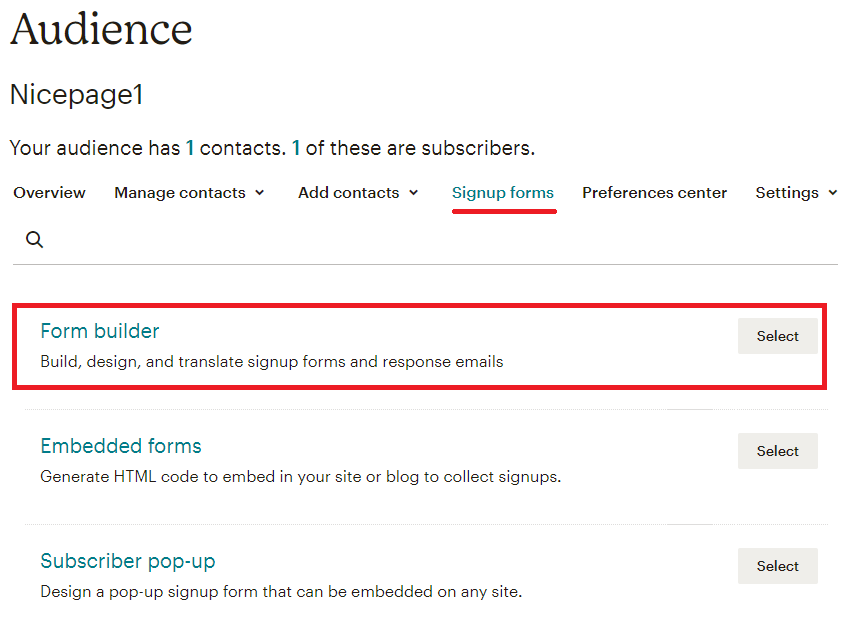
Select Form Builder.
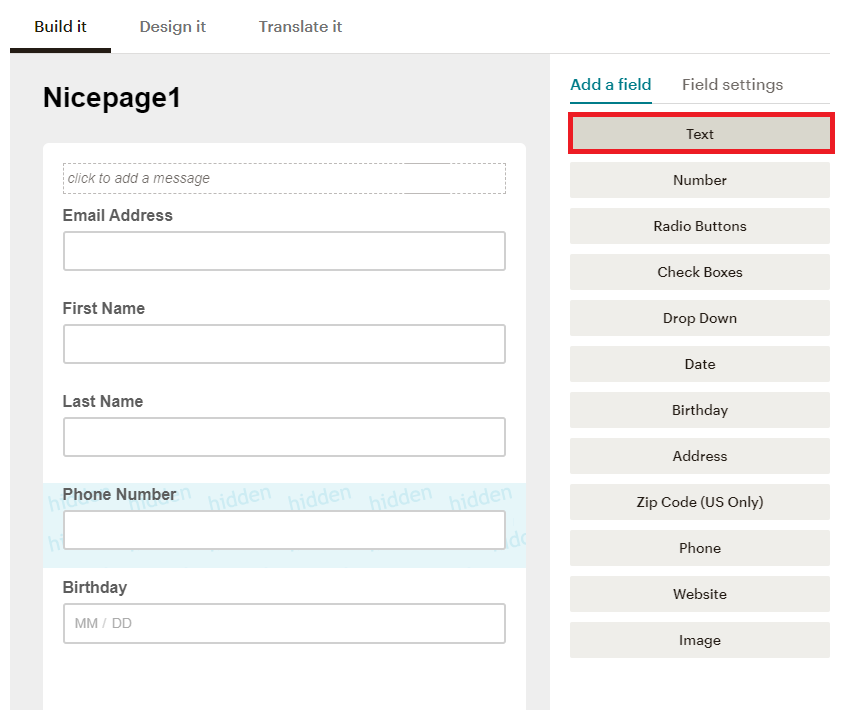
Build the Form with the same fields as you made in Nicepage Editor.
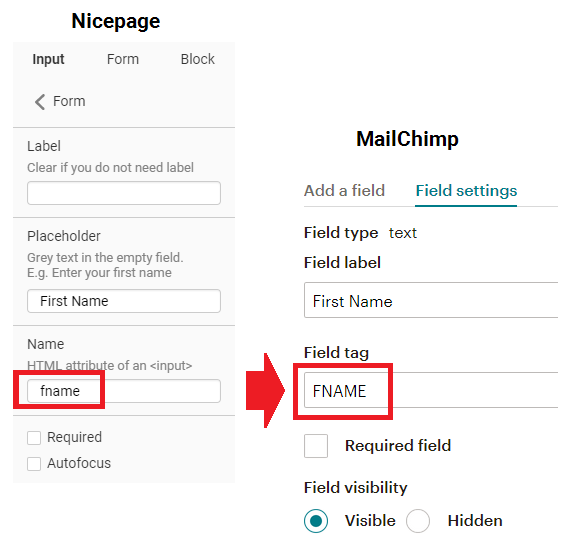
Specify Field Tags
IMPORTANT! The data in the Field Tag of the fields in the MailChimp form must match the name attributes of the corresponding Nicepage fields.
Please note that you should only type MailChimp's Field Tag name attributes in the upper case.
Submit Code
Go to Signup Forms - > Embedded Forms section.
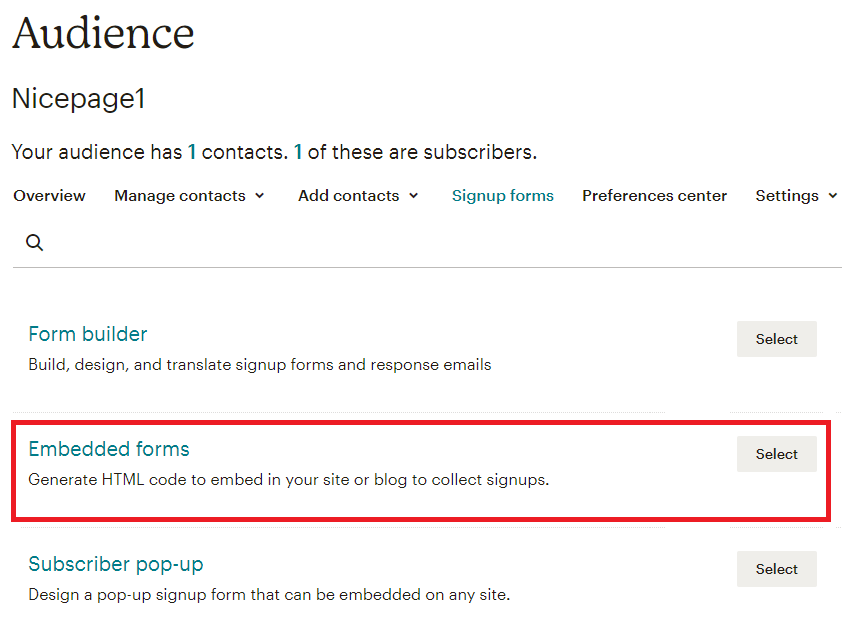
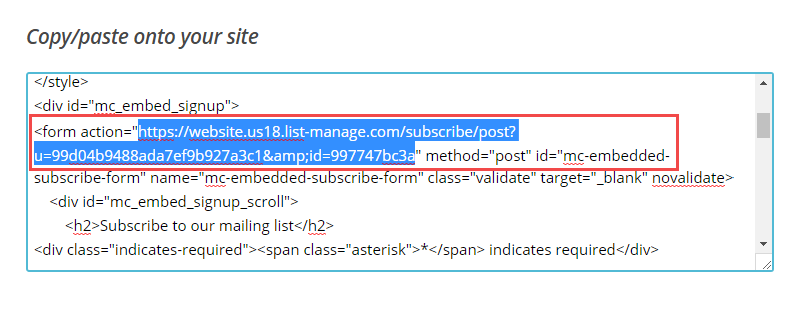
Like previously, go to the Classic tab and copy the Form Action URL.
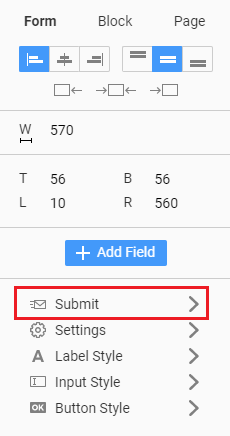
Return to Nicepage, select your Form, go to the Property Panel, select the Submit Tab, and select MailChimp.
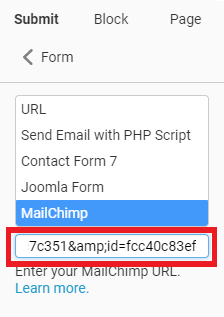
Paste the copied Action URL to the field under the list.
Save Changes.
Test Contact Form
You can now test your Form. Enter data into the Contact Form fields, then ck on the "Submit" button in the browser preview.
Return to your MailChimp and verify that you get the new form submission.