
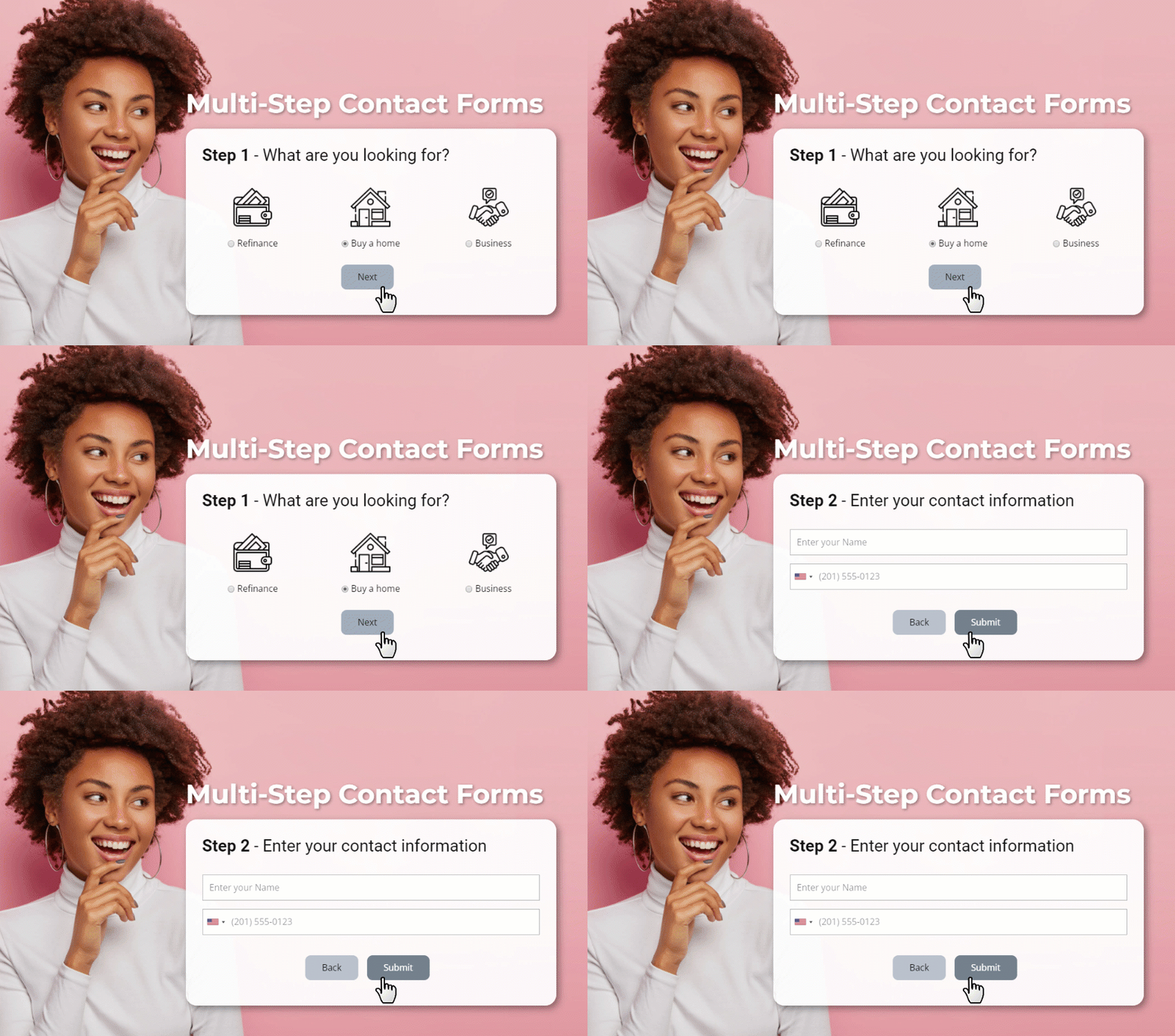
Use the Multi-Step Contact Forms to build questionnaires and make communication with users more interactive.
Add Form Step
You can add a Form Step to the Contact Form Element by clicking on the Plus icon and then choosing the Add Form Step option.

Form Step Layout
You can also switсh the Layout of the Contact Form Element to the Multi-Step Layout in the Property Panel.

Form Step Title
You can add a title for each Form Step, for example, "Goods," "Contacts," "Delivery," etc., or remove it if you want icons without Text.

Add Fields To Form Step
After adding a new Form Step, you can insert Fields separately to each Step from the Add Panel for the Contact Form Element.

Switch And Move Form Steps
Click on the Step Tab to select the Contact Form Step. Drag left or right while holding the right mouse button to reorder the Step Tab.

Form Step Tab Options
Click the Arrow on the selected Step Tab to open the Options Menu for the current Contact Form Step.

Stylize Form Steps
By editing properties in the Property Panel, you can stylize the Multi-Step Contact Form like a regular one.

Delete Form Step
You can delete the Contact Form Step by pressing the DEL key or clicking the Delete link in the Options Menu.

Hide Step Numbers
Use the Show Slide Numbers property for the Progress Icon for the Multi-Step Contact Form, allowing you to hide the Step Numbers.

It may be instrumental in Mobile Views if you have a lengthy Contact Form with many steps, and the Progress bar does not fit the width of a smaller screen.

Publish Or Preview
Publish or preview the Multi-Step Contact Form to view its actual appearance and test its functionality.
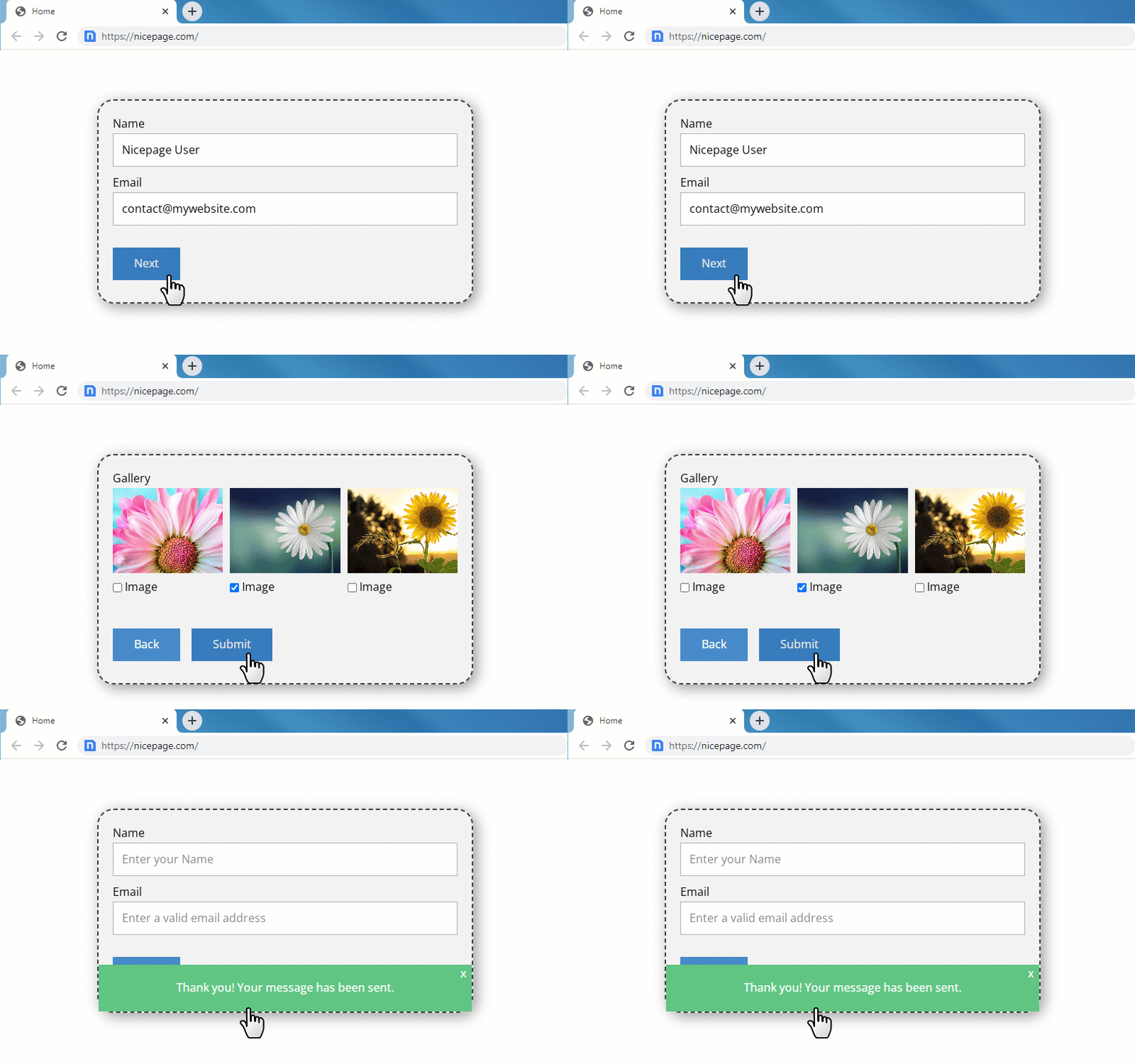
Regular validation is also applied to the Multi-Step Contact Forms Field Values.
