Chief Engineer WordPress Theme


A Stable Expertise Section for WordPress Page Content
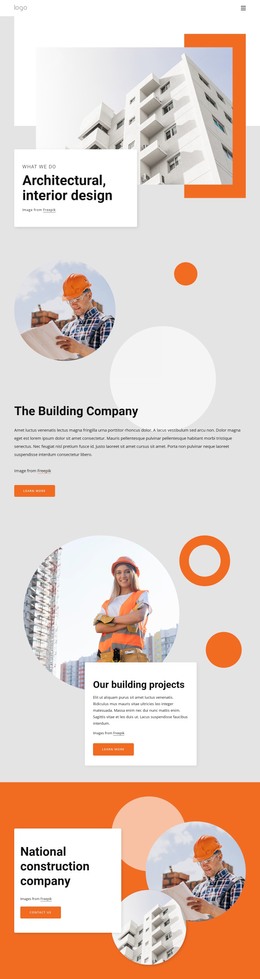
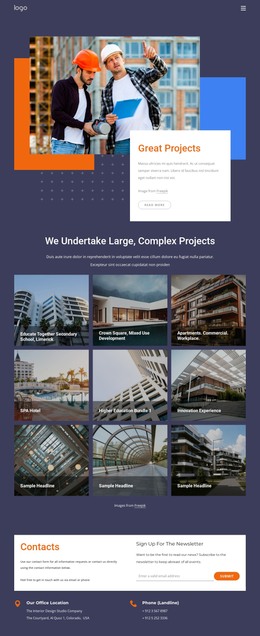
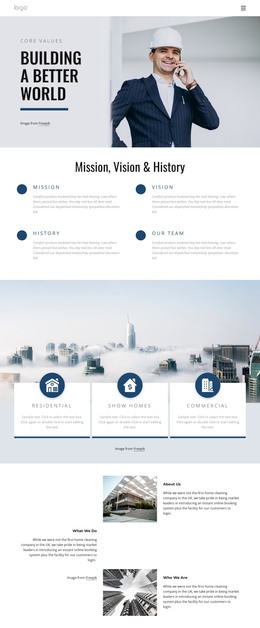
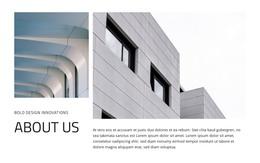
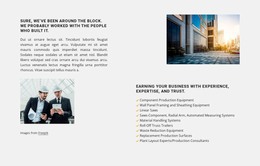
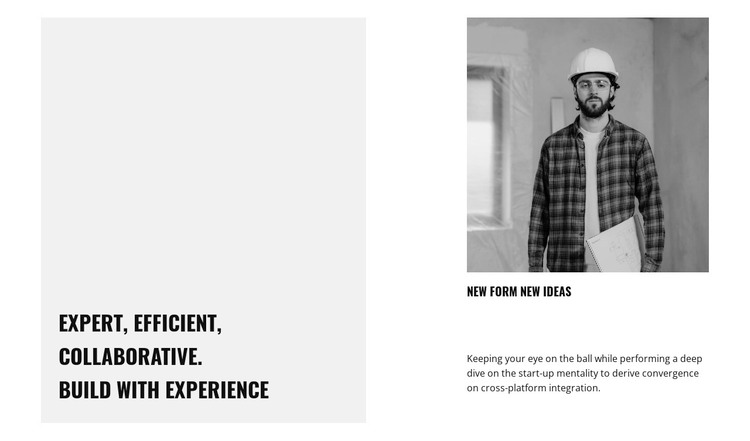
The large statement panel gives this block a clear page-content role. On the left, “Expert, Efficient, Collaborative. Build With Experience” introduces the section’s central idea in large condensed typography against a tall light-gray field. The right column supports that message with a construction professional wearing a hard hat and holding architectural documents, followed by a secondary heading and paragraph. The image and text therefore work as contextual content rather than as separate visual fragments.
In a WordPress-managed page, this arrangement can function as stable about or expertise content for an architecture or construction project. It is suited to information that should remain part of a page’s main presentation while the wider site adds services, project details, contact information, or other sections around it. The split layout keeps the statement prominent without requiring the block to carry the complete page narrative.
The monochrome palette also gives the section a consistent visual base for page content. Black typography, white space, and the light-gray panel distinguish the primary message from the image-led explanation, while the static interaction keeps attention on reading and visual context. If the wording or image changes later, the same two-column relationship can continue to present expertise as one recognizable content area within the broader WordPress site.
Customize with Nicepage
Open this ready-made template in the WordPress Website Builder and customize it visually in the Nicepage editor. Replace demo content, edit page sections, and adapt the design to your project without rebuilding the template from scratch.
Edit Template Offline
2. Create a new page or select existing
3. Click Add new block, search for id 745876 and click enter
Edit Template Online
Create Awesome Websites


Free Nicepage Builder
Keywords
Manage and Edit This Theme in WordPress
Customize and Install the WordPress Theme
Start with this ready-made theme instead of building the WordPress design from scratch. Customize its layout, content, typography, images, sections, and other design elements visually in Nicepage editor, then export and install the WordPress Theme, Plugin, and Pages on your WordPress site. The Nicepage WordPress Plugin lets you continue working with the site after installation.
Edit the Theme Directly in WordPress
After installation, you can edit the WordPress Theme directly in WordPress with the Nicepage WordPress Plugin. Use Site Style to customize site Colors, Fonts, Header, Footer, Blog, and Post Page Templates while working within your WordPress website.
Edit WordPress Pages Visually
Use the Nicepage WordPress Plugin to edit page content directly from the WordPress admin area. Open a WordPress Page with Nicepage and visually change its text, images, sections, and other page elements while continuing to manage the Page through WordPress.
WordPress Content and Theme Integration
Use the customized theme with WordPress Pages, Posts, Blog and Post Templates, menus, widgets, and other CMS-managed content. Shared theme elements such as Colors, Fonts, Header, Footer, Blog, and Post Page Templates can be managed as part of the overall site design, while WordPress provides the CMS environment for managing site content.
This workflow combines a ready-made WordPress Theme with visual customization, direct theme editing in WordPress, and continued content management through the Nicepage WordPress Plugin.