Communication with agency WordPress Theme


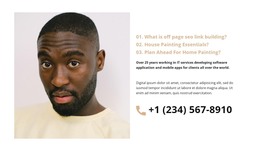
The portrait-and-question split suits stable page content
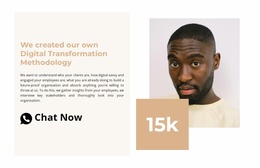
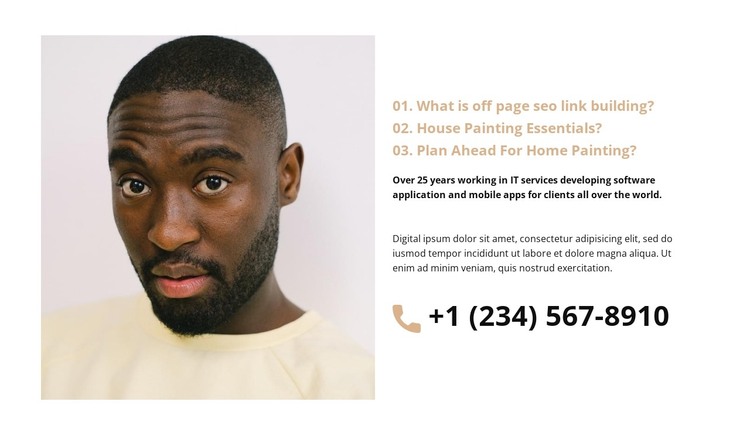
The left portrait gives the section a recognizable visual anchor, while the right column organizes organization and offering information into a compact reading path. Three numbered question prompts appear before the supporting paragraphs, so the content can introduce several concerns or themes before moving into broader explanation. The phone line beneath the copy adds a practical contact channel without changing the block into a complete contact page.
In a WordPress-managed page, this arrangement can serve as stable about or services-related content that remains part of the page’s visual design. The portrait, numbered prompts, explanatory text, and phone detail work together as one reusable region; other CMS-managed content can surround it with more detailed service information, articles, or additional response points. The sample wording and phone value can be replaced with the project’s own content while preserving the same relationships.
The vertically centered right column is especially important to the section’s balance. It keeps the text group visually aligned with the square image rather than allowing the contact line to appear as an unrelated footer-like element. Because the interaction is static, visitors move through the prompts and supporting copy in a predictable order. Within a broader WordPress project, that makes the block suitable for a permanent page section whose content can be maintained alongside the surrounding site.
Customize with Nicepage
Open this ready-made template in the WordPress Website Builder and customize it visually in the Nicepage editor. Replace demo content, edit page sections, and adapt the design to your project without rebuilding the template from scratch.
Edit Template Offline
2. Create a new page or select existing
3. Click Add new block, search for id 2059491 and click enter
Edit Template Online
Create Awesome Websites


Free Nicepage Builder
Keywords
Manage and Edit This Theme in WordPress
Customize and Install the WordPress Theme
Start with this ready-made theme instead of building the WordPress design from scratch. Customize its layout, content, typography, images, sections, and other design elements visually in Nicepage editor, then export and install the WordPress Theme, Plugin, and Pages on your WordPress site. The Nicepage WordPress Plugin lets you continue working with the site after installation.
Edit the Theme Directly in WordPress
After installation, you can edit the WordPress Theme directly in WordPress with the Nicepage WordPress Plugin. Use Site Style to customize site Colors, Fonts, Header, Footer, Blog, and Post Page Templates while working within your WordPress website.
Edit WordPress Pages Visually
Use the Nicepage WordPress Plugin to edit page content directly from the WordPress admin area. Open a WordPress Page with Nicepage and visually change its text, images, sections, and other page elements while continuing to manage the Page through WordPress.
WordPress Content and Theme Integration
Use the customized theme with WordPress Pages, Posts, Blog and Post Templates, menus, widgets, and other CMS-managed content. Shared theme elements such as Colors, Fonts, Header, Footer, Blog, and Post Page Templates can be managed as part of the overall site design, while WordPress provides the CMS environment for managing site content.
This workflow combines a ready-made WordPress Theme with visual customization, direct theme editing in WordPress, and continued content management through the Nicepage WordPress Plugin.